> ## Documentation Index
> Fetch the complete documentation index at: https://docs.abbyy.com/llms.txt
> Use this file to discover all available pages before exploring further.
# Configuring export of data from ABBYY FlexiCapture to M-Files
> Set up data export from FlexiCapture to M-Files: upload your project to the Application Server, add connector assemblies, and create an export profile.
In FC, documents are processed within projects. FC will identify the type of each document and apply the appropriate Document Definition that has been prepared specifically for that type. Each Document Definition includes one or more export profiles to be used for exporting document images and data. To set up the export of data from FC, you will need to create a new script export profile in your FC project.
Before setting up the connector, please make sure that you have the following software installed:
* ABBYY FlexiCapture 12 Project Setup Station (required if you are using ABBYY FlexiCapture Distributed Edition or ABBYY FlexiCapture Cloud).
You will also need access rights to M-Files.
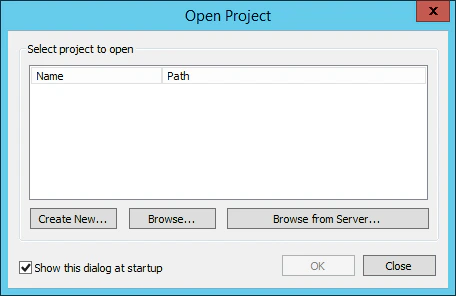
If you already have an FC project for which you need to set up data export to M-Files, open that project. Otherwise, you will need to create a project. Launch the Project Setup Station and in the **Open Project** dialog box click:
* **Create New\...** to create a new project.
* **Browse...** to open an existing project stored on your local drive.
* **Browse from Server...** to a open a project that you earlier uploaded to the ABBYY FlexiCapture Application Server.
 The distribution package includes a sample ABBYY FlexiCapture project named "[InvoiceDemoProject](/flexi-capture/connectors/m-files-invoice-demo-project)" with a preconfigured profile for exporting data to M-Files. To open this project for editing, unzip the **InvoiceDemoProject.zip** archive located in Samples\FlexiCapture Project and open the **InvoiceDemoProject.fcproj** file on the Project Setup Station.
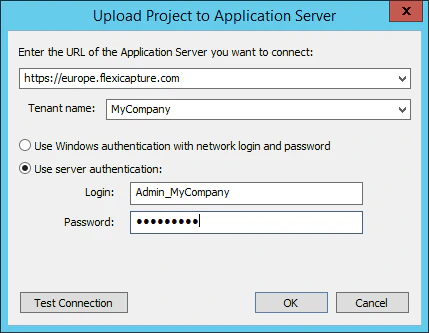
Next, you need to upload the project on to the ABBYY FlexiCapture Application Server. To do this, click **File → Upload Project to Server...** and in the **Upload Project to Application Server** dialog box specify the address of the server, the protocol to be used, and your credentials.
If you are using ABBYY FlexiCapture Cloud, complete the **URL** field, specifying one of the following three FlexiCapture Cloud instances (you should specify the instance that your company is registered in):
* [https://europe.flexicapture.com](https://europe.flexicapture.com)
* [https://australia.flexicapture.com](https://australia.flexicapture.com)
* [https://usa.flexicapture.com](https://usa.flexicapture.com)
In the **Tenant name** field, specify the name of your company, select the **Use server authentication** option, and enter your credentials. Next, click **Test Connection** to check that you have entered the correct data. Finally, click **OK** to upload the project to the Application Server.
The distribution package includes a sample ABBYY FlexiCapture project named "[InvoiceDemoProject](/flexi-capture/connectors/m-files-invoice-demo-project)" with a preconfigured profile for exporting data to M-Files. To open this project for editing, unzip the **InvoiceDemoProject.zip** archive located in Samples\FlexiCapture Project and open the **InvoiceDemoProject.fcproj** file on the Project Setup Station.
Next, you need to upload the project on to the ABBYY FlexiCapture Application Server. To do this, click **File → Upload Project to Server...** and in the **Upload Project to Application Server** dialog box specify the address of the server, the protocol to be used, and your credentials.
If you are using ABBYY FlexiCapture Cloud, complete the **URL** field, specifying one of the following three FlexiCapture Cloud instances (you should specify the instance that your company is registered in):
* [https://europe.flexicapture.com](https://europe.flexicapture.com)
* [https://australia.flexicapture.com](https://australia.flexicapture.com)
* [https://usa.flexicapture.com](https://usa.flexicapture.com)
In the **Tenant name** field, specify the name of your company, select the **Use server authentication** option, and enter your credentials. Next, click **Test Connection** to check that you have entered the correct data. Finally, click **OK** to upload the project to the Application Server.
 When uploading a project to the cloud or when opening a project from the cloud, the following error may occur: "Application server version is not compatible." If you see this error, the version of your Project Setup Station does not match the version of the cloud-based Application Server. To obtain a compatible version of FC, please contact the ABBYY sales office servicing your region (see [https://www.abbyy.com/contacts](https://www.abbyy.com/contacts)).
When you see the "Operation completed" message, click **Close**. In the next dialog box, click **Yes** to open the uploaded project from the server.
When uploading a project to the cloud or when opening a project from the cloud, the following error may occur: "Application server version is not compatible." If you see this error, the version of your Project Setup Station does not match the version of the cloud-based Application Server. To obtain a compatible version of FC, please contact the ABBYY sales office servicing your region (see [https://www.abbyy.com/contacts](https://www.abbyy.com/contacts)).
When you see the "Operation completed" message, click **Close**. In the next dialog box, click **Yes** to open the uploaded project from the server.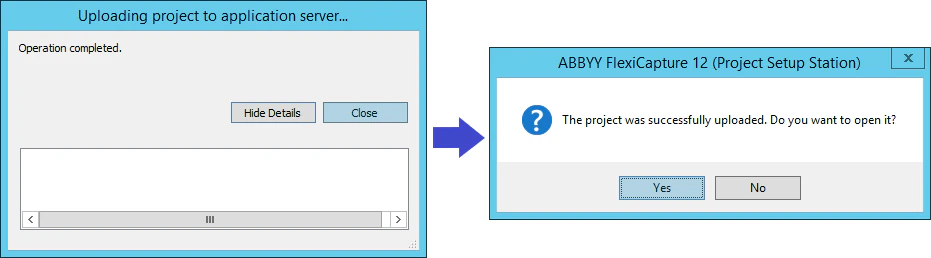 To set up export of data from ABBYY FlexiCapture to M-Files, complete the following steps:
* [Add the assemblies](/flexi-capture/connectors/m-files/mf-connect-libraries) of the MFILES to your ABBYY FlexiCapture Document Definition.
* [Create an export profile](/flexi-capture/connectors/m-files/mf-export-profile) in your Document Definition.
* [Specify export settings and map fields](/flexi-capture/connectors/m-files/mf-fields-config).
To set up export of data from ABBYY FlexiCapture to M-Files, complete the following steps:
* [Add the assemblies](/flexi-capture/connectors/m-files/mf-connect-libraries) of the MFILES to your ABBYY FlexiCapture Document Definition.
* [Create an export profile](/flexi-capture/connectors/m-files/mf-export-profile) in your Document Definition.
* [Specify export settings and map fields](/flexi-capture/connectors/m-files/mf-fields-config).