> ## Documentation Index
> Fetch the complete documentation index at: https://docs.abbyy.com/llms.txt
> Use this file to discover all available pages before exploring further.
# Create a Pega activity
> Create a Pega activity in Dev Studio: add steps, parameters, and pages, and then set up loops, substeps, and When and Jump conditions for the connector.
[An activity](https://community.pega.com/knowledgebase/articles/introduction-activities) consists of a set of consecutive steps, each of which carries out a specific method or instruction.
## Create the activity
In **Dev Studio**, click **Records → Technical → Activity → Create**.
Fill in the **Label** and **Identifier** fields, and make sure that the activity is being created in the context of the case. Then click **Create and open**.
For more information about the case context, see [Create a case with a workflow](/flexi-capture/connectors/pega/pega-add-case-type).
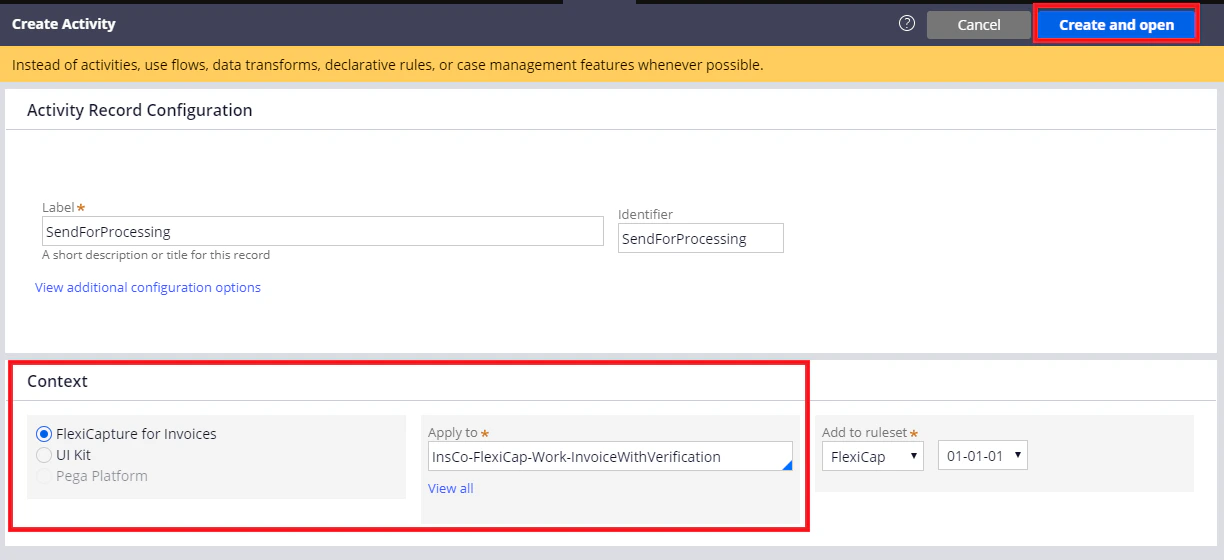 On the **Steps** tab, add the required activity steps.
On the **Parameters** tab, specify the required variables. On the **Pages & Classes** tab, specify a page to be used for the activity steps.
## Loops and substeps
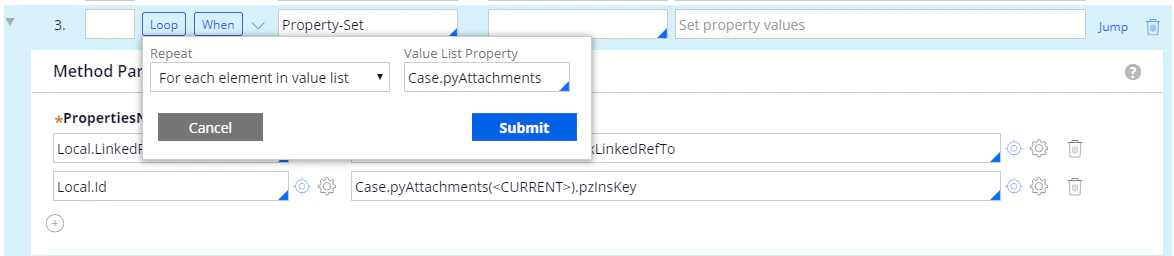
To create a loop, click **Loop** for a step, select a repetition type, select a list of values, and then click **Submit**. The examples in this section use **For each element in value list**.
On the **Steps** tab, add the required activity steps.
On the **Parameters** tab, specify the required variables. On the **Pages & Classes** tab, specify a page to be used for the activity steps.
## Loops and substeps
To create a loop, click **Loop** for a step, select a repetition type, select a list of values, and then click **Submit**. The examples in this section use **For each element in value list**.
 To create a substep, create a new step and drag it into the step you want the substep to belong to.
## Step conditions
Each step can carry the following conditions and labels:
* **When** – Checked before the step runs. Depending on the result, the step either runs or is skipped.
* **Jump** – Checked after the step. Depending on the result, the activity either advances to the next step or finishes.
* **Label** – Names a step so that another step can jump to it.
To create a substep, create a new step and drag it into the step you want the substep to belong to.
## Step conditions
Each step can carry the following conditions and labels:
* **When** – Checked before the step runs. Depending on the result, the step either runs or is skipped.
* **Jump** – Checked after the step. Depending on the result, the activity either advances to the next step or finishes.
* **Label** – Names a step so that another step can jump to it.