> ## Documentation Index
> Fetch the complete documentation index at: https://docs.abbyy.com/llms.txt
> Use this file to discover all available pages before exploring further.
# Create an activity and add it to your workflow
> Add a Capture Data utility step to your Pega case workflow and create the CaptureData activity with the pages, classes, parameters, and local variables.
The activity runs as a utility step in your case life cycle. It calls the connector function and applies the results to the case.
## Add the utility step to the workflow
In **Dev Studio**, open the case type that you created earlier.
On the **Workflow** tab, click **Add life cycle**.
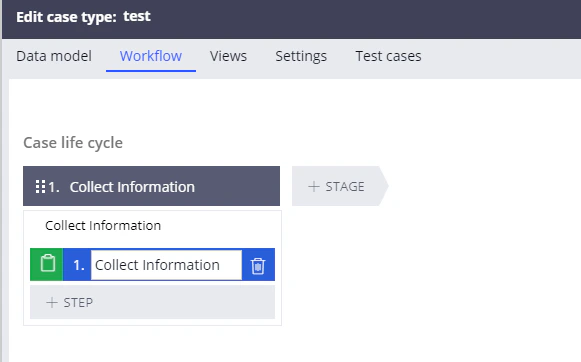
Create a first stage with a **Collect Information** step. This step opens the dialog box where files can be added.
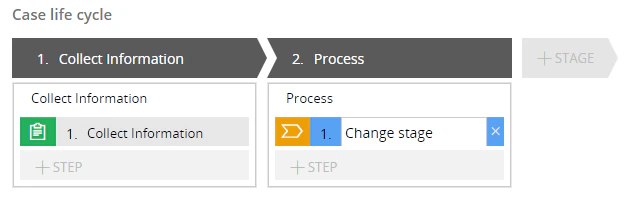
 Create a **Process** stage, add any step to this stage such as **Change stage**, and then click **Save**.
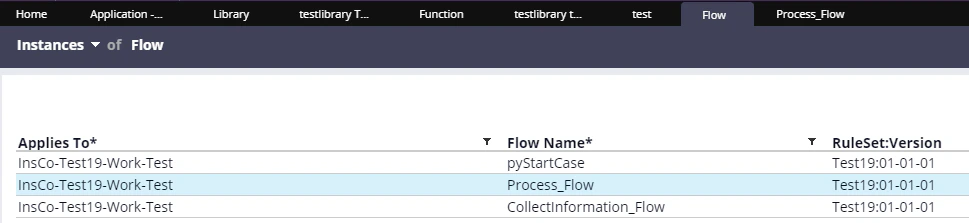
 Click **Records → Process → Flow** to open the list of flows, and then double-click the `Process_Flow` flow for the case type you created earlier.
 Replace the **Change stage** step with a **Utility** step.
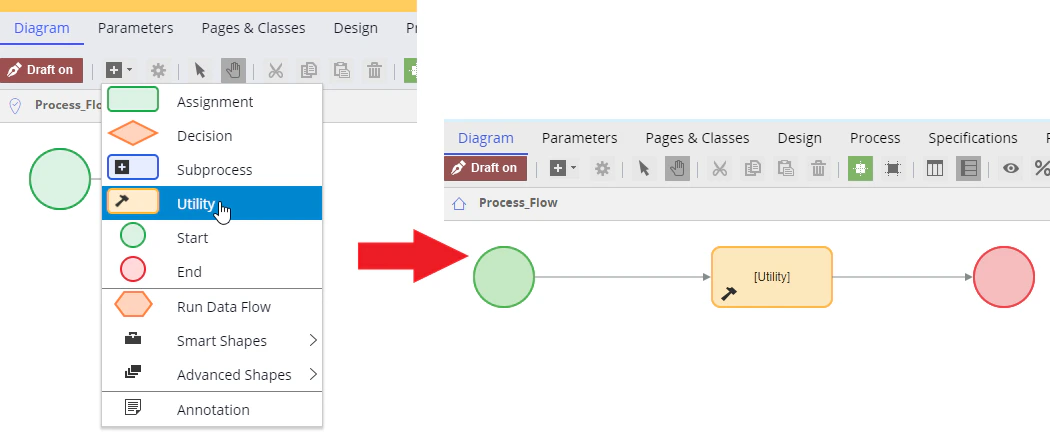 1. Double-click the **Utility** item to open its properties.
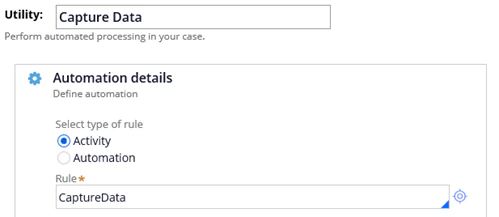
2. Change the name of the item to `Capture Data`.
3. In the **Rule** field, type `CaptureData` to create a new activity with this name.
4. Click the icon next to the **Rule** field.
5. In the window that opens, click **Create and open**.
1. Double-click the **Utility** item to open its properties.
2. Change the name of the item to `Capture Data`.
3. In the **Rule** field, type `CaptureData` to create a new activity with this name.
4. Click the icon next to the **Rule** field.
5. In the window that opens, click **Create and open**.
 ## Declare the pages and classes
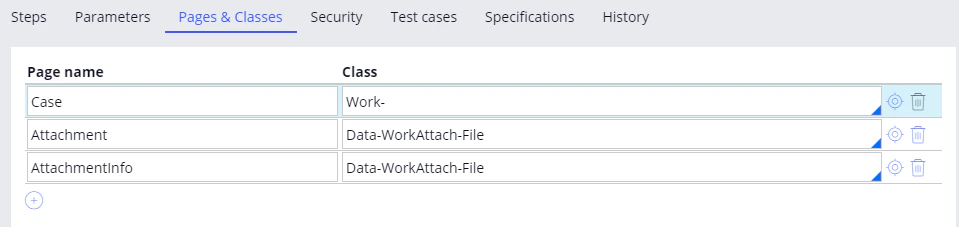
On the **Pages & Classes** tab, create the following three objects:
| Page name | Class |
| ---------------- | ---------------------- |
| `Case` | `Work-` |
| `Attachment` | `Data-WorkAttach-File` |
| `AttachmentInfo` | `Data-WorkAttach-File` |
## Declare the pages and classes
On the **Pages & Classes** tab, create the following three objects:
| Page name | Class |
| ---------------- | ---------------------- |
| `Case` | `Work-` |
| `Attachment` | `Data-WorkAttach-File` |
| `AttachmentInfo` | `Data-WorkAttach-File` |
 ## Create the parameters
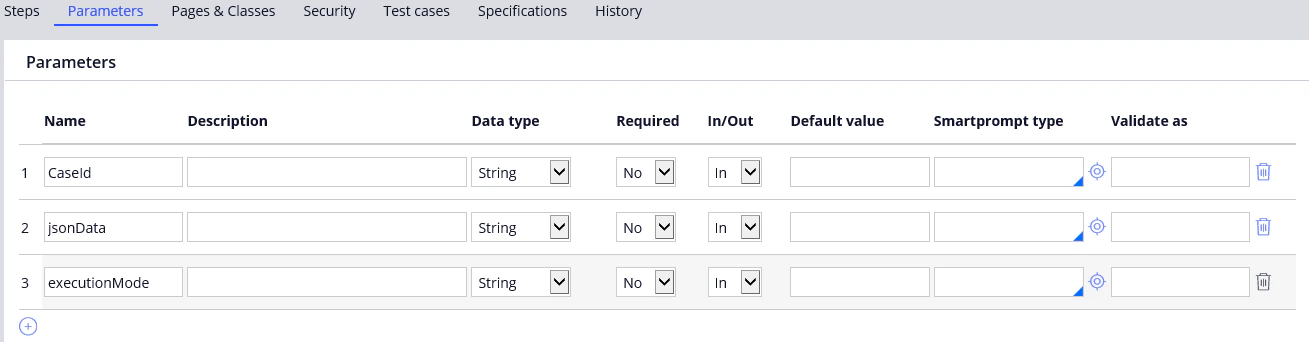
On the **Parameters** tab, create the following three parameters:
| Name | Data type |
| --------------- | --------- |
| `CaseId` | `String` |
| `jsonData` | `String` |
| `executionMode` | `String` |
## Create the parameters
On the **Parameters** tab, create the following three parameters:
| Name | Data type |
| --------------- | --------- |
| `CaseId` | `String` |
| `jsonData` | `String` |
| `executionMode` | `String` |
 ## Create the local variables
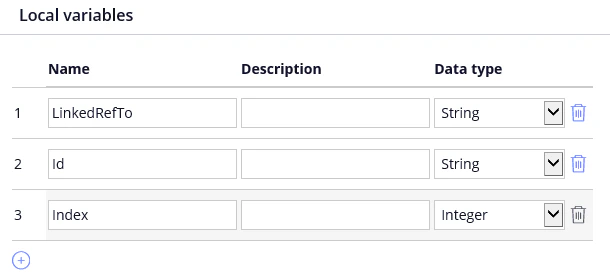
Create the following three local variables:
| Name | Data type |
| ------------- | --------- |
| `LinkedRefTo` | `String` |
| `Id` | `String` |
| `Index` | `Integer` |
## Create the local variables
Create the following three local variables:
| Name | Data type |
| ------------- | --------- |
| `LinkedRefTo` | `String` |
| `Id` | `String` |
| `Index` | `Integer` |