> ## Documentation Index
> Fetch the complete documentation index at: https://docs.abbyy.com/llms.txt
> Use this file to discover all available pages before exploring further.
# Install the Pega connector for the FlexiCapture as a service scenario
> Install the ABBYY FlexiCapture connector for Pega by importing FlexiCaptureConnector.jar to the server and creating a Java function that calls its classes.
Installing the ABBYY FlexiCapture Connector for Pega takes two parts: importing the connector to the server, and creating a Java function in Pega that calls the connector classes.
Import the connector to the server
Open **Dev Studio** and click **Configure → Application → Distribution → Import**.
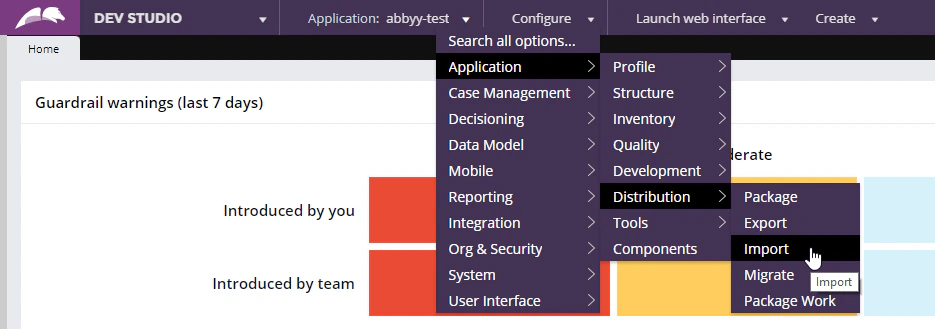 Load the `FlexiCaptureConnector.jar` file on to the server.
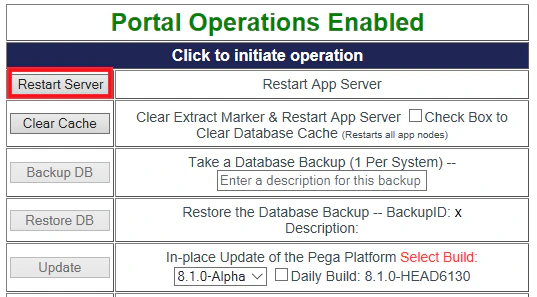
Open the **Pega Self-Service Portal** and click **Restart Server**.
Load the `FlexiCaptureConnector.jar` file on to the server.
Open the **Pega Self-Service Portal** and click **Restart Server**.
Create a Java function in Pega
The function calls methods from the connector classes.
1. Click **Records → Technical → Library → Create**.
2. Name the library, for example `FlexiCaptureLibrary`.
3. Include the `java.util.*`, `java.nio.file.*`, `com.abbyy.connectors.*`, and `com.abbyy.connectors.models.*` packages.
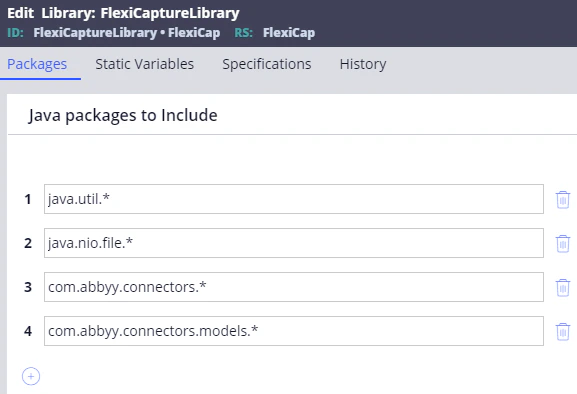 Click **Save**, and then click **Generate Library**.
1. Click **Records → Technical → Function → Create**.
2. In the **Label** field, provide a name for the new function, for example `CaptureData`.
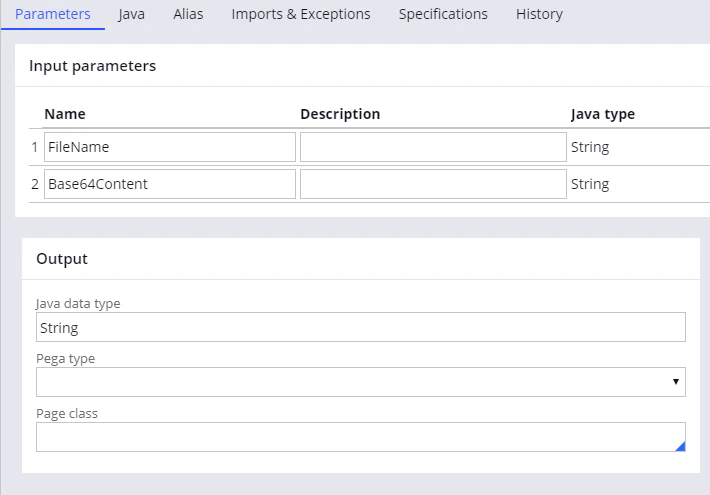
In the **Parameters** section, specify the following two input parameters:
| Name | Java type |
| --------------- | --------- |
| `FileName` | `String` |
| `Base64Content` | `String` |
In the **Library** field, enter the name of the library you created, and then click **Create and open**.
In the window that opens, on the **Parameters** tab, specify `String` as the data type in the **Java data type** field.
Click **Save**, and then click **Generate Library**.
1. Click **Records → Technical → Function → Create**.
2. In the **Label** field, provide a name for the new function, for example `CaptureData`.
In the **Parameters** section, specify the following two input parameters:
| Name | Java type |
| --------------- | --------- |
| `FileName` | `String` |
| `Base64Content` | `String` |
In the **Library** field, enter the name of the library you created, and then click **Create and open**.
In the window that opens, on the **Parameters** tab, specify `String` as the data type in the **Java data type** field.
 Copy the code from the `CodeExample.java` file and paste it on the **Java** tab of the same window.
The file is in this folder:
```text theme={null}
%Installation Path%\Connector for FlexiCapture as a Service\Samples\Pega Function
```
The sample code is reproduced in [Sample function code](#sample-code).
Click the **Imports & Exceptions** tab and type `Exception` in the **Exceptions thrown** section.
Go back to the **Java** tab, select the **Function ready to be compiled?** option, save your changes, and then click **Generate function**.
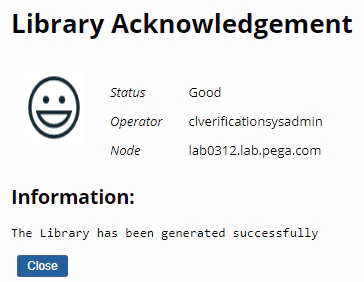
A successful generation shows an acknowledgement with a `Good` status.
Copy the code from the `CodeExample.java` file and paste it on the **Java** tab of the same window.
The file is in this folder:
```text theme={null}
%Installation Path%\Connector for FlexiCapture as a Service\Samples\Pega Function
```
The sample code is reproduced in [Sample function code](#sample-code).
Click the **Imports & Exceptions** tab and type `Exception` in the **Exceptions thrown** section.
Go back to the **Java** tab, select the **Function ready to be compiled?** option, save your changes, and then click **Generate function**.
A successful generation shows an acknowledgement with a `Good` status.
Sample function code
This code sends files to ABBYY FlexiCapture and gets the processing results back as JSON strings holding the names of the captured fields and their values.
Replace the placeholder connection values with the data required to connect to your ABBYY FlexiCapture Application Server: the server address, the company name if you use ABBYY FlexiCapture Cloud or a tenant, the user credentials, and the project name. Each one is marked by a comment in the code.
```java theme={null}
// Creating FlexiCapture Web Services API client. Please provide FlexiCapture Application Server address here.
try (FlexiCaptureWebServiceClient client = new FlexiCaptureWebServiceClient("https://FlexiCaptureApplicationServer")) {
// Please uncomment the line below and provide a company name to interact with FlexiCapture Cloud or tenant.
// client.setTenant("Company");
// Please provide valid FlexiCapture user credentials.
client.setCredentials(new Credentials("Username", "Password"));
// Getting the FlexiCapture project. Please provide a project name here.
try (FlexiCaptureProject project = client.getProject("InvoiceDemoProject")) {
// Preparing a file to upload to FlexiCapture. The 'FileName' and 'Base64Content' are Pega function parameters.
List files = new ArrayList();
files.add(new File(FileName, Base64.getDecoder().decode(Base64Content.replace("\n", "").replace("\r", ""))));
// Preparing a job for a FlexiCapture batch processing.
BatchCreationJob job = new BatchCreationJob(files);
job.setName("Pega_" + System.currentTimeMillis()); // Setting FlexiCapture batch name.
job.setType("Default"); // Setting FlexiCapture batch type name.
// FlexiCapture batch creation and run.
int batchId = project.create(job);
// Waiting for the batch to be processed and getting the processing results.
Result result = project.getResult(batchId);
// Check if the batch stage is Processed.
if (result.getStage() == com.abbyy.connectors.models.Stage.Processed) {
// Returning captured fields as a JSON string.
return result.getFields();
} else {
// Throwing an exception other stages.
// Instead of the throwing, processing of these stages can be configured here.
throw new FlexiCaptureConnectorException(String.format("Unsupported FlexiCapture stage type '%s'.", result.getStage()));
}
}
} catch (Exception ex) {
// Chaining error messages.
Throwable cause = ex.getCause();
String message = ex.getMessage();
while (cause != null) {
message += " " + cause.getMessage();
cause = cause.getCause();
}
// Throw chained message.
throw new FlexiCaptureConnectorException(message);
}
```
## Next steps
Upload your project to the ABBYY FlexiCapture Application Server, and then configure it. For more information, see [Configure ABBYY FlexiCapture for the Pega connector](/flexi-capture/connectors/pega/pega-configuring-fc).