> ## Documentation Index
> Fetch the complete documentation index at: https://docs.abbyy.com/llms.txt
> Use this file to discover all available pages before exploring further.
# Installation
> Install the ABBYY FlexiCapture Multi-Task Package in UiPath by uploading the activity nupkg packages to Orchestrator and publishing the Batch Sender process.
Installation of the Multi-Task Package in UiPath consists of the following steps:
* [activity package installation](#activities);
* [process installation](#processes).
## Installing the Abbyy.UiPath.FlexiCapture.MultiTaskActivities activity package
* If you are using UiPath Community, copy the **Abbyy.FlexiCapture.WebApi.Client.nupkg** and **Abbyy.UiPath.FlexiCapture.MultiTaskActivities.nupkg** packages to the local activity feed folder found in **%localappdata%\UiPath\app-XX.X.X\Packages**, where XX.X.X denotes the UiPath version.
* If you are using UiPath Enterprise:
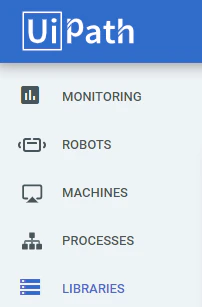
* open Orchestrator as an administrator and go to the **Libraries** tab;
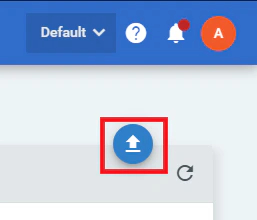
* click **Upload** and choose the following packages to be uploaded: **Abbyy.FlexiCapture.WebApi.Client.nupkg** and **Abbyy.UiPath.FlexiCapture.MultiTaskActivities.nupkg**.
 Once they have been uploaded, the packages will become accessible for all Robots connected to Orchestrator.
## Installing UiPath processes
To install the **Batch Sender**, **Batch Monitor**, **Batch Verifier**, and **Batch Fetcher** processes, copy the appropriate folders from the installation directory to any location on your local machine. After that, open the processes in UiPath Studio and click **Publish** on the **Design** tab to publish them in UiPath Orchestrator.
Processes should only be launched once [queues](/flexi-capture/connectors/ui-path/up-configuring-and-starting#queues) and [assets](/flexi-capture/connectors/ui-path/up-configuring-and-starting#assets) have been created in Orchestrator. For more information about launching processes, see [Launching the processes](/flexi-capture/connectors/ui-path/up-configuring-and-starting#processes).
To install the **Batch Processor – single process** process, copy the folder containing it to your local machine. For more information about launching this process, see [Launching Batch Processor – single process](/flexi-capture/connectors/ui-path/up-configuring-and-starting#batchprocessorsingleprocess).
Once they have been uploaded, the packages will become accessible for all Robots connected to Orchestrator.
## Installing UiPath processes
To install the **Batch Sender**, **Batch Monitor**, **Batch Verifier**, and **Batch Fetcher** processes, copy the appropriate folders from the installation directory to any location on your local machine. After that, open the processes in UiPath Studio and click **Publish** on the **Design** tab to publish them in UiPath Orchestrator.
Processes should only be launched once [queues](/flexi-capture/connectors/ui-path/up-configuring-and-starting#queues) and [assets](/flexi-capture/connectors/ui-path/up-configuring-and-starting#assets) have been created in Orchestrator. For more information about launching processes, see [Launching the processes](/flexi-capture/connectors/ui-path/up-configuring-and-starting#processes).
To install the **Batch Processor – single process** process, copy the folder containing it to your local machine. For more information about launching this process, see [Launching Batch Processor – single process](/flexi-capture/connectors/ui-path/up-configuring-and-starting#batchprocessorsingleprocess).