> ## Documentation Index
> Fetch the complete documentation index at: https://docs.abbyy.com/llms.txt
> Use this file to discover all available pages before exploring further.
# Sample 1. Step 11: Describe the YOUR PLANET NAME field with a PlanetNameHeader element
> Build the PlanetNameHeader Static Text element in Sample 1, searching for YOURPLANETNAME without spaces and allowing a 20 percent error rate.
The **NAME** field comes before the **YOUR PLANET NAME** field on the form, but the FlexiLayout must search for **YOUR PLANET NAME** first. The word NAME appears in both field names, so searching only for NAME without extra constraints makes FlexiLayout Studio formulate several hypotheses. Searching for **YOUR PLANET NAME** first avoids this ambiguity. In [Step 15](/flexi-capture/fls/tutorial/step15), you add constraints to the **NAME** field.
## Create the PlanetNameHeader element
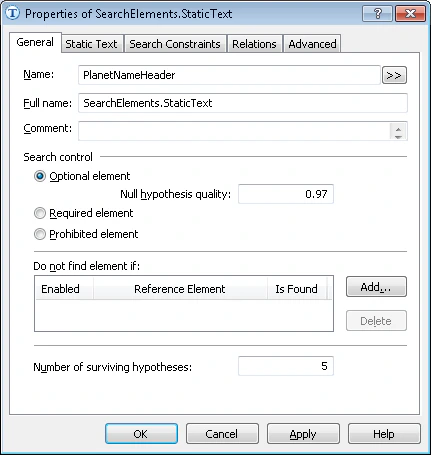
Create an element of type [Static Text](/flexi-capture/fls/template/static-text) and name it **PlanetNameHeader**.
Do not select **Required element** (it is cleared by default). The document heading is a document identifier, so it is required. All other elements are optional. This lets FlexiLayout Studio formulate [null hypotheses](/flexi-capture/fls/hypotheses/hyp-general) even for elements whose objects it cannot find on the images.
 Click the **Static Text** tab.
In the **Search text** field, type the text to search for. Because the field name appears on a single line in all the test images, you can type it without spaces: **YOURPLANETNAME**.
Set **Max error percentage** to **20**, because the field name has more than one word and is fairly long.
## Match the FlexiLayout against the test images
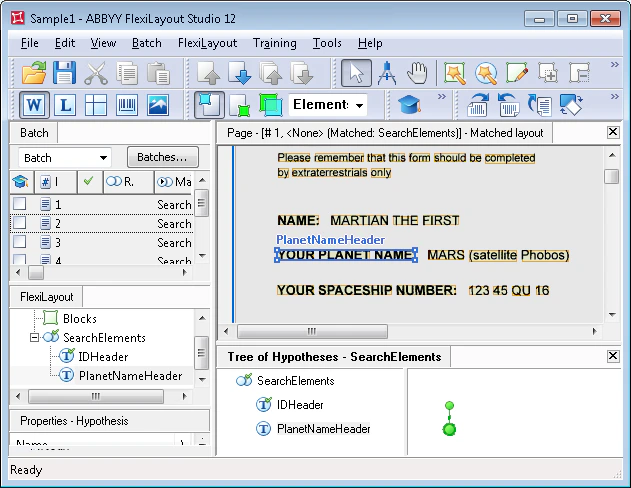
Match the FlexiLayout with the test images and confirm that FlexiLayout Studio finds the **YOUR PLANET NAME** field on all of them.
Click the **Static Text** tab.
In the **Search text** field, type the text to search for. Because the field name appears on a single line in all the test images, you can type it without spaces: **YOURPLANETNAME**.
Set **Max error percentage** to **20**, because the field name has more than one word and is fairly long.
## Match the FlexiLayout against the test images
Match the FlexiLayout with the test images and confirm that FlexiLayout Studio finds the **YOUR PLANET NAME** field on all of them.