> ## Documentation Index
> Fetch the complete documentation index at: https://docs.abbyy.com/llms.txt
> Use this file to discover all available pages before exploring further.
# Sample 3. Step 9: Describe the Invoice Date field with grDate, InvoiceDate, and InvoiceDateAsString elements
> Describe the Invoice Date field with grDate, InvoiceDate, and InvoiceDateAsString elements, adding a Character String fallback for poor quality scans.
The Invoice Date field sits to the right of its name, on the same horizontal level. Use a [Date](/flexi-capture/fls/template/date) element to find the date. For poor-quality images where the date is not recognized properly and the Date element search returns nothing, add a [Character String](/flexi-capture/fls/template/character-chain) element as a fallback. To set the properties common to all these elements, create a compound grDate element.
## Create the grDate group element
In the **InvoiceHeader** element, create a [Group](/flexi-capture/fls/template/elements-compound) element and name it **grDate**.
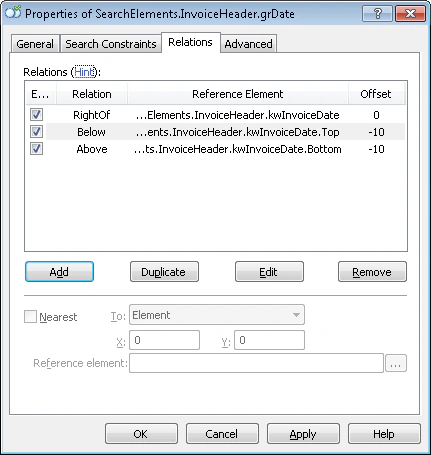
Click the **Relations** tab. All the elements that detect the Invoice Date field appear only to the right of the **kwInvoiceDate** name and on the same level, so set these relations:
* **Right of** the **kwInvoiceDate** element, **Offset** = 0
* **Above** the **kwInvoiceDate** element, **Offset** = -10, **Element boundary** = **Bottom**
* **Below** the **kwInvoiceDate** element, **Offset** = -10, **Element boundary** = **Top**
 ## Create the InvoiceDate element
In the `InvoiceHeader.grDate` element, create a [Date](/flexi-capture/fls/template/date) element and name it **InvoiceDate**.
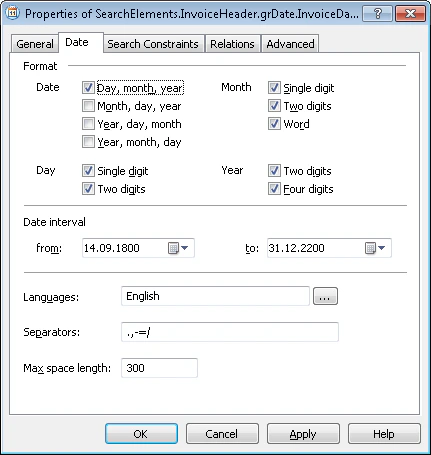
Click the **Date** tab and specify all the date formats that may occur on the images. Assume the format is day, month, year; the language is English; and there are no other constraints on the date.
## Create the InvoiceDate element
In the `InvoiceHeader.grDate` element, create a [Date](/flexi-capture/fls/template/date) element and name it **InvoiceDate**.
Click the **Date** tab and specify all the date formats that may occur on the images. Assume the format is day, month, year; the language is English; and there are no other constraints on the date.
 Click the **Advanced** tab. The **Invoice Date** field is optional, but when it occurs it always appears with its name and next to it. In the **Advanced pre-search relations** field, set this [additional search constraint](/flexi-capture/fls/template/advanced-constraints): look for the object only if **kwInvoiceDate** was detected, and look for the object closest to it. In the [FlexiLayout language](/flexi-capture/fls/code/general-code):
```text theme={null}
If InvoiceHeader.kwInvoiceDate.IsNull Then DontFind;
Nearest: InvoiceHeader.kwInvoiceDate;
```
You can also set the **Nearest** constraint via the FlexiLayout Studio graphical user interface. Click the **Relations** tab, select **Nearest**, and in the **To** drop-down list select **Element**, and then specify **kwInvoiceDate** as the **Reference element**.
Match the FlexiLayout with the test images and confirm that FlexiLayout Studio detects the element on every image that has an **Invoice Date** field.
When you test, some images do not detect the element. The pre-recognition results show that noise in the field area causes this. None of the standard [Date](/flexi-capture/fls/template/date) element properties fix it, so create an alternative element with less stringent search constraints.
For more information about finding dates on poor-quality images, see [Date search after high or low-quality recognition](/flexi-capture/fls/tips-tricks/date2).
## Create the InvoiceDateAsString element
In the `InvoiceHeader.grDate` element, create a [Character String](/flexi-capture/fls/template/character-chain) element and name it **InvoiceDateAsString**.
Click the **Character String** tab. In the **Character count** field, specify this fuzzy interval: `{-1, 8, 14, INF}`. This estimates the string length; assume 8 to 14 characters. Any hypothesis outside this range is penalized.
Set **Max space length** to 20, so a space can be 20 dots long. Leave the default values for the other properties.
Click the **Advanced** tab. FlexiLayout Studio must look for this element only if the **InvoiceDate** element was not detected. In the **Advanced pre-search relations** field, set this [additional search constraint](/flexi-capture/fls/template/advanced-constraints):
```text theme={null}
If Not InvoiceDate.IsNull Then DontFind;
```
The **Invoice Date** field is optional, but when it occurs it always appears with its name and next to it. In the **Advanced pre-search relations** field, add this [additional search constraint](/flexi-capture/fls/template/advanced-constraints): look for the object only if **kwInvoiceDate** was detected, and look for the object closest to it. In the [FlexiLayout language](/flexi-capture/fls/code/general-code):
```text theme={null}
If InvoiceHeader.kwInvoiceDate.IsNull Then DontFind;
Nearest: InvoiceHeader.kwInvoiceDate;
```
Match the FlexiLayout with the test images and confirm that FlexiLayout Studio detects the element on every image that has an **Invoice Date** field, and generates a null hypothesis for the **InvoiceDate** element.
To describe the location of the **InvoiceDate** block, select **Source element**, click
Click the **Advanced** tab. The **Invoice Date** field is optional, but when it occurs it always appears with its name and next to it. In the **Advanced pre-search relations** field, set this [additional search constraint](/flexi-capture/fls/template/advanced-constraints): look for the object only if **kwInvoiceDate** was detected, and look for the object closest to it. In the [FlexiLayout language](/flexi-capture/fls/code/general-code):
```text theme={null}
If InvoiceHeader.kwInvoiceDate.IsNull Then DontFind;
Nearest: InvoiceHeader.kwInvoiceDate;
```
You can also set the **Nearest** constraint via the FlexiLayout Studio graphical user interface. Click the **Relations** tab, select **Nearest**, and in the **To** drop-down list select **Element**, and then specify **kwInvoiceDate** as the **Reference element**.
Match the FlexiLayout with the test images and confirm that FlexiLayout Studio detects the element on every image that has an **Invoice Date** field.
When you test, some images do not detect the element. The pre-recognition results show that noise in the field area causes this. None of the standard [Date](/flexi-capture/fls/template/date) element properties fix it, so create an alternative element with less stringent search constraints.
For more information about finding dates on poor-quality images, see [Date search after high or low-quality recognition](/flexi-capture/fls/tips-tricks/date2).
## Create the InvoiceDateAsString element
In the `InvoiceHeader.grDate` element, create a [Character String](/flexi-capture/fls/template/character-chain) element and name it **InvoiceDateAsString**.
Click the **Character String** tab. In the **Character count** field, specify this fuzzy interval: `{-1, 8, 14, INF}`. This estimates the string length; assume 8 to 14 characters. Any hypothesis outside this range is penalized.
Set **Max space length** to 20, so a space can be 20 dots long. Leave the default values for the other properties.
Click the **Advanced** tab. FlexiLayout Studio must look for this element only if the **InvoiceDate** element was not detected. In the **Advanced pre-search relations** field, set this [additional search constraint](/flexi-capture/fls/template/advanced-constraints):
```text theme={null}
If Not InvoiceDate.IsNull Then DontFind;
```
The **Invoice Date** field is optional, but when it occurs it always appears with its name and next to it. In the **Advanced pre-search relations** field, add this [additional search constraint](/flexi-capture/fls/template/advanced-constraints): look for the object only if **kwInvoiceDate** was detected, and look for the object closest to it. In the [FlexiLayout language](/flexi-capture/fls/code/general-code):
```text theme={null}
If InvoiceHeader.kwInvoiceDate.IsNull Then DontFind;
Nearest: InvoiceHeader.kwInvoiceDate;
```
Match the FlexiLayout with the test images and confirm that FlexiLayout Studio detects the element on every image that has an **Invoice Date** field, and generates a null hypothesis for the **InvoiceDate** element.
To describe the location of the **InvoiceDate** block, select **Source element**, click  , and select the `InvoiceHeader.grDate` element as the source element.
The region of a [Group element](/flexi-capture/fls/template/elements-compound) is the union of the regions of all its detected subelements.
, and select the `InvoiceHeader.grDate` element as the source element.
The region of a [Group element](/flexi-capture/fls/template/elements-compound) is the union of the regions of all its detected subelements.