> ## Documentation Index
> Fetch the complete documentation index at: https://docs.abbyy.com/llms.txt
> Use this file to discover all available pages before exploring further.
# Sample 4. Step 5.2: Name of Delivery Address field, kwDeliveryAddress element
> Find the Delivery Address field name with a kwDeliveryAddress Static Text element that reads its search strings from the AddressHeaders.txt dictionary file.
When you examine the images, you will notice the following:
* The field name always appears on the first page, in the upper part. You can therefore limit the search area to the first page and use absolute coordinates to specify a rectangular area.
* Use the `AddressHeaders.txt` file to search for the text.
* You can set the maximum error percentage to 20, which here means no more than 3 errors in each phrase.
Both the GUI and the FlexiLayout language let you use databases and text files to specify the text lines to find on an image. Text files can use ANSI or Unicode encoding.
Letter case does not affect the search and only makes the text more readable. Put each search string on a separate line, and empty lines are ignored.
The optimal number of errors can only be found through trial and error. For more information about Static Text elements, see [Static Text](/flexi-capture/fls/template/static-text).
## Create the kwDeliveryAddress element
In the **InvoiceHeader** element, create a [Static Text](/flexi-capture/fls/template/static-text) element and name it **kwDeliveryAddress**.
Click the **Static Text** tab, select **Search text from file**, and provide the path to the `AddressHeaders.txt` file (folder `%public%\ABBYY\FlexiCapture\12.0\Samples\FLS\English\Invoice\Dict`).
A text file is accessed by its name, which can be absolute or relative. Relative names are specified relative to the FlexiCapture project folder (the folder that contains the `*.fcproj` file) or the FlexiLayout Studio project folder (the folder that contains the images).
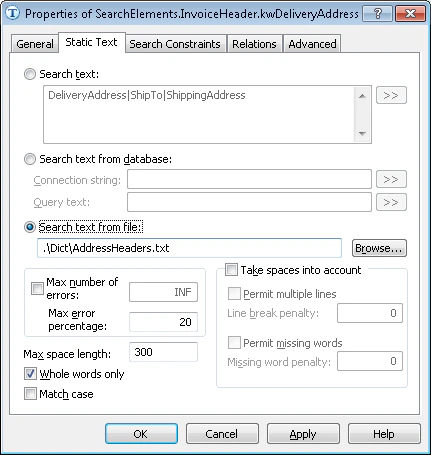 Set **Max error percentage** to 20.
Click the **Search Constraints** tab and use absolute coordinates to specify the rectangular search area on the first page:
* Select **Absolute search area constraints**.
* In the **Pages** field, select **Range** from the drop-down list.
* In the **Range** field, type `1`.
* In the **Region** field, specify the coordinates of the rectangle `[1, 1, 2475, 1878]`.
* Click **Add...**. The search area appears in the **Search areas** list.
Click the **Advanced** tab. In the **Advanced pre-search relations** field, specify:
```text theme={null}
WholeWordMode: true;// Only whole text objects will be treated as possible hypotheses
```
Temporarily exclude the **InvoiceFooter** element and match the FlexiLayout.
Set **Max error percentage** to 20.
Click the **Search Constraints** tab and use absolute coordinates to specify the rectangular search area on the first page:
* Select **Absolute search area constraints**.
* In the **Pages** field, select **Range** from the drop-down list.
* In the **Range** field, type `1`.
* In the **Region** field, specify the coordinates of the rectangle `[1, 1, 2475, 1878]`.
* Click **Add...**. The search area appears in the **Search areas** list.
Click the **Advanced** tab. In the **Advanced pre-search relations** field, specify:
```text theme={null}
WholeWordMode: true;// Only whole text objects will be treated as possible hypotheses
```
Temporarily exclude the **InvoiceFooter** element and match the FlexiLayout.