> ## Documentation Index
> Fetch the complete documentation index at: https://docs.abbyy.com/llms.txt
> Use this file to discover all available pages before exploring further.
# Sample 4. Step 5.3: Name of Invoice Date field, kwInvoiceDate element
> Locate the Invoice Date field name with a kwInvoiceDate Static Text element, using relations to kwInvoiceNumber and a Nearest constraint on hypotheses.
When you examine the images, you will notice the following:
* The name of the **Invoice Date** field is the short and very common word `Date`, so narrow the search area as much as possible.
* If this field is present, its name appears very close to the name of the **Invoice Number** field.
## Create the kwInvoiceDate element
In the **InvoiceHeader** element, create a [Static Text](/flexi-capture/fls/template/static-text) element and name it **kwInvoiceDate**.
Click the **Static Text** tab. In the **Search text** field, type `Date`.
Set **Max error percentage** to 30, which allows only one error in the four-letter word.
Click the **Relations** tab, click **Add**, and add relations specifying that the keyword may be no more than 30 dots above the upper boundary of the **Invoice Number** field name and no more than 700 dots below its lower boundary:
* Below the upper boundary of the **kwInvoiceNumber** region, **Offset** = -30, **Reference boundary** = **Top**.
* Above the lower boundary of the **kwInvoiceNumber** region, **Offset** = -700, **Reference boundary** = **Bottom**.
When selecting **Offset** values, examine the geometric properties (boundaries and sizes) of the reference and search image objects in pre-recognition results mode. Use the **Measure Rectangle** tool to measure distances. **Offset** values can only be selected by trial and error.
Temporarily exclude the **InvoiceFooter** element and match the FlexiLayout.
When you match the FlexiLayout, you will notice the following:
* On the first page of some documents, several hypotheses are generated for **kwInvoiceDate**, and sometimes the wrong one is selected. Adjust the element properties to correct the error.
* The field of interest is closest to the upper edge of the page.
## Add search constraints to kwInvoiceDate
Open the **Properties** dialog box for the **kwInvoiceDate** element.
Click the **Relations** tab, select **Nearest**, and select **Page top edge** from the **To** drop-down list.
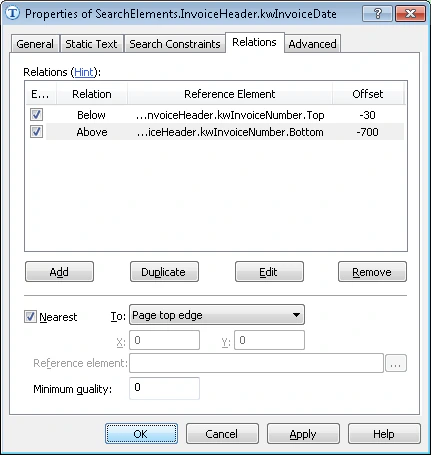 Match the FlexiLayout again to confirm that the name of the **Invoice Date** field is detected reliably.