> ## Documentation Index
> Fetch the complete documentation index at: https://docs.abbyy.com/llms.txt
> Use this file to discover all available pages before exploring further.
# Sample 4. Step 5.6: Delivery Address field, grAddress, wgAddressAbove, and DeliveryAddress elements
> Extract the multi-line Delivery Address with a grAddress group, a wgAddressAbove White Gap to bound the search area, and a DeliveryAddress Paragraph element.
Search for the **Delivery Address** field:
* To the right of and below the field name
* Using a [White Gap](/flexi-capture/fls/template/white-gap) element to limit the search area from the bottom
* Using a [Paragraph](/flexi-capture/fls/template/text-chain) element
## Create the grAddress group element
In the **InvoiceHeader** element, create a [Group](/flexi-capture/fls/template/elements-compound) element and name it **grAddress**.
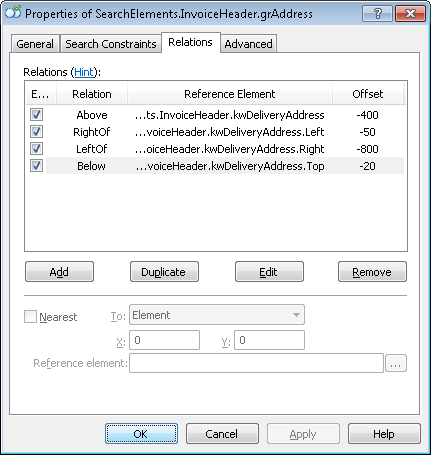
Click the **Relations** tab and specify the following search constraints for the group elements:
* Above the **kwDeliveryAddress** element, **Offset** = -400.
* Left of the right boundary of the **kwDeliveryAddress** element, **Offset** = -800, **Reference boundary** = **Right**.
* Right of the left boundary of the **kwDeliveryAddress** element, **Offset** = -50, **Reference boundary** = **Left**.
* Below the upper boundary of the **kwDeliveryAddress** element, **Offset** = -20, **Reference boundary** = **Top**.
 ## Create the wgAddressAbove White Gap element
A horizontal [White Gap](/flexi-capture/fls/template/white-gap) limits the search area for the **DeliveryAddress** element from the bottom.
In the `InvoiceHeader.grAddress` element, create a [White Gap](/flexi-capture/fls/template/white-gap) element and name it **wgAddressAbove**.
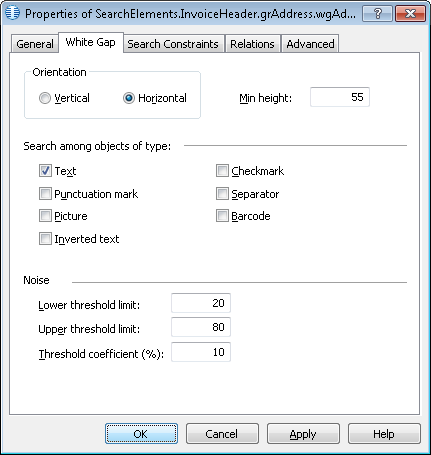
Click the **White Gap** tab. Under **Orientation**, select **Horizontal**, and set **Min height** to 55.
When selecting values for the heights and widths of white gaps, consider the geometry (the boundaries and sizes) of the adjacent image objects in pre-recognition results mode.
Because you are looking for a white gap inside a paragraph, under **Search among objects of type**, select only **Text**.
Under **Rubbish**, specify these values:
* **Lower threshold limit** – 20.
* **Upper threshold limit** – 80.
* **Threshold coefficient (%)** – 10.
## Create the wgAddressAbove White Gap element
A horizontal [White Gap](/flexi-capture/fls/template/white-gap) limits the search area for the **DeliveryAddress** element from the bottom.
In the `InvoiceHeader.grAddress` element, create a [White Gap](/flexi-capture/fls/template/white-gap) element and name it **wgAddressAbove**.
Click the **White Gap** tab. Under **Orientation**, select **Horizontal**, and set **Min height** to 55.
When selecting values for the heights and widths of white gaps, consider the geometry (the boundaries and sizes) of the adjacent image objects in pre-recognition results mode.
Because you are looking for a white gap inside a paragraph, under **Search among objects of type**, select only **Text**.
Under **Rubbish**, specify these values:
* **Lower threshold limit** – 20.
* **Upper threshold limit** – 80.
* **Threshold coefficient (%)** – 10.
 The values for the **Lower threshold limit**, **Upper threshold limit**, and **Threshold coefficient (%)** properties can only be selected by trial and error. Start with the default values. If they do not work, alter them until the white gap is detected on all the test images.
Do not specify any additional search constraints, and retain the default values for the other options.
Click the **Relations** tab. Because the white gap can be located only beneath the keywords of the **kwDeliveryAddress** name, specify this search constraint:
* Below the **kwDeliveryAddress** element, **Offset** = 20.
The **Offset** prevents FlexiLayout Studio from finding white gaps in other areas on the image, for example, between the field name and the text.
Click the **Advanced** tab. The **Delivery Address** field is not present on all images, but when it does occur it always appears with its name. In the **Advanced pre-search relations** field, specify this additional condition: search for the image object only if the **kwDeliveryAddress** element is detected. In the [FlexiLayout language](/flexi-capture/fls/code/general-code):
```text theme={null}
If InvoiceHeader.kwDeliveryAddress.IsNull Then DontFind;
```
Match the FlexiLayout to see whether the **wgAddressAbove** element is detected on all images.
FlexiLayout Studio sometimes finds more than one white gap in the search area and cannot always select the right one, so impose additional search constraints. The white gap of interest is the topmost gap in the search area. In the **Advanced pre-search relations** field, specify this additional condition: search for the image object closest to the upper boundary of the first page. In the [FlexiLayout language](/flexi-capture/fls/code/general-code):
```text theme={null}
NearestY: Page(1).RectGlobal.Top;
```
Temporarily exclude the **InvoiceFooter** element and match the FlexiLayout.
## Create the DeliveryAddress Paragraph element
In the `InvoiceHeader.grAddress` element, create a [Paragraph](/flexi-capture/fls/template/text-chain) element and name it **DeliveryAddress**.
Click the **Relations** tab. Because **DeliveryAddress** can be located only above the **wgAddressAbove** white gap, specify this search constraint:
* **Above** the **wgAddressAbove** element, **Offset** = 0.
The search area for the **DeliveryAddress** element is already specified at the level of the `InvoiceHeader.grAddress` group, so there is no need to specify it again.
Click the **Advanced** tab. The name of the **DeliveryAddress** field is also inside the search area, so exclude it to obtain only the field value. The search area also contains separators and noise that are best excluded. Rather than exclude only the region of the **kwDeliveryAddress** element, take that region, enlarge it to encompass all the noise, and exclude the resulting rectangle. Specify these search constraints in the **Advanced pre-search relations** field:
```text theme={null}
If InvoiceHeader.kwDeliveryAddress.IsNull Then DontFind;
Else
// Draws a rectangle around the field name (with some offset for the boundaries)
{ Let Left = InvoiceHeader.kwDeliveryAddress.Rect.Left - 100dt;
Let Top = InvoiceHeader.kwDeliveryAddress.Rect.Top - 100dt;
Let Right = InvoiceHeader.kwDeliveryAddress.Rect.Right + 20dt;
Let Bottom = InvoiceHeader.kwDeliveryAddress.Rect.Bottom;
// Exclude the resulting rectangle from the search area of the field
ExcludeRect (Left, Top, Right, Bottom);
}
```
Temporarily exclude the **InvoiceFooter** element and match the FlexiLayout.
Specify the location of the **DeliveryAddress** block as the rectangular region of the detected **DeliveryAddress** element, simplified for clearer display and expanded by 5 dots vertically and horizontally. Select the **Expression** option and type this expression:
```text theme={null}
Rect outputRect;
OutputRegion = InvoiceHeader.grAddress.DeliveryAddress.SimplifiedRegion;
IsNull = InvoiceHeader.grAddress.DeliveryAddress.IsNull;
OutputRegion.Inflate (5dt, 5dt);
```
The values for the **Lower threshold limit**, **Upper threshold limit**, and **Threshold coefficient (%)** properties can only be selected by trial and error. Start with the default values. If they do not work, alter them until the white gap is detected on all the test images.
Do not specify any additional search constraints, and retain the default values for the other options.
Click the **Relations** tab. Because the white gap can be located only beneath the keywords of the **kwDeliveryAddress** name, specify this search constraint:
* Below the **kwDeliveryAddress** element, **Offset** = 20.
The **Offset** prevents FlexiLayout Studio from finding white gaps in other areas on the image, for example, between the field name and the text.
Click the **Advanced** tab. The **Delivery Address** field is not present on all images, but when it does occur it always appears with its name. In the **Advanced pre-search relations** field, specify this additional condition: search for the image object only if the **kwDeliveryAddress** element is detected. In the [FlexiLayout language](/flexi-capture/fls/code/general-code):
```text theme={null}
If InvoiceHeader.kwDeliveryAddress.IsNull Then DontFind;
```
Match the FlexiLayout to see whether the **wgAddressAbove** element is detected on all images.
FlexiLayout Studio sometimes finds more than one white gap in the search area and cannot always select the right one, so impose additional search constraints. The white gap of interest is the topmost gap in the search area. In the **Advanced pre-search relations** field, specify this additional condition: search for the image object closest to the upper boundary of the first page. In the [FlexiLayout language](/flexi-capture/fls/code/general-code):
```text theme={null}
NearestY: Page(1).RectGlobal.Top;
```
Temporarily exclude the **InvoiceFooter** element and match the FlexiLayout.
## Create the DeliveryAddress Paragraph element
In the `InvoiceHeader.grAddress` element, create a [Paragraph](/flexi-capture/fls/template/text-chain) element and name it **DeliveryAddress**.
Click the **Relations** tab. Because **DeliveryAddress** can be located only above the **wgAddressAbove** white gap, specify this search constraint:
* **Above** the **wgAddressAbove** element, **Offset** = 0.
The search area for the **DeliveryAddress** element is already specified at the level of the `InvoiceHeader.grAddress` group, so there is no need to specify it again.
Click the **Advanced** tab. The name of the **DeliveryAddress** field is also inside the search area, so exclude it to obtain only the field value. The search area also contains separators and noise that are best excluded. Rather than exclude only the region of the **kwDeliveryAddress** element, take that region, enlarge it to encompass all the noise, and exclude the resulting rectangle. Specify these search constraints in the **Advanced pre-search relations** field:
```text theme={null}
If InvoiceHeader.kwDeliveryAddress.IsNull Then DontFind;
Else
// Draws a rectangle around the field name (with some offset for the boundaries)
{ Let Left = InvoiceHeader.kwDeliveryAddress.Rect.Left - 100dt;
Let Top = InvoiceHeader.kwDeliveryAddress.Rect.Top - 100dt;
Let Right = InvoiceHeader.kwDeliveryAddress.Rect.Right + 20dt;
Let Bottom = InvoiceHeader.kwDeliveryAddress.Rect.Bottom;
// Exclude the resulting rectangle from the search area of the field
ExcludeRect (Left, Top, Right, Bottom);
}
```
Temporarily exclude the **InvoiceFooter** element and match the FlexiLayout.
Specify the location of the **DeliveryAddress** block as the rectangular region of the detected **DeliveryAddress** element, simplified for clearer display and expanded by 5 dots vertically and horizontally. Select the **Expression** option and type this expression:
```text theme={null}
Rect outputRect;
OutputRegion = InvoiceHeader.grAddress.DeliveryAddress.SimplifiedRegion;
IsNull = InvoiceHeader.grAddress.DeliveryAddress.IsNull;
OutputRegion.Inflate (5dt, 5dt);
```