> ## Documentation Index
> Fetch the complete documentation index at: https://docs.abbyy.com/llms.txt
> Use this file to discover all available pages before exploring further.
# Create NLP models
> Create segmentation and entity extraction NLP models in the FlexiCapture Document Definition Editor, including the document fields each model requires.
## Create document fields
For every entity you want to extract, create a corresponding field in the Document Definition.
In the Document Definition Editor, right-click the document section name and select **Create Field**.
Create a **Text** field.
On the **General** tab, select **Can have region**.
In the **Name** field, enter a name (for example, `PreambleSegment`). Field names must not contain spaces or non-English characters, and must not start with a number.
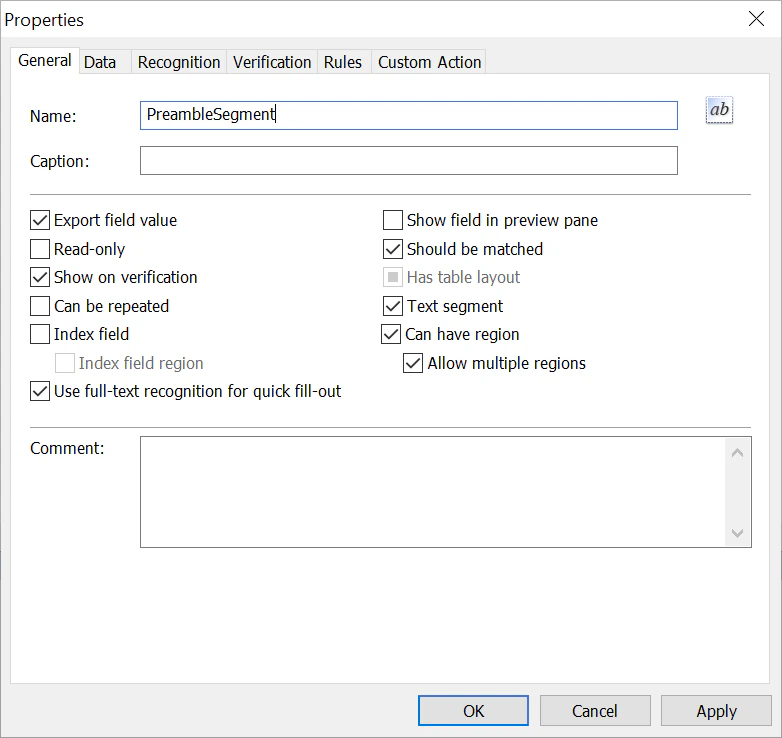 Repeat these steps for each entity. If you use segmentation, create a separate text field for each segment: create a non-repeating field in a repeating group, select **Text segment** in the field properties, and select **Allow multiple regions** if a segment can begin and end on different pages.
## Create a segmentation model
Segmentation improves the accuracy and speed of entity extraction and is optional. It requires a dedicated NLP model, and you can have only one segmentation model per document section.
In the Document Definition Editor, right-click the document section name and select **Properties**. On the **NLP** tab, click **Create**.
In the **Name** field, enter a name (for example, `SegmentationModel`). Set **Model type** to **Segmentation**, and select the required **Language**.
Repeat these steps for each entity. If you use segmentation, create a separate text field for each segment: create a non-repeating field in a repeating group, select **Text segment** in the field properties, and select **Allow multiple regions** if a segment can begin and end on different pages.
## Create a segmentation model
Segmentation improves the accuracy and speed of entity extraction and is optional. It requires a dedicated NLP model, and you can have only one segmentation model per document section.
In the Document Definition Editor, right-click the document section name and select **Properties**. On the **NLP** tab, click **Create**.
In the **Name** field, enter a name (for example, `SegmentationModel`). Set **Model type** to **Segmentation**, and select the required **Language**.
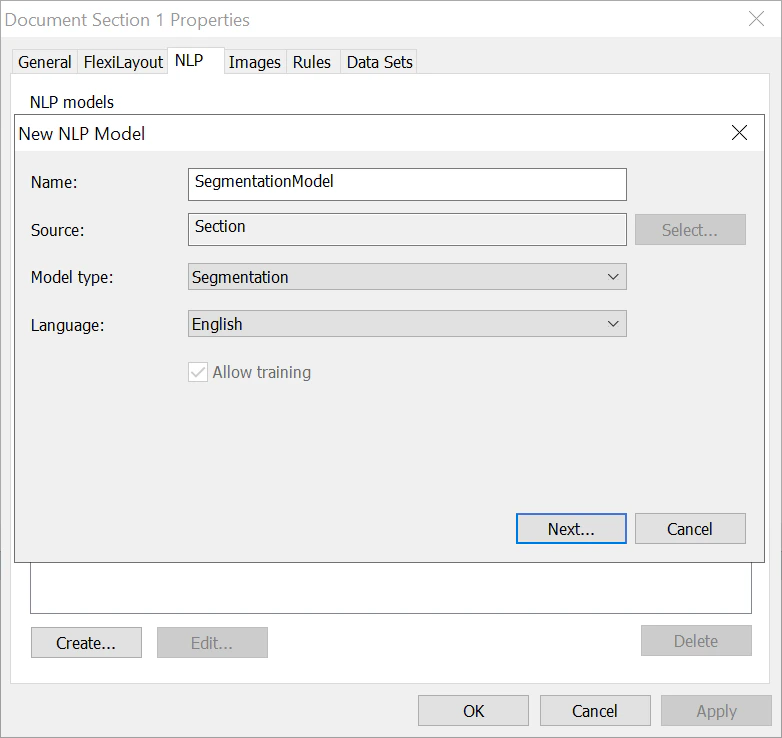 Click **Next**, specify the fields the segments will be extracted into, and click **OK**.
After you create a segmentation model, [train it](/flexi-capture/nlp-training) on sample documents.
## Create an entity extraction model
To extract entities, you need an entity extraction NLP model trained on manually marked-up documents.
In the Document Definition Editor, open the document section properties, click the **NLP** tab, and click **Create**.
Enter a **Name** (for example, `EntitiesExtraction`). For the data source, select a section (if you do not use segmentation) or a segment (if you do). Set **Model type** to **Extraction**, and select the required **Language**.
Click **Next** and choose the result fields to extract from the selected section or segment.
Repeat these steps for each document segment or section from which entities should be extracted. Then save your Document Definition (**Document Definition → Save**), close it (**Document Definition → Close**), and publish it (**Document Definition → Publish**).
After you create an entity extraction model, [train it](/flexi-capture/nlp-training) on sample documents.
The **Allow training** option lets you train an NLP model during document processing: the model is trained when you train field extraction using a field extraction training batch. To disable or delete training results, right-click the training batch and select **Disabled** or **Delete** on the shortcut menu.
Click **Next**, specify the fields the segments will be extracted into, and click **OK**.
After you create a segmentation model, [train it](/flexi-capture/nlp-training) on sample documents.
## Create an entity extraction model
To extract entities, you need an entity extraction NLP model trained on manually marked-up documents.
In the Document Definition Editor, open the document section properties, click the **NLP** tab, and click **Create**.
Enter a **Name** (for example, `EntitiesExtraction`). For the data source, select a section (if you do not use segmentation) or a segment (if you do). Set **Model type** to **Extraction**, and select the required **Language**.
Click **Next** and choose the result fields to extract from the selected section or segment.
Repeat these steps for each document segment or section from which entities should be extracted. Then save your Document Definition (**Document Definition → Save**), close it (**Document Definition → Close**), and publish it (**Document Definition → Publish**).
After you create an entity extraction model, [train it](/flexi-capture/nlp-training) on sample documents.
The **Allow training** option lets you train an NLP model during document processing: the model is trained when you train field extraction using a field extraction training batch. To disable or delete training results, right-click the training batch and select **Disabled** or **Delete** on the shortcut menu.