> ## Documentation Index
> Fetch the complete documentation index at: https://docs.abbyy.com/llms.txt
> Use this file to discover all available pages before exploring further.
# Processing Station
> Processing Station は ABBYY FlexiCapture で無人モードで実行され、画像のインポート、ドキュメントの認識、データのエクスポートを行います。タスクはステーションモニターで確認できます。
Processing Station は無人モードで実行され、次のタスクを処理します。
* Hot Folder からの画像のロード
* Document Definitions の適用とドキュメントの認識
* 事前定義された保存先へのデータのエクスポート
Processing Station は Processing Server からタスクを受け取ります。
## 現在のタスクを表示する
1. **Start → All Programs → ABBYY FlexiCapture 12 Stations → Processing Station** を選択して、Processing Station Monitor を起動します。**Connect to Station** ダイアログが開きます。
2. Processing Server を指定します。
* **Network host** — Processing Server がインストールされているコンピューターの名前です (Processing Server と Processing Station が別のコンピューターにある場合) 。
* **Local host** — Processing Server と Processing Station が同じコンピューターにある場合。
Processing Station を起動するには、Processing Server Monitor を開いてステーションを選択し、起動します。**操作** メニューまたはステーションのショートカットメニューで **Start** を選択するか、対応する **ツールバーボタン** をクリックします。ステーションはサービスとして実行されます。
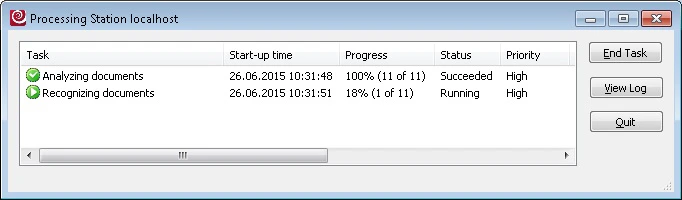
アクティブなタスクはすべて **Tasks** 列に表示されます。各タスクについて、開始時刻、進行状況、ステータス、優先度、ステーション、作成者の情報を確認できます。タスクは、列名をクリックして並べ替えることができます。