> ## Documentation Index
> Fetch the complete documentation index at: https://docs.abbyy.com/llms.txt
> Use this file to discover all available pages before exploring further.

# Properties ウィンドウ

> FlexiLayout Studio の Properties ウィンドウで要素の Parameter を編集します。単一行テキストやドロップダウンリストから、ファジー区間や認識領域まで対応しています。

**Properties** ペインには、現在選択されている要素の情報が表示されます。要素には、ページ、ツリーノード、画像上でマークアップされた要素などがあります。このペインに表示されている Parameter は、**Value** 列の値をクリックして編集できます。値の編集方法は、Parameter の型によって決まります。

<div id="uneditable-parameters">
  ## 編集できないParameter
</div>

<Frame>
  <img src="https://mintcdn.com/abbyy/fmgRWFNHKYN2MLSg/images/flexi-capture/fls/Editor_NotEditable_Param.png?fit=max&auto=format&n=fmgRWFNHKYN2MLSg&q=85&s=d8db6aa00f0eeeb2b858fd9b72bca961" alt="Properties ペイン内の編集できないParameter行のスクリーンショット。参照クラス付きの読み取り専用の値 Pages が灰色で表示され、選択してコピーのみ可能な状態を示しています。" width="318" height="18" data-path="images/flexi-capture/fls/Editor_NotEditable_Param.png" />
</Frame>

これらの Parameter の値は、**Properties** ペインでは変更できません。灰色で表示され、選択してコピーすることしかできません。編集できないParameterには、要素型、子要素の数、および分類統計が含まれます。

<div id="single-line-text">
  ## 単一行テキスト
</div>

<Frame>
  <img src="https://mintcdn.com/abbyy/fmgRWFNHKYN2MLSg/images/flexi-capture/fls/Editor_SingleLine_Text.png?fit=max&auto=format&n=fmgRWFNHKYN2MLSg&q=85&s=ab3c9fb1d983f92de7e6f1343a778e28" alt="Properties ペイン内の単一行テキストParameterのスクリーンショット。制約のない単一行テキストボックスで Name の値を編集している様子を示しています。" width="337" height="18" data-path="images/flexi-capture/fls/Editor_SingleLine_Text.png" />
</Frame>

これらの Parameter は、制約のない単一行のテキストボックスで編集します。新しい値は、設定しようとしたときにチェックされます。新しい値が正しくない場合は、要素名を編集している場合を除き、テキストボックスにエラーメッセージが表示されます。正しくない要素名はデフォルト値に置き換えられます。

<div id="multiple-line-text">
  ## 複数行テキスト
</div>

<Frame>
  <img src="https://mintcdn.com/abbyy/fmgRWFNHKYN2MLSg/images/flexi-capture/fls/Editor_Multiline_Text.png?fit=max&auto=format&n=fmgRWFNHKYN2MLSg&q=85&s=3ba6859f70dc66bba087efa4919ec92a" alt="Properties ペイン内の複数行テキストParameterのスクリーンショット。省略記号ボタンで複数行テキストエディターを開き、複数行のコメントテキストが表示されています。" width="440" height="68" data-path="images/flexi-capture/fls/Editor_Multiline_Text.png" />
</Frame>

テキストボックスには、常にParameterのテキストの1行目が表示されます。テキストが複数行ある場合は、テキストボックスに <img src="https://mintcdn.com/abbyy/fmgRWFNHKYN2MLSg/images/flexi-capture/fls/Button_Ellipsis.png?fit=max&auto=format&n=fmgRWFNHKYN2MLSg&q=85&s=8eccd2a31b9889b11da76b14d9bab4c8" alt="省略記号ボタン" style={{display:"inline-block",verticalAlign:"middle",margin:0}} width="17" height="16" data-path="images/flexi-capture/fls/Button_Ellipsis.png" /> ボタンが表示されます。複数行Parameterを編集するには、<img src="https://mintcdn.com/abbyy/fmgRWFNHKYN2MLSg/images/flexi-capture/fls/Button_Ellipsis.png?fit=max&auto=format&n=fmgRWFNHKYN2MLSg&q=85&s=8eccd2a31b9889b11da76b14d9bab4c8" alt="省略記号ボタン" style={{display:"inline-block",verticalAlign:"middle",margin:0}} width="17" height="16" data-path="images/flexi-capture/fls/Button_Ellipsis.png" /> ボタンをクリックしてテキストエディターを開きます。値は、再度 <img src="https://mintcdn.com/abbyy/fmgRWFNHKYN2MLSg/images/flexi-capture/fls/Button_Ellipsis.png?fit=max&auto=format&n=fmgRWFNHKYN2MLSg&q=85&s=8eccd2a31b9889b11da76b14d9bab4c8" alt="省略記号ボタン" style={{display:"inline-block",verticalAlign:"middle",margin:0}} width="17" height="16" data-path="images/flexi-capture/fls/Button_Ellipsis.png" /> ボタンをクリックしたとき、または別のインターフェイス要素をクリックしたときに設定されます。

<div id="drop-down-list">
  ## ドロップダウンリスト
</div>

<Frame>
  <img src="https://mintcdn.com/abbyy/fmgRWFNHKYN2MLSg/images/flexi-capture/fls/Editor_Select_from_list.png?fit=max&auto=format&n=fmgRWFNHKYN2MLSg&q=85&s=89cee5c91af3f37638161204293b32fd" alt="Properties ペイン内のドロップダウンリストParameterのスクリーンショット。Definition method の値を、From Database、From File、Manual の各オプションのリストから選択している様子を示しています。" width="427" height="67" data-path="images/flexi-capture/fls/Editor_Select_from_list.png" />
</Frame>

これらの Parameter の値は、ドロップダウンリストから選択できます。値を入力することもできますが、リスト内のどのアイテムとも一致しない場合は無視されます。

<div id="complex-parameters">
  ## 複合Parameter
</div>

<Frame>
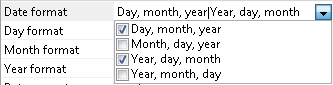
  <img src="https://mintcdn.com/abbyy/fmgRWFNHKYN2MLSg/images/flexi-capture/fls/Editor_Combination_of_values.png?fit=max&auto=format&n=fmgRWFNHKYN2MLSg&q=85&s=6b1d8bf7479540e7a4d1c4c66dee3c49" alt="Properties ペイン内の複合Parameterのスクリーンショット。Date format の値が、ドロップダウンリストから選択した複数の所定の値を縦線で区切って組み合わせたものになっています。" width="333" height="85" data-path="images/flexi-capture/fls/Editor_Combination_of_values.png" />
</Frame>

複合Parameterは、ドロップダウンリストからアイテムを選択して編集します。複合Parameterの値は、複数のあらかじめ定められた値で構成できます。テキストボックスには、選択した値が縦線で区切られて表示されます。値を入力することもできますが、正しくない値は Parameter の値を設定するときに無視されます。

<div id="integers">
  ## 整数
</div>

<Frame>
  <img src="https://mintcdn.com/abbyy/fmgRWFNHKYN2MLSg/images/flexi-capture/fls/Editor_Integer_value.png?fit=max&auto=format&n=fmgRWFNHKYN2MLSg&q=85&s=79645226ee295a3b48a6bd0ea35f5a0b" alt="Properties ペイン内の整数 Parameter のスクリーンショット。Number of hypotheses の値を、値を増減するスピンボタン付きのテキストボックスで編集しています。" width="289" height="18" data-path="images/flexi-capture/fls/Editor_Integer_value.png" />
</Frame>

この型の Parameter は、値を増減するボタン付きのテキストボックスで編集します。値は直接入力でき、新しい値は許容範囲内かどうかが検証されます。値が正しくない場合は通知が表示されます。

<div id="numbers">
  ## 数値
</div>

<Frame>
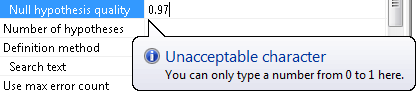
  <img src="https://mintcdn.com/abbyy/fmgRWFNHKYN2MLSg/images/flexi-capture/fls/Editor_Numerical_value.png?fit=max&auto=format&n=fmgRWFNHKYN2MLSg&q=85&s=5e7bf0802b472264b1bdd95d2a9d3b54" alt="Properties ペイン内の数値 Parameter のスクリーンショット。Null hypothesis quality の値を編集中で、0 から 1 までの数値のみ使用可能であることを示す Unacceptable character 通知が表示されています。" width="416" height="91" data-path="images/flexi-capture/fls/Editor_Numerical_value.png" />
</Frame>

この型の Parameter は、標準のテキストボックスで編集します。新しい値は、許容範囲内かどうかも含めて検証されます。値が正しくない場合は通知が表示されます。

<div id="percentages">
  ## パーセンテージ
</div>

<Frame>
  <img src="https://mintcdn.com/abbyy/fmgRWFNHKYN2MLSg/images/flexi-capture/fls/Editor_Percentage.png?fit=max&auto=format&n=fmgRWFNHKYN2MLSg&q=85&s=ed7d62867a2aa56ffccacc723d6a310a" alt="Properties ペイン内のパーセンテージ Parameter のスクリーンショット。Percentage of non-alphabet characters の値がパーセント記号付きで表示されています。" width="386" height="18" data-path="images/flexi-capture/fls/Editor_Percentage.png" />
</Frame>

パーセンテージ用のエディターは数値用のエディターと同じですが、値の後には常にパーセント記号が付きます。

<div id="distance-in-custom-units">
  ## カスタム単位での距離
</div>

このエディターは数値エディターとまったく同じです。測定単位を変更すると、値も更新されます。

<div id="flexilayout-element">
  ## FlexiLayout 要素
</div>

<Frame>
  <img src="https://mintcdn.com/abbyy/fmgRWFNHKYN2MLSg/images/flexi-capture/fls/Editor_Flexi_element.png?fit=max&auto=format&n=fmgRWFNHKYN2MLSg&q=85&s=b4b96eca0079d7419c17c884a14eaaa8" alt="Properties ペイン内の FlexiLayout 要素 Parameter のスクリーンショット。テーブルブロックの値が Blocks.InvoiceTable を参照しており、省略記号ボタンをクリックするとツリーノードを選択するためのダイアログが開きます。" width="291" height="18" data-path="images/flexi-capture/fls/Editor_Flexi_element.png" />
</Frame>

この型の Parameter を編集するには、テキストボックスの横にある <img src="https://mintcdn.com/abbyy/fmgRWFNHKYN2MLSg/images/flexi-capture/fls/Button_Ellipsis.png?fit=max&auto=format&n=fmgRWFNHKYN2MLSg&q=85&s=8eccd2a31b9889b11da76b14d9bab4c8" alt="省略記号ボタン" style={{display:"inline-block",verticalAlign:"middle",margin:0}} width="17" height="16" data-path="images/flexi-capture/fls/Button_Ellipsis.png" /> ボタンをクリックします。ツリーノードを選択できるダイアログが開きます。正しくない要素名は無視されます。

<div id="file">
  ## ファイル
</div>

<Frame>
  <img src="https://mintcdn.com/abbyy/fmgRWFNHKYN2MLSg/images/flexi-capture/fls/Editor_file.png?fit=max&auto=format&n=fmgRWFNHKYN2MLSg&q=85&s=55ab1d133a6489f8f6e4c3e4208303d6" alt="Properties ペイン内のファイル Parameter のスクリーンショット。File Name の値 MyFile.txt が設定されており、省略記号ボタンをクリックするとファイルを選択するためのダイアログが開きます。" width="298" height="18" data-path="images/flexi-capture/fls/Editor_file.png" />
</Frame>

これらの Parameter を編集するには、テキストボックスの横にある <img src="https://mintcdn.com/abbyy/fmgRWFNHKYN2MLSg/images/flexi-capture/fls/Button_Ellipsis.png?fit=max&auto=format&n=fmgRWFNHKYN2MLSg&q=85&s=8eccd2a31b9889b11da76b14d9bab4c8" alt="省略記号ボタン" style={{display:"inline-block",verticalAlign:"middle",margin:0}} width="17" height="16" data-path="images/flexi-capture/fls/Button_Ellipsis.png" /> ボタンをクリックします。ファイルを選択できるダイアログが開きます。手動で指定した値は検証されません。

<div id="recognition-language">
  ## 認識言語
</div>

<Frame>
  <img src="https://mintcdn.com/abbyy/fmgRWFNHKYN2MLSg/images/flexi-capture/fls/Editor_language.png?fit=max&auto=format&n=fmgRWFNHKYN2MLSg&q=85&s=4e718c07f78f9ccec579a5369de3c6d4" alt="Properties ペイン内の認識言語 Parameter のスクリーンショット。Language の値として English と Russian が縦線で区切られて表示されており、省略記号ボタンをクリックすると認識言語を選択するためのダイアログが開きます。" width="299" height="18" data-path="images/flexi-capture/fls/Editor_language.png" />
</Frame>

この型の Parameter を編集するには、テキストボックスの横にある <img src="https://mintcdn.com/abbyy/fmgRWFNHKYN2MLSg/images/flexi-capture/fls/Button_Ellipsis.png?fit=max&auto=format&n=fmgRWFNHKYN2MLSg&q=85&s=8eccd2a31b9889b11da76b14d9bab4c8" alt="省略記号ボタン" style={{display:"inline-block",verticalAlign:"middle",margin:0}} width="17" height="16" data-path="images/flexi-capture/fls/Button_Ellipsis.png" /> ボタンをクリックします。認識言語を選択できるダイアログが開きます。テキストボックスには縦線で区切られた言語が表示され、言語名を直接入力することもできます。無効な言語名は無視されます。

<div id="fuzzy-interval">
  ## ファジー区間
</div>

<Frame>
  <img src="https://mintcdn.com/abbyy/fmgRWFNHKYN2MLSg/images/flexi-capture/fls/Editor_fuzzy_interval.png?fit=max&auto=format&n=fmgRWFNHKYN2MLSg&q=85&s=51c92a10d220c1074e58e77043a8cc4c" alt="Properties ペイン内のファジー区間 Parameter のスクリーンショット。Character count の値に区間 { 0, 0, INF, INF } が設定されており、省略記号ボタンをクリックするとそのエディターが開きます。" width="290" height="18" data-path="images/flexi-capture/fls/Editor_fuzzy_interval.png" />
</Frame>

この型の Parameter を編集するには、テキストボックスの横にある <img src="https://mintcdn.com/abbyy/fmgRWFNHKYN2MLSg/images/flexi-capture/fls/Button_Ellipsis.png?fit=max&auto=format&n=fmgRWFNHKYN2MLSg&q=85&s=8eccd2a31b9889b11da76b14d9bab4c8" alt="省略記号ボタン" style={{display:"inline-block",verticalAlign:"middle",margin:0}} width="17" height="16" data-path="images/flexi-capture/fls/Button_Ellipsis.png" /> ボタンをクリックしてエディターを開きます。値は直接入力できます。新しい値やその形式は検証されず、正しくない値は無視されます。

<div id="recognition-area">
  ## 認識領域
</div>

<Frame>
  <img src="https://mintlify.s3.us-west-1.amazonaws.com/abbyy/images/flexi-capture/fls/Editor_recognition%20region.png" alt="Properties ペインの認識領域Parameterのスクリーンショット。事前認識領域の値として PageLeft、PageTop、PageRight、PageBottom が表示され、省略記号ボタンをクリックすると認識領域のプロパティを指定するためのダイアログが開きます。" />
</Frame>

この型のParameterを編集するには、テキスト ボックスの横にある <img src="https://mintcdn.com/abbyy/fmgRWFNHKYN2MLSg/images/flexi-capture/fls/Button_Ellipsis.png?fit=max&auto=format&n=fmgRWFNHKYN2MLSg&q=85&s=8eccd2a31b9889b11da76b14d9bab4c8" alt="省略記号ボタン" style={{display:"inline-block",verticalAlign:"middle",margin:0}} width="17" height="16" data-path="images/flexi-capture/fls/Button_Ellipsis.png" /> ボタンをクリックします。認識領域のプロパティを指定できるダイアログが開きます。値は直接入力できません。

<div id="named-parameter">
  ## 名前付きParameter
</div>

<Frame>
  <img src="https://mintcdn.com/abbyy/fmgRWFNHKYN2MLSg/images/flexi-capture/fls/Editor_Named_param.png?fit=max&auto=format&n=fmgRWFNHKYN2MLSg&q=85&s=30c3f1d3cb0e5b105c151de0291d37e4" alt="Properties ペインの名前付きParameter行のスクリーンショット。FlexiLayout の名前付きParameterの値として、32 に設定された Int 型の NamedParameter が表示され、省略記号ボタンをクリックすると名前付きParameter エディターが開きます。" width="367" height="18" data-path="images/flexi-capture/fls/Editor_Named_param.png" />
</Frame>

テキスト ボックスの横にある <img src="https://mintcdn.com/abbyy/fmgRWFNHKYN2MLSg/images/flexi-capture/fls/Button_Ellipsis.png?fit=max&auto=format&n=fmgRWFNHKYN2MLSg&q=85&s=8eccd2a31b9889b11da76b14d9bab4c8" alt="省略記号ボタン" style={{display:"inline-block",verticalAlign:"middle",margin:0}} width="17" height="16" data-path="images/flexi-capture/fls/Button_Ellipsis.png" /> ボタンをクリックすると、FlexiLayout、バッチ、またはページのプロパティ ダイアログが開き、そこで名前付きParameterを編集できます。詳しくは、[名前付きParameter](/ja/flexi-capture/fls/settings/named-param)を参照してください。

<div id="value-validation">
  ## 値の検証
</div>

ほとんどの場合、ユーザーが指定した値はすべて検証されます。正しくない値は、デフォルト値に戻されるか、エラー通知付きでテキスト ボックスに表示されます。このような場合でも、エラー メッセージを示す別個のダイアログは表示されません。

<div id="hidden-and-nested-parameters">
  ## 非表示および入れ子のParameter
</div>

要素の現在のプロパティに照らして意味を持たないParameterは非表示になります。たとえば、**Search text**、**Database connection string**、**File name** Parameter は同時に表示できません。これらのParameterのうち 1 つは、**Static Text** Parameter で指定された検索アルゴリズムに基づいて選択され、残りの 2 つは非表示になります。

子Parameterの名前は、親Parameter名よりもインデントして表示されます。