> ## Documentation Index
> Fetch the complete documentation index at: https://docs.abbyy.com/llms.txt
> Use this file to discover all available pages before exploring further.
# 要素パラメーターの学習
> ABBYY FlexiLayout Studio で要素パラメーターを学習します。トレーニングセットを準備してから、Choose Trained Element Parameters ダイアログで値を適用します。
要素の学習機能は、単純型の要素ごとに個別のパラメーターを自動設定するために使用します。必要に応じて、新しい要素を学習させたり、以前に作成した要素のパラメーターを修正したりできます。
## 要素の学習の前提条件
* 学習対象の要素について、複数のページに正しい **Reference layout** または **Matched layout** が必要です。
* トレーニングセットに含めるすべてのページは、**Batch** タブで **Use for Training** としてマークされている必要があります。
**Create New (Ctrl+Space)**  ツールを使用して新しい要素を作成し、画像上にその Region を描画することも、**Draw Location**
  ツールを使用して、ツリー内の既存の要素の位置を描画することもできます。
## 要素を学習する
要素の shortcut menu で **Train Element** → **Train Element Parameters** を選択します。**Choose Trained Element Parameters** ダイアログが開き、学習対象の要素のパラメーターとその値が表示されます。依存パラメーターの名前はインデント表示されます。
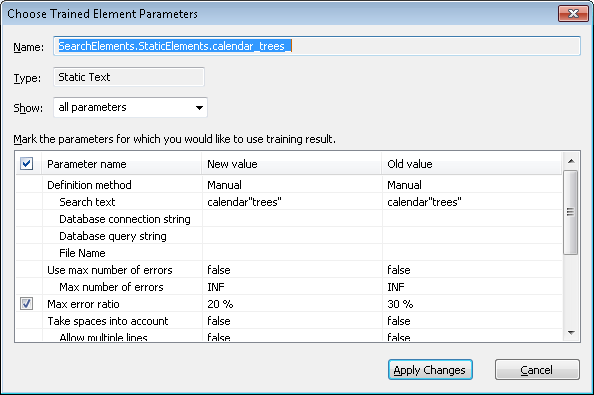 **Show** ドロップダウンリストで **modified parameters only** を選択すると、学習中に変更されたパラメーターだけが表示されます。**all parameters** を選択すると、要素のすべてのパラメーターが表示されます。
そのパラメーターに学習結果を適用するには、パラメーター名の左にあるチェックボックスをオンにします。変更済みのすべてのパラメーターを選択するには、**Parameter name** キャプションの横にあるチェックボックスをオンにします。
選択したパラメーターの新しい値が保存されます。
**Show** ドロップダウンリストで **modified parameters only** を選択すると、学習中に変更されたパラメーターだけが表示されます。**all parameters** を選択すると、要素のすべてのパラメーターが表示されます。
そのパラメーターに学習結果を適用するには、パラメーター名の左にあるチェックボックスをオンにします。変更済みのすべてのパラメーターを選択するには、**Parameter name** キャプションの横にあるチェックボックスをオンにします。
選択したパラメーターの新しい値が保存されます。