> ## Documentation Index
> Fetch the complete documentation index at: https://docs.abbyy.com/llms.txt
> Use this file to discover all available pages before exploring further.
# サンプル 2. Step 12: RecipeNumber ブロックの作成
> RecipeNumber という名前の Text ブロックを追加し、そのソースとして RecipeNumber 要素に関連付けることで、ABBYY FlexiCapture がレシピ番号 field を認識できるようにします。
ABBYY FlexiCapture でレシピ番号を認識できるようにするには、**Recipe #** field に対応するブロックを作成し、その位置を指定する必要があります。
**Recipe #** field に対応するブロックを作成するには、次の手順に従います。
1. プログラムのメインウィンドウで **FlexiLayout** タブをクリックします。
2. FlexiLayout ツリーで **Blocks** を選択します。
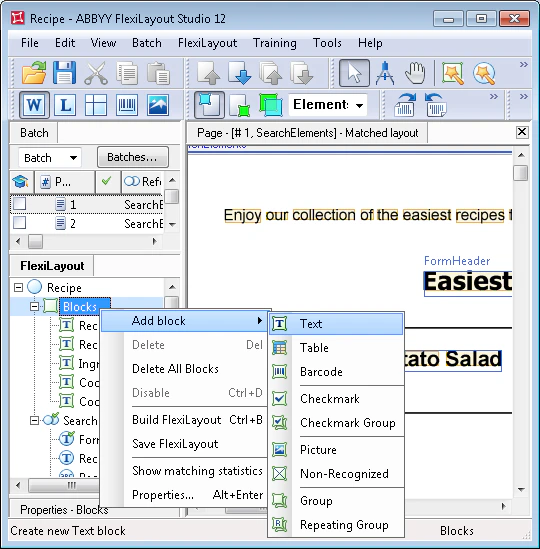
3. **FlexiLayout** メニューまたはショートカットメニューで **Add Block →** Text を選択します。
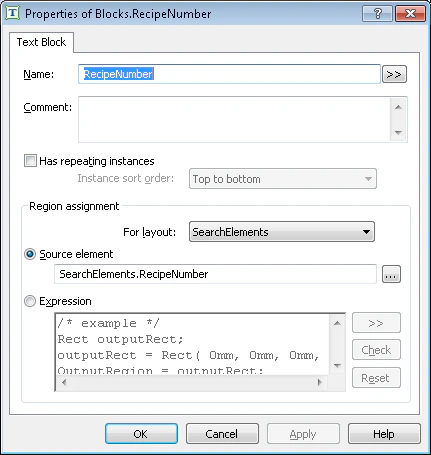
 4. Properties ダイアログの Name field にブロック名を入力します。たとえば **RecipeNumber** です。
ブロック名は、**Recipe #** field に対応する要素名と一致している必要はありません。便宜上、field と同じ名前をブロックに付けてください。
5. ブロックの位置を指定するには、Source element を選択します。 "**…**" をクリックし、ソース要素として **RecipeNumber** 要素を指定します。
4. Properties ダイアログの Name field にブロック名を入力します。たとえば **RecipeNumber** です。
ブロック名は、**Recipe #** field に対応する要素名と一致している必要はありません。便宜上、field と同じ名前をブロックに付けてください。
5. ブロックの位置を指定するには、Source element を選択します。 "**…**" をクリックし、ソース要素として **RecipeNumber** 要素を指定します。