> ## Documentation Index
> Fetch the complete documentation index at: https://docs.abbyy.com/llms.txt
> Use this file to discover all available pages before exploring further.
# サンプル 2. Step 13: レシピ名を含むfieldの記述
> RecipeName Character String 要素を使用してレシピ名のfieldを特定し、NearestY 制約と除外領域を組み合わせて検索領域を絞り込みます。
レシピ名のfieldを、フォーム見出しの下側境界に最も近いオブジェクトとして記述します。ただし、要素 Recipe と RecipeNumber を含む領域は除外します。詳細については、[Step 8](/ja/flexi-capture/fls/tutorial2/2step8)を参照してください。
1. 型 [Character String](/ja/flexi-capture/fls/template/character-chain) の要素を作成し、**RecipeName** という名前を付けます。この要素はレシピ名に対応します。
2. レシピ名を含むfieldに対応する **RecipeName** ブロックを作成します。
RecipeName 要素を作成するには、次の手順に従います。
1. [Character String](/ja/flexi-capture/fls/template/character-chain) 型の要素を作成し、**RecipeName** という名前を付けます。
2. Character String タブをクリックします。
3. 必要なアルファベットを設定します。テスト画像から判断すると、アルファベットには英字、数字、および "#", "-", "&", "." の各文字が含まれます。文字の順序や文字数は事前にはわかりません。
4. アルファベット文字の Percentage を 1 に設定します。
5. Allow embedded hypotheses ボックスをオフにします。
6. 非アルファベット文字の Percentage を 0.2 (つまり 20%) に設定します。
7. Character count field で、文字列全体の長さを見積もるあいまいな範囲を指定します。デフォルトの範囲 `{-1, -1, INF, INF}` は変更しないでください。これは、文字列の長さに制約がないことを意味します。
8. Relations タブをクリックします。
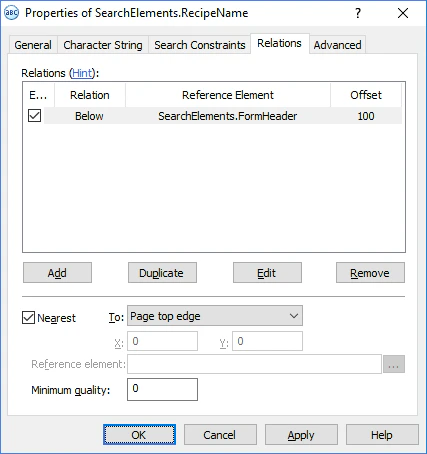
レシピ名がフォーム見出しの下側境界より少なくとも 100 ドット下に位置するよう、つまり見出しとレシピ名の間に少なくとも 100 ドットの間隔があるように指定します。テスト画像を見ると、見出しの下にあるすべての行がこの条件を満たしていることがわかります。そのため、検索領域を絞り込む必要があります。
9. Advanced タブをクリックします。
Advanced pre-search relations field で、[追加の検索条件](/ja/flexi-capture/fls/template/advanced-constraints)を指定します。文書の上側境界に最も近い行を探します。これは [FlexiLayout language](/ja/flexi-capture/fls/code/general-code) では次のように記述します。
`NearestY: 0*dot;`
Relations タブの検索条件と組み合わせることで、検索領域は文書見出しに最も近い 1 行に絞り込まれます。
同じ制約は、プログラムのグラフィカルユーザーインターフェースから指定することもできます。Relations タブをクリックし、Nearest を選択してから、To ドロップダウンリストで Page top edge を選択します。
 10. Search Constraints タブをクリックします。
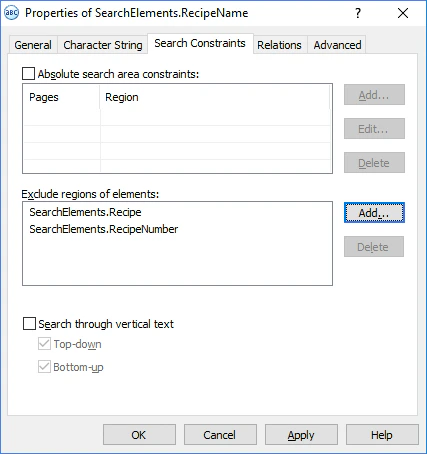
11. [Step 8](/ja/flexi-capture/fls/tutorial2/2step8) で説明したとおり、要素 **Recipe** と **RecipeNumber** の領域は **RecipeName** の検索領域から除外する必要があります。Exclude regions of elements field の横にある Add... ボタンをクリックし、Select Element to Exclude ダイアログで **Recipe** 要素と **RecipeNumber** 要素を選択します。
10. Search Constraints タブをクリックします。
11. [Step 8](/ja/flexi-capture/fls/tutorial2/2step8) で説明したとおり、要素 **Recipe** と **RecipeNumber** の領域は **RecipeName** の検索領域から除外する必要があります。Exclude regions of elements field の横にある Add... ボタンをクリックし、Select Element to Exclude ダイアログで **Recipe** 要素と **RecipeNumber** 要素を選択します。
 FlexiLayout をテスト画像でマッチングし、すべての画像でプログラムがレシピ名を含むfieldを正しく見つけられることを確認します。
最後に、RecipeName ブロックを作成します。RecipeName ブロックは RecipeNumber ブロックと同様に作成します。異なるのは、RecipeName ブロックの source 要素として RecipeName 要素を指定する必要がある点だけです。
FlexiLayout をテスト画像でマッチングし、すべての画像でプログラムがレシピ名を含むfieldを正しく見つけられることを確認します。
最後に、RecipeName ブロックを作成します。RecipeName ブロックは RecipeNumber ブロックと同様に作成します。異なるのは、RecipeName ブロックの source 要素として RecipeName 要素を指定する必要がある点だけです。