> ## Documentation Index
> Fetch the complete documentation index at: https://docs.abbyy.com/llms.txt
> Use this file to discover all available pages before exploring further.
# サンプル 2. Step 14: Ingredients field の説明
> IngredientsHeader、水平の Separator、および Paragraph element を RecipeContents Group element 内でグループ化して、Ingredients field を抽出します。
テスト画像から判断すると、材料の一覧はテキストフラグメントで、常に Ingredients field の名前の下にあり、Cooking field の名前の上にある区切り線より上に位置しています。
これらの要素を記述しやすくし、考えられる仮説の数を絞るため、これらを 1 つの Group element にまとめます。
1. [Group](/ja/flexi-capture/fls/template/elements-simple) element を作成し、**RecipeContents** という名前を付けます。
2. **RecipeContents** element 内に、型が Static Text の element を作成し、**IngredientsHeader** という名前を付けます。この element は **Ingredients** という名前に対応します。element のプロパティは、**Recipe** element の [Step 10](/ja/flexi-capture/fls/tutorial2/2step10) と同様に指定します。
3. **RecipeContents** element 内に、型が [Separator](/ja/flexi-capture/fls/template/separator) の element を作成します。これは **Cooking** の名前の上にある区切り線に対応します。Separator tab で、区切り線の orientation として Horizontal を指定します。element の **Properties** ダイアログで Relations tab をクリックし、search constraints を指定します。**Ingredients:** の名前の下 (つまり **IngredientsHeader** element の Below) です。
If you try matching the FlexiLayout, you will see that sometimes the program treats the lower boundary of an image as a separator.
この問題は、search constraint をもう 1 つ追加することで解決できます。Advanced pre-search relations field (Properties ダイアログの Advanced tab) に、次の search constraint を追加します: **Ingredients:** という名前に最も近い区切り線を探します。[FlexiLayout language](/ja/flexi-capture/fls/code/general-code) では、これは次のように記述します:
`Nearest: SearchElements.RecipeContents.IngredientsHeader;`
この constraint は、プログラムの graphical user interface から指定することもできます。Relations tab をクリックし、Nearest を選択して、To ドロップダウンリストで Element を選択し、Reference element として **IngredientsHeader** を指定します。
4. 調整した FlexiLayout をもう一度マッチングします。
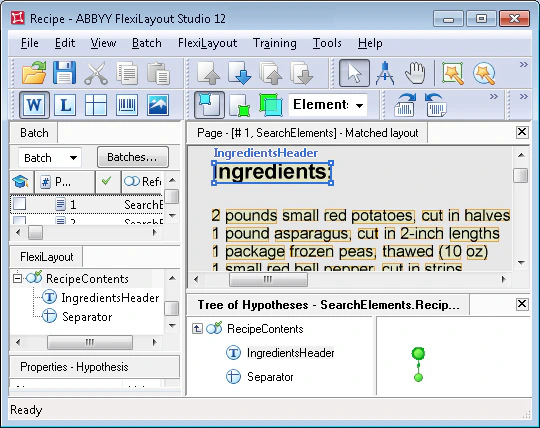 5. **IngredientsHeader** element に、search constraint をもう 1 つ追加することもできます。Advanced pre-search relations field (Properties ダイアログの Advanced tab) に、次の search constraint を追加します: 画像の上部で field 名を探します。[FlexiLayout language](/ja/flexi-capture/fls/code/general-code) では、これは次のように記述します:
`Above: PageRect.top + PageRect.Height/2;`
6. **RecipeContents** element 内に、型が [Paragraph](/ja/flexi-capture/fls/template/text-chain) の element を作成し、**Ingredients** という名前を付けます。この element は **Ingredients** field に対応します。
search constraints を設定します (element の **Properties** ダイアログの Relations tab): **Ingredients:** 見出しの下 (**IngredientsHeader** の Below) で、かつ区切り線の上 (**Separator** element の Above) です。
テスト画像で FlexiLayout のマッチングを試し、すべての画像でプログラムが **Ingredients** field を正しく見つけることを確認します。
最後に、**Ingredients** block を作成します。**Ingredients** block は **RecipeNumber** block と同様に作成します。唯一異なるのは、**Ingredients** block の source element として Ingredients element を指定する必要がある点です。
5. **IngredientsHeader** element に、search constraint をもう 1 つ追加することもできます。Advanced pre-search relations field (Properties ダイアログの Advanced tab) に、次の search constraint を追加します: 画像の上部で field 名を探します。[FlexiLayout language](/ja/flexi-capture/fls/code/general-code) では、これは次のように記述します:
`Above: PageRect.top + PageRect.Height/2;`
6. **RecipeContents** element 内に、型が [Paragraph](/ja/flexi-capture/fls/template/text-chain) の element を作成し、**Ingredients** という名前を付けます。この element は **Ingredients** field に対応します。
search constraints を設定します (element の **Properties** ダイアログの Relations tab): **Ingredients:** 見出しの下 (**IngredientsHeader** の Below) で、かつ区切り線の上 (**Separator** element の Above) です。
テスト画像で FlexiLayout のマッチングを試し、すべての画像でプログラムが **Ingredients** field を正しく見つけることを確認します。
最後に、**Ingredients** block を作成します。**Ingredients** block は **RecipeNumber** block と同様に作成します。唯一異なるのは、**Ingredients** block の source element として Ingredients element を指定する必要がある点です。