> ## Documentation Index
> Fetch the complete documentation index at: https://docs.abbyy.com/llms.txt
> Use this file to discover all available pages before exploring further.
# サンプル 3. Step 11: wgAddressRight 要素を使用した Delivery Address field の右境界の検出
> Delivery Address field の右境界を示し、FlexiLayout でその検索領域を制限する wgAddressRight White Gap 要素を設定します。
DeliveryAddress 要素の検索領域の右境界を指定するには、対応する縦方向の White Gap を定義します。
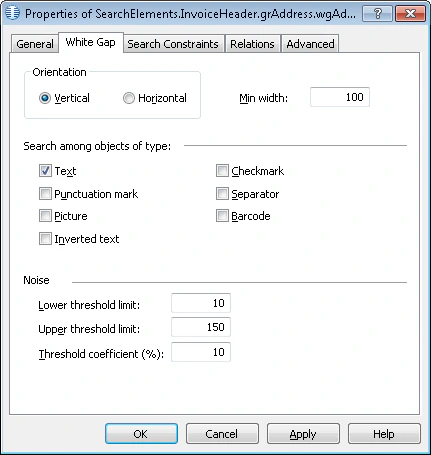
wgAddressRight 要素を作成するには、次の手順に従います。
1. `InvoiceHeader.grAddress` 要素内に、型が [White Gap](/ja/flexi-capture/fls/template/white-gap) の要素を作成し、名前を **wgAddressRight** にします。
2. White Gap タブをクリックします。
3. **Orientation** グループで Vertical を選択します。**Min width** を 100 に設定します。
White Gap の高さや幅の値を設定する前に、事前認識で検出された隣接 object の幾何学的特性 (サイズや境界など) を分析しておくことをお勧めします。White Gap 領域の noise threshold の値は、試行錯誤で選択します。
4. **Lower threshold limit:** と **Threshold coefficient (%):** を 10 に設定します。
**Lower threshold limit**、**Upper threshold limit**、および **Threshold coefficient (%)** の値は、試行錯誤で決定します。
詳細については、[White Gap](/ja/flexi-capture/fls/template/white-gap) を参照してください。
5. 要素のその他の parameters は、デフォルト値のままにします。
 1. Relations タブをクリックします。
2. 対象の White Gap は **kwDeliveryAddress** という名前の keywords の右側にしか配置できないため、次の検索制約を設定します。
* 要素 **kwDeliveryAddress** の Right of、Offset = 0
3. Advanced タブをクリックします。
4. **Delivery Address** field は画像上ではオプションですが、存在する場合は必ず名前を持つため、Advanced pre-search relations field に次の[追加の検索制約](/ja/flexi-capture/fls/template/advanced-constraints)を設定します。**kwDeliveryAddress** 要素が検出されている場合にのみオブジェクトを検索します。[FlexiLayout language](/ja/flexi-capture/fls/code/general-code) では、次のように記述します。
`If InvoiceHeader.kwDeliveryAddress.IsNull Then DontFind;`
5. 対象の White Gap は **Invoice Number** field に隣接しているため、Advanced pre-search relations field に次の[追加の検索制約](/ja/flexi-capture/fls/template/advanced-constraints)を設定します。**kwInvoiceNumber** 要素に最も近い画像上でオブジェクトを検索します。[FlexiLayout language](/ja/flexi-capture/fls/code/general-code) では、次のように記述します。
`Nearest: InvoiceHeader.kwInvoiceNumber;`
**Nearest** 制約は、プログラムのグラフィカルユーザーインターフェースから指定することもできます。**Relations** タブをクリックし、**Nearest** を選択して、**To:** ドロップダウンリストで **Element** を選び、**Reference** 要素として **kwInvoiceNumber** を指定します。
6. テスト画像で FlexiLayout のマッチングを実行し、**Delivery Address** field が存在するすべての画像で、プログラムがこの要素を正しく検出することを確認します。
1. Relations タブをクリックします。
2. 対象の White Gap は **kwDeliveryAddress** という名前の keywords の右側にしか配置できないため、次の検索制約を設定します。
* 要素 **kwDeliveryAddress** の Right of、Offset = 0
3. Advanced タブをクリックします。
4. **Delivery Address** field は画像上ではオプションですが、存在する場合は必ず名前を持つため、Advanced pre-search relations field に次の[追加の検索制約](/ja/flexi-capture/fls/template/advanced-constraints)を設定します。**kwDeliveryAddress** 要素が検出されている場合にのみオブジェクトを検索します。[FlexiLayout language](/ja/flexi-capture/fls/code/general-code) では、次のように記述します。
`If InvoiceHeader.kwDeliveryAddress.IsNull Then DontFind;`
5. 対象の White Gap は **Invoice Number** field に隣接しているため、Advanced pre-search relations field に次の[追加の検索制約](/ja/flexi-capture/fls/template/advanced-constraints)を設定します。**kwInvoiceNumber** 要素に最も近い画像上でオブジェクトを検索します。[FlexiLayout language](/ja/flexi-capture/fls/code/general-code) では、次のように記述します。
`Nearest: InvoiceHeader.kwInvoiceNumber;`
**Nearest** 制約は、プログラムのグラフィカルユーザーインターフェースから指定することもできます。**Relations** タブをクリックし、**Nearest** を選択して、**To:** ドロップダウンリストで **Element** を選び、**Reference** 要素として **kwInvoiceNumber** を指定します。
6. テスト画像で FlexiLayout のマッチングを実行し、**Delivery Address** field が存在するすべての画像で、プログラムがこの要素を正しく検出することを確認します。