> ## Documentation Index
> Fetch the complete documentation index at: https://docs.abbyy.com/llms.txt
> Use this file to discover all available pages before exploring further.
# サンプル 3. Step 9: grDate、InvoiceDate、InvoiceDateAsString 要素を使用した請求日 field の記述
> grDate、InvoiceDate、InvoiceDateAsString 要素を使用して請求日 field を記述し、低品質のスキャンに備えて Character String によるフォールバックを追加します。
テスト画像を解析すると、請求日 field はその項目名の右側にあり、項目名と同じ高さに配置されていることがわかります。日付を検索するには、[Date](/ja/flexi-capture/fls/template/date) 要素を使用します。画像品質が低く日付が正しく認識されず、Date 要素の検索で結果が得られない場合に備えて、型が [Character String](/ja/flexi-capture/fls/template/character-chain) の追加要素も作成します。これらすべての要素に共通するプロパティを指定するために、複合要素 grDate を作成します。
grDate 要素を作成するには:
1. **InvoiceHeader** 要素内に、型が [Group](/ja/flexi-capture/fls/template/elements-compound) の要素を作成し、**grDate** という名前を付けます。
2. **Relations** タブをクリックします。
3. 請求日 field の検出に使用するすべての要素は、kwInvoiceDate という項目名キーワードの右側で、かつその項目名と同じ高さにしか存在しないため、次の検索制約を設定します。
* 要素 **kwInvoiceDate** の **Right of**、Offset = 0。
* 要素 **kwInvoiceDate** の **Above**、Offset = -10、Element boundary = Bottom。
* 要素 **kwInvoiceDate** の **Below**、Offset = -10、Element boundary = Top。
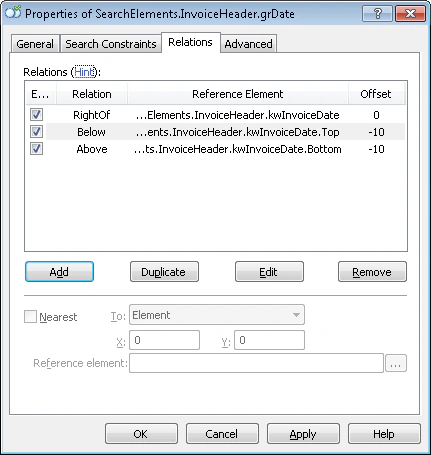 InvoiceDate 要素を作成するには:
1. `InvoiceHeader.grDate` 要素内に、型が [Date](/ja/flexi-capture/fls/template/date) の要素を作成し、**InvoiceDate** という名前を付けます。
2. **Date** タブをクリックします。
3. **Date** タブで、画像内に現れる可能性があるすべての日付フォーマットを指定します。ここでは、日付フォーマットは日、月、年の順で、language は English、日付にはそのほかの制約はないものとします。
InvoiceDate 要素を作成するには:
1. `InvoiceHeader.grDate` 要素内に、型が [Date](/ja/flexi-capture/fls/template/date) の要素を作成し、**InvoiceDate** という名前を付けます。
2. **Date** タブをクリックします。
3. **Date** タブで、画像内に現れる可能性があるすべての日付フォーマットを指定します。ここでは、日付フォーマットは日、月、年の順で、language は English、日付にはそのほかの制約はないものとします。
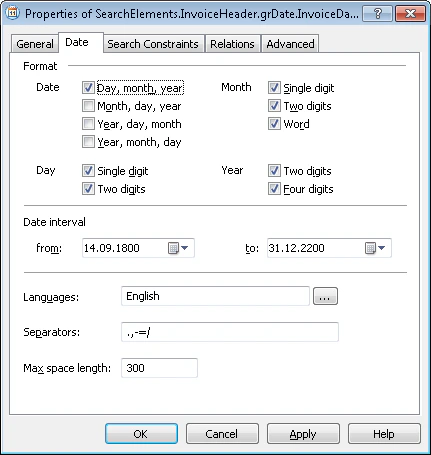 1. **Advanced** タブをクリックします。
2. **請求日** field はこのドキュメントでは任意ですが、存在する場合は必ず項目名とともに現れ、常にその隣に配置されるため、Advanced pre-search relations field に次の[追加の検索制約](/ja/flexi-capture/fls/template/advanced-constraints)を設定します。**kwInvoiceDate** 要素が検出されている場合にのみ、画像上のオブジェクトを検索する。**kwInvoiceDate** 要素に最も近い画像オブジェクトを検索する。[FlexiLayout language](/ja/flexi-capture/fls/code/general-code) では次のようになります:
`If InvoiceHeader.kwInvoiceDate.IsNull Then DontFind;`
`Nearest: InvoiceHeader.kwInvoiceDate;`
**Nearest** 制約は、プログラムのグラフィカル ユーザーインターフェースから指定することもできます。**Relations** タブをクリックし、**Nearest** を選択して、**To:** ドロップダウンリストで **Element** を選択し、**Reference element** として **kwInvoiceDate** を指定します。
3. テスト画像に対して FlexiLayout のマッチングを実行し、**請求日** field があるすべての画像で、プログラムがこの要素を正しく検出することを確認します。
テストすると、一部の画像では要素が検出されないことがわかります。事前認識の結果を解析すると、これは field 領域のノイズが原因であることがわかります。[Date](/ja/flexi-capture/fls/template/date) 要素の標準プロパティではこの問題を解決できないため、検索制約をより緩やかにした代替要素を作成する必要があります。
低品質の画像で日付を見つける方法の詳細については、[高品質または低品質の認識後の日付検索](/ja/flexi-capture/fls/tips-tricks/date2) を参照してください。
InvoiceDateAsString 要素を作成するには:
1. `InvoiceHeader.grDate` 要素に、型 [Character String](/ja/flexi-capture/fls/template/character-chain) の要素を作成し、**InvoiceDateAsString** という名前を付けます。
2. Character String タブをクリックします。
3. Character count フィールドで、次のファジー区間を指定します: `{-1, 8, 14, INF}`。これは文字列長のおおよその範囲です。文字列の長さは 8 ~ 14 文字と想定します。この範囲外の仮説にはペナルティが適用されます。
4. Max space length を 20 に設定します。これは、スペースの長さを 20 ドットまで許容することを意味します。
5. その他のプロパティは、デフォルト値のままにします。
6. Advanced タブをクリックします。
7. **InvoiceDate** 要素が検出されなかった場合にのみプログラムがこの要素を探すようにする必要があるため、Advanced pre-search relations フィールドで次の [追加の検索制約](/ja/flexi-capture/fls/template/advanced-constraints) を設定します: **InvoiceDate** 要素が検出されなかった場合にのみオブジェクトを探します。[FlexiLayout language](/ja/flexi-capture/fls/code/general-code) では次のようになります:
`If Not InvoiceDate.IsNull Then DontFind;`
8. このドキュメントでは **請求日** field は任意ですが、存在する場合は常に項目名とともに表示され、その名前の隣に配置されるため、Advanced pre-search relations フィールドで次の [追加の検索制約](/ja/flexi-capture/fls/template/advanced-constraints) を設定します: 要素 **kwInvoiceDate** が検出された場合にのみ画像上でオブジェクトを探します。**kwInvoiceDate** 要素に最も近い画像オブジェクトを探します。[FlexiLayout language](/ja/flexi-capture/fls/code/general-code) では次のようになります:
`If InvoiceHeader.kwInvoiceDate.IsNull Then DontFind;`
`Nearest: InvoiceHeader.kwInvoiceDate;`
**Nearest** 制約は、プログラムのグラフィカルユーザーインターフェースから指定することもできます。**Relations** タブをクリックし、**Nearest** を選択して、**To:** ドロップダウンリストで **Element** を選択し、**Reference element** として **kwInvoiceDate** を指定します。
9. テスト画像で FlexiLayout のマッチングを実行し、**請求日** field があるすべての画像でプログラムが要素を正しく検出し、**InvoiceDate** 要素に対してヌル仮説を生成することを確認します。
10. **InvoiceDate** ブロックの位置を記述するには、Source element オプションを選択し、
1. **Advanced** タブをクリックします。
2. **請求日** field はこのドキュメントでは任意ですが、存在する場合は必ず項目名とともに現れ、常にその隣に配置されるため、Advanced pre-search relations field に次の[追加の検索制約](/ja/flexi-capture/fls/template/advanced-constraints)を設定します。**kwInvoiceDate** 要素が検出されている場合にのみ、画像上のオブジェクトを検索する。**kwInvoiceDate** 要素に最も近い画像オブジェクトを検索する。[FlexiLayout language](/ja/flexi-capture/fls/code/general-code) では次のようになります:
`If InvoiceHeader.kwInvoiceDate.IsNull Then DontFind;`
`Nearest: InvoiceHeader.kwInvoiceDate;`
**Nearest** 制約は、プログラムのグラフィカル ユーザーインターフェースから指定することもできます。**Relations** タブをクリックし、**Nearest** を選択して、**To:** ドロップダウンリストで **Element** を選択し、**Reference element** として **kwInvoiceDate** を指定します。
3. テスト画像に対して FlexiLayout のマッチングを実行し、**請求日** field があるすべての画像で、プログラムがこの要素を正しく検出することを確認します。
テストすると、一部の画像では要素が検出されないことがわかります。事前認識の結果を解析すると、これは field 領域のノイズが原因であることがわかります。[Date](/ja/flexi-capture/fls/template/date) 要素の標準プロパティではこの問題を解決できないため、検索制約をより緩やかにした代替要素を作成する必要があります。
低品質の画像で日付を見つける方法の詳細については、[高品質または低品質の認識後の日付検索](/ja/flexi-capture/fls/tips-tricks/date2) を参照してください。
InvoiceDateAsString 要素を作成するには:
1. `InvoiceHeader.grDate` 要素に、型 [Character String](/ja/flexi-capture/fls/template/character-chain) の要素を作成し、**InvoiceDateAsString** という名前を付けます。
2. Character String タブをクリックします。
3. Character count フィールドで、次のファジー区間を指定します: `{-1, 8, 14, INF}`。これは文字列長のおおよその範囲です。文字列の長さは 8 ~ 14 文字と想定します。この範囲外の仮説にはペナルティが適用されます。
4. Max space length を 20 に設定します。これは、スペースの長さを 20 ドットまで許容することを意味します。
5. その他のプロパティは、デフォルト値のままにします。
6. Advanced タブをクリックします。
7. **InvoiceDate** 要素が検出されなかった場合にのみプログラムがこの要素を探すようにする必要があるため、Advanced pre-search relations フィールドで次の [追加の検索制約](/ja/flexi-capture/fls/template/advanced-constraints) を設定します: **InvoiceDate** 要素が検出されなかった場合にのみオブジェクトを探します。[FlexiLayout language](/ja/flexi-capture/fls/code/general-code) では次のようになります:
`If Not InvoiceDate.IsNull Then DontFind;`
8. このドキュメントでは **請求日** field は任意ですが、存在する場合は常に項目名とともに表示され、その名前の隣に配置されるため、Advanced pre-search relations フィールドで次の [追加の検索制約](/ja/flexi-capture/fls/template/advanced-constraints) を設定します: 要素 **kwInvoiceDate** が検出された場合にのみ画像上でオブジェクトを探します。**kwInvoiceDate** 要素に最も近い画像オブジェクトを探します。[FlexiLayout language](/ja/flexi-capture/fls/code/general-code) では次のようになります:
`If InvoiceHeader.kwInvoiceDate.IsNull Then DontFind;`
`Nearest: InvoiceHeader.kwInvoiceDate;`
**Nearest** 制約は、プログラムのグラフィカルユーザーインターフェースから指定することもできます。**Relations** タブをクリックし、**Nearest** を選択して、**To:** ドロップダウンリストで **Element** を選択し、**Reference element** として **kwInvoiceDate** を指定します。
9. テスト画像で FlexiLayout のマッチングを実行し、**請求日** field があるすべての画像でプログラムが要素を正しく検出し、**InvoiceDate** 要素に対してヌル仮説を生成することを確認します。
10. **InvoiceDate** ブロックの位置を記述するには、Source element オプションを選択し、 をクリックして、ソース要素として `InvoiceHeader.grDate` 要素を選択します。
[Group element](/ja/flexi-capture/fls/template/elements-compound) の region は、検出されたすべてのサブ要素の region を結合して計算されます。
をクリックして、ソース要素として `InvoiceHeader.grDate` 要素を選択します。
[Group element](/ja/flexi-capture/fls/template/elements-compound) の region は、検出されたすべてのサブ要素の region を結合して計算されます。