> ## Documentation Index
> Fetch the complete documentation index at: https://docs.abbyy.com/llms.txt
> Use this file to discover all available pages before exploring further.
# 予備的な画像解析とDocument Definitionsの適用
> 認識前に画像を解析し、ABBYY FlexiCapture で Match Document Definition コマンドまたは選択パネルを使用して Document Definitions を適用します。
*(Distributed)* プログラムは自動的に画像を解析・認識し、一致するDocument Definitionsを見つけます。Verification operator または senior verification operator は、Verification Stations で **Tools →** *(Distributed)* Reanalyze をクリックして、画像解析と Document Definition のマッチングを手動で開始することもできます。
*(Standalone)* ページを認識する前に解析を実行し、一致する Document Definition を特定できます。これを行うには、**Recognition →** *(Standalone)* Analyze をクリックするか、*(Standalone)* Recognize ボタンの右側にある矢印をクリックしてから *(Standalone)* Analyze をクリックします。ページを含む文書には Document Definition の名前が付けられ、ページには対応する Document Definition セクションの名前が付けられます。
ほとんどの場合、プログラムによって適切な Document Definition が自動的に選択されますが、必要に応じて手動で Document Definition を適用することもできます。
Document Definition を適用するには:
1. 文書または文書ページを選択します。
2. メインメニューで **Recognition →** Match Document Definition... をクリックするか、文書を右クリックしてショートカットメニューの Match Document Definition... をクリックします *(Standalone)* 。または、*(Standalone)* Recognize ボタンの右側にある矢印をクリックしてから *(Standalone)* Match Document Definition.... をクリックします。
3. 表示された Select Document Definition ダイアログで、Document Definition を選択します。文書には文書定義のみ、ページには定義セクションのみを割り当てることができます。複数のセクションを持つ文書定義を文書に適用すると、各ページにどのようにセクションを割り当てるかの解析が実行されます。文書定義にセクションが 1 つしかない場合、この解析は実行されません。
4. **OK** をクリックします。適切な定義が選択した文書または文書ページに適用されます。
文書定義選択ダイアログでは、次のオプションが既定で有効になっています: Analyze and recognize documents after matching。追加の解析や再認識を行わずに文書定義を適用する場合は、このオプションを無効にしてください。このオプションを有効のままにすると、文書定義の適用後に文書解析と認識が自動的に開始されます。
ページまたは文書に Document Definition をすばやく適用するには、専用の Document Definition 選択パネルを使用できます。パネルの上部には、最近使用した Document Definitions が表示されます。**Tip.** よく使う Document Definitions を固定するには、 ボタンを使用します。
パネルの下部には、使用可能なすべての Document Definitions とそのセクションの一覧が表示されます。Document Definition を探すには、検索バーに名前を入力します。このパネルの表示と非表示を切り替えるには、**View** **→ Side Panels** **→ Select Document Definition** をクリックします。
ボタンを使用します。
パネルの下部には、使用可能なすべての Document Definitions とそのセクションの一覧が表示されます。Document Definition を探すには、検索バーに名前を入力します。このパネルの表示と非表示を切り替えるには、**View** **→ Side Panels** **→ Select Document Definition** をクリックします。
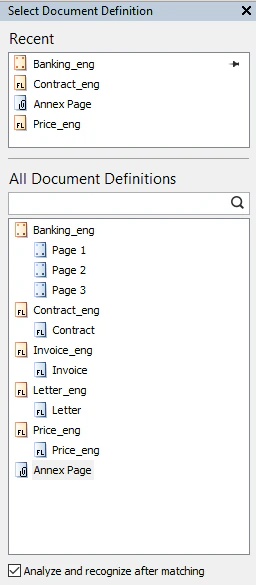 **Select Document Definition** パネルを使用して Document Definition をすばやく適用するには:
1. ページまたは文書を選択します。
2. パネルで Document Definition を選択します。
Document Definitions を手動で適用するには、ユーザーに **Modify document layout** 権限が有効なロールが割り当てられている必要があります。ロールで有効になっている権限は、プロジェクトのプロパティダイアログの **User Roles** タブで確認できます。
**Select Document Definition** パネルを使用して Document Definition をすばやく適用するには:
1. ページまたは文書を選択します。
2. パネルで Document Definition を選択します。
Document Definitions を手動で適用するには、ユーザーに **Modify document layout** 権限が有効なロールが割り当てられている必要があります。ロールで有効になっている権限は、プロジェクトのプロパティダイアログの **User Roles** タブで確認できます。