> ## Documentation Index
> Fetch the complete documentation index at: https://docs.abbyy.com/llms.txt
> Use this file to discover all available pages before exploring further.

# 処理エラーの診断

> イベントログをタスク ID でバッチに絞り込み、Administration and Monitoring Console で FlexiCapture Cloud REST API の処理エラーを診断します。

Web の Administration and Monitoring Console では、イベントログを表示して、エラーが発生したタスクを特定できます。

FlexiCapture Cloud REST API では、新しいタスクごとに一意の識別子が割り当てられます。その後、FlexiCapture Cloud で同じ名前のバッチが作成され、処理待ちキューに追加されます。ID に基づいてタスクのステータスを確認するには:

<Steps>
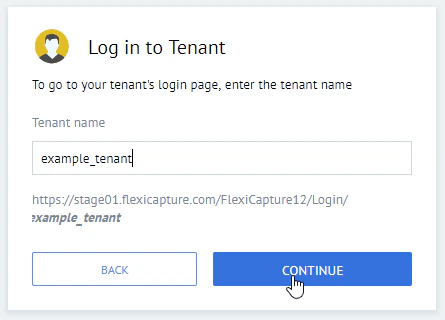
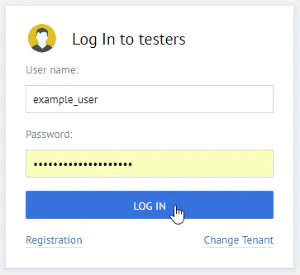
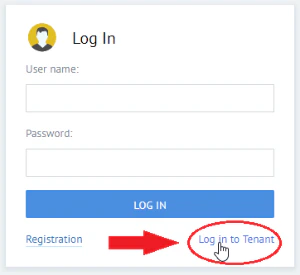
  <Step title="コンソールにログインする">
    テナント上の Web の Administration and Monitoring Console にログインするため、認証情報を入力します。
    <Frame>
      <img src="https://mintcdn.com/abbyy/mpS3pcxC_lkohQUS/images/flexi-capture/Login1.png?fit=max&auto=format&n=mpS3pcxC_lkohQUS&q=85&s=00b9a8afbcb9a1dc2d51c85b59db7bcb" alt="ABBYY FlexiCapture Web の Administration and Monitoring Console のログインボックスのスクリーンショット。Log in to Tenant リンクが強調表示されています。" width="300" height="275" data-path="images/flexi-capture/Login1.png" />
    </Frame>

    <Frame>
      <img src="https://mintcdn.com/abbyy/mpS3pcxC_lkohQUS/images/flexi-capture/Login2.png?fit=max&auto=format&n=mpS3pcxC_lkohQUS&q=85&s=2c452fd86622e744b5146cca2b695f38" alt="ABBYY FlexiCapture Web の Administration and Monitoring Console の Log in to Tenant ページのスクリーンショット。続行する前にテナント名を入力します。" width="445" height="320" data-path="images/flexi-capture/Login2.png" />
    </Frame>

    <Frame>
      <img src="https://mintcdn.com/abbyy/mpS3pcxC_lkohQUS/images/flexi-capture/Login3.png?fit=max&auto=format&n=mpS3pcxC_lkohQUS&q=85&s=5e09106e1ba4657dd0bdfd4c2ba67b4a" alt="ABBYY FlexiCapture Web の Administration and Monitoring Console のテナントログインボックスのスクリーンショット。Log In をクリックする前に user name と password を入力します。" width="300" height="275" data-path="images/flexi-capture/Login3.png" />
    </Frame>
  </Step>

  <Step title="イベントログを開く">
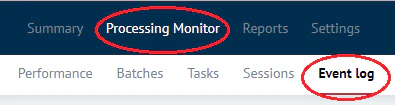
    **Processing Monitor** をクリックし、次に **Event log** をクリックします。
    <Frame>
      <img src="https://mintcdn.com/abbyy/IFr-A2MDVJd80FDs/images/flexi-capture/EventLog.png?fit=max&auto=format&n=IFr-A2MDVJd80FDs&q=85&s=6c32068c815258de528a8e3a312c9ea9" alt="ABBYY FlexiCapture Web の Administration and Monitoring Console の上部ナビゲーションのスクリーンショット。Processing Monitor メニューと Event log タブが強調表示されています。" width="395" height="105" data-path="images/flexi-capture/EventLog.png" />
    </Frame>
  </Step>

  <Step title="タスク ID のフィルターを作成する">
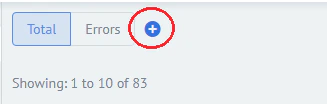
    **+** アイコンをクリックして新しいフィルターを作成し、探しているタスクの ID と同じ名前のバッチを検索します。
    <Frame>
      <img src="https://mintcdn.com/abbyy/IFr-A2MDVJd80FDs/images/flexi-capture/Filter.png?fit=max&auto=format&n=IFr-A2MDVJd80FDs&q=85&s=ee7e317e415726c0918bf3dcac631483" alt="ABBYY FlexiCapture Administration and Monitoring Console のイベントログのスクリーンショット。プラスアイコンをクリックした後、フィルター作成パネルが開いています。" width="327" height="104" data-path="images/flexi-capture/Filter.png" />
    </Frame>

    <Note>
      右側の field に ID を入力したら、必ず入力 field の下のヒントに表示される一致する ID をクリックしてください。そうしないと、フィルターは機能しません。

    </Note>

    <Frame>
      <img src="https://mintcdn.com/abbyy/IFr-A2MDVJd80FDs/images/flexi-capture/Filter2.png?fit=max&auto=format&n=IFr-A2MDVJd80FDs&q=85&s=1df0b228e9d167e315ca29b9e2e1c863" alt="ABBYY FlexiCapture イベントログのフィルター入力 field のスクリーンショット。field の下でクリックする必要がある、一致するタスク ID の候補が表示されています。" width="676" height="120" data-path="images/flexi-capture/Filter2.png" />
    </Frame>
  </Step>

  <Step title="フィルターを適用する">
    **Apply** をクリックします。
  </Step>

  <Step title="結果を確認する">
    タスクのステータスと、タスク内で見つかったエラーを確認します。
  </Step>

  <Step title="必要に応じてサポートに連絡する">
    エラーを修正できない場合は、テクニカルサポートチームに連絡してください。
  </Step>
</Steps>

<Note>
  FlexiCapture Cloud のバッチ ID は、FlexiCapture REST API のタスク ID とは一致しません。
</Note>

REST API リクエストに対して返される可能性がある HTTP エラーコードの説明については、[Request errors](/ja/flexi-capture/cloud/rest-api-errors) を参照してください。