
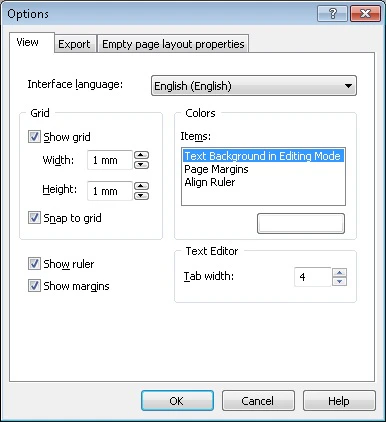
To open the Options dialog box, select the Options… item on the Tools menu. In this dialog box you can change the appearance of the main application window, specify export settings and layout properties for empty pages.

View tab

Interface language — Selects an interface language. This language will be used for all program messages, dialog box titles and menu items. For the changes to take effect, click OK and re-run ABBYY FormDesigner. By default, the interface language is the same as the language you selected during installation.

Grid

Show grid — Displays the grid. The option is not checked by default. Width — Sets the width of grid cells in mm. Default value is 2 mm. Height — Sets the height of grid cells in mm. Default value is 2 mm. Snap to grid — Snaps the top left corner of newly created elements to the nearest grid node. When moving a form element, it will also be snapped to the nearest grid node.

Colors

Items — Changes the color of the margins, rulers and the background of the edited text as displayed on the screen. In the Items pane, select an element and click the color rectangle below. In the Color dialog box that appears, select the desired color. Show ruler — Shows/hides the ruler. Show margins — Shows/hides the form margins.

Text editor

Tab width — Sets the number of spaces that will be inserted in the text editor when you press the Tab key.

Export tab

XFD

Image storing format in xfd-file — From the drop-down list, select the format in which your form image will be saved when exporting to an XFD file. You have two choices:
  • EMF
  • TIFF

Image

Resolution of TIFF files — Sets a resolution for TIFF files into which forms are exported.

Empty page layout properties tab

Style — From the drop-down list, select the style for empty pages. The following styles are available:
  • Gray drop-out form
  • Black and white form
  • Orange drop-out form
  • Red drop-out form
  • Green drop-out form
  • Color form (printing is not recommended)
Default value is Black and white form.

Paper size

Size — From the drop-down list, select the paper size for empty pages: A3, A4, A5, Custom size, US Legal or US Letter. Default value is A4. Width — Sets the width for empty pages in mm. Default value is 210 mm. Height — Sets the height for empty pages in mm. Default value is 297 mm.

Margins

Top — Sets the size of top margin for empty pages in mm. Default value is 10 mm. Bottom — Sets the size of bottom margin for empty pages in mm. Default value is 10 mm. Left — Sets the size of left margin for empty pages in mm. Default value is 10 mm. Right — Sets the size of right margin for empty pages in mm. Default value is 10 mm.

Background

Color — Selects a form background color from the drop-down list for dropout forms or from the palette for color forms.
The range of available colors depends on the type of your form (black and white or color).
Color can only be selected for color and dropout forms. White is the default color for black and white forms.
Size — Use this list to select the area covered with the background color. You have two choices:
  • Whole page (all the page except for the form elements will be filled in).
  • Inside margins (the page will be filled in but the page margins and the form elements will be left white).
For black and white forms, the option is not available.

Orientation

Selects orientation for empty pages. It can be Portrait or Landscape.

Default font

Selects font for empty pages from the drop-down list and specify the font size.

Reset to default

Click the Reset to default button to reset empty pages settings to their default values.
You may purchase additional fonts and multilingual font support at www.paratype.com.