
The sample process ships with the connector and walks through an end-to-end UiPath workflow: pass input files to ABBYY Vantage, create a multi-file transaction with transaction- and file-level registration parameters, and process the results across multiple documents in a single transaction.Documentation Index
Fetch the complete documentation index at: https://docs.abbyy.com/llms.txt
Use this file to discover all available pages before exploring further.
The sample process comes with Windows compatibility.
C:\Users\Public\ABBYY Vantage Connector for UiPath\SampleWorkflow\Vantage.
The workflow will get input images from the predefined input location (\SampleWorkflow\Vantage\Input images) and send them to ABBYY Vantage for processing. Once the processing is complete, some of the processing results will be saved to \SampleWorkflow\Vantage\Results and others will appear in the workflow log in the Output panel.
Workflow outputs
- Files saved to disk
- Workflow log output
The following processing results are saved to
\SampleWorkflow\Vantage\Results:- A subfolder with the name equal to the transaction ID is created.
- In the transaction folder, a ResultFiles subfolder is created for all export files from all documents of the transaction. Each file name has a prefix containing the identifier of the document.
- Next to the ResultFiles folder, text files are created for the classification confidence values and full-text recognition result (
ClassificationConfidencesandDocumentFullTextparameters) of each document. Each file name has a prefix containing the identifier of the document.
DocumentFullText returns the default placeholder rather than full-text recognition results — the Default Process skill the sample uses isn’t configured to export TXT.To get real full-text results, duplicate the Default Process skill, enable TXT export in its Output activity, publish the copy, and reference it from the Use Skill activity.The TXT file containing the classification confidence values is just an example of how the Classification Confidences value received by the Get Results activity can be processed. You do not need to save results to TXT files.
Run the sample process
To run the sample process:Copy the sample folder
Copy the folder containing the sample process (
C:\Users\Public\ABBYY Vantage Connector for UiPath\SampleWorkflow) into any folder accessible to the user running UiPath Studio.Configure the Vantage variables
In the Design tab, double-click the Send Files to ABBYY Vantage sequence and open the Variables panel. Specify the address of the ABBYY Vantage server and the credentials that were used to register your ABBYY Vantage account: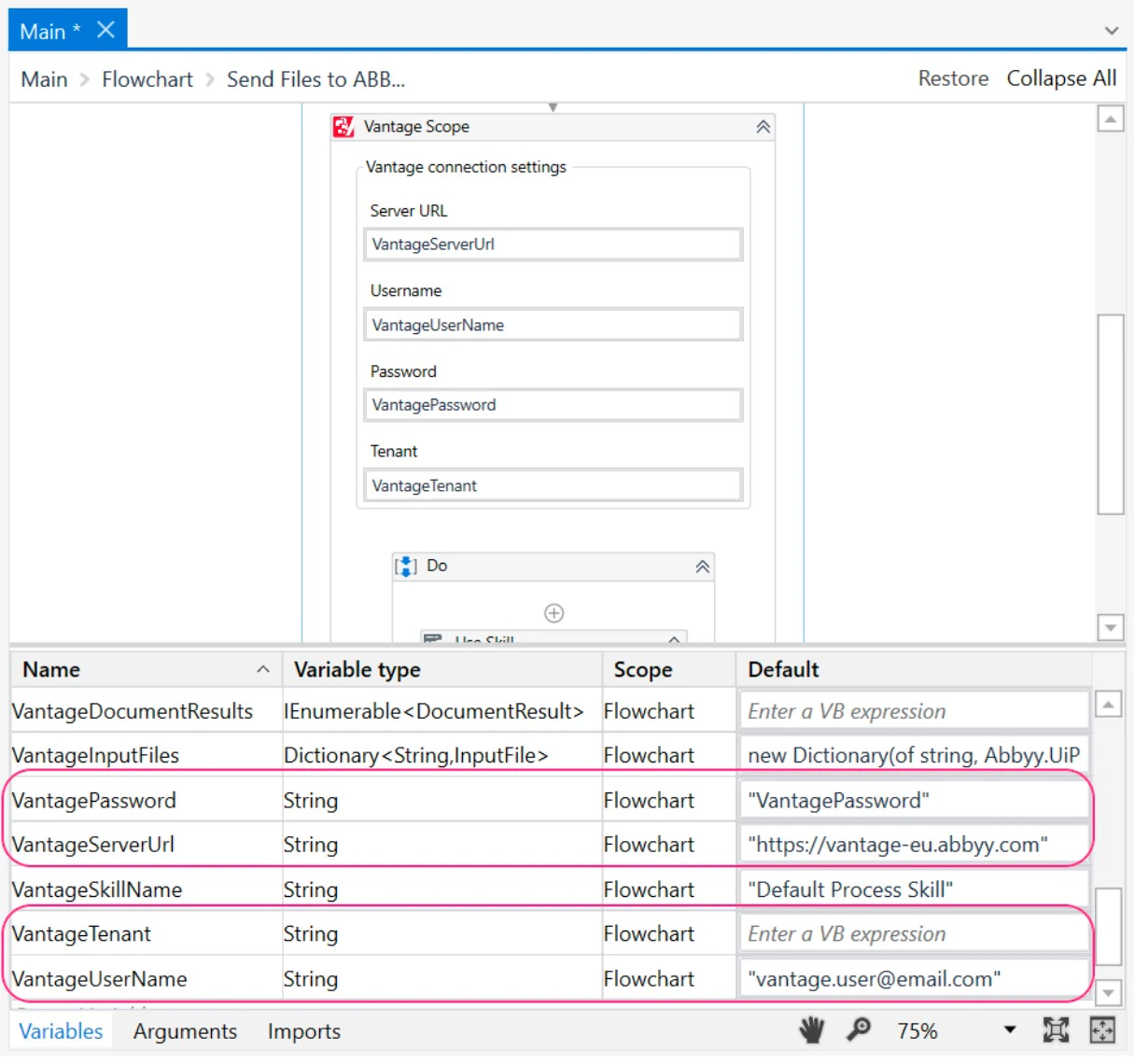
VantageServerUrlVantageUserNameVantagePasswordVantageTenant(if your user is in multiple tenants)