
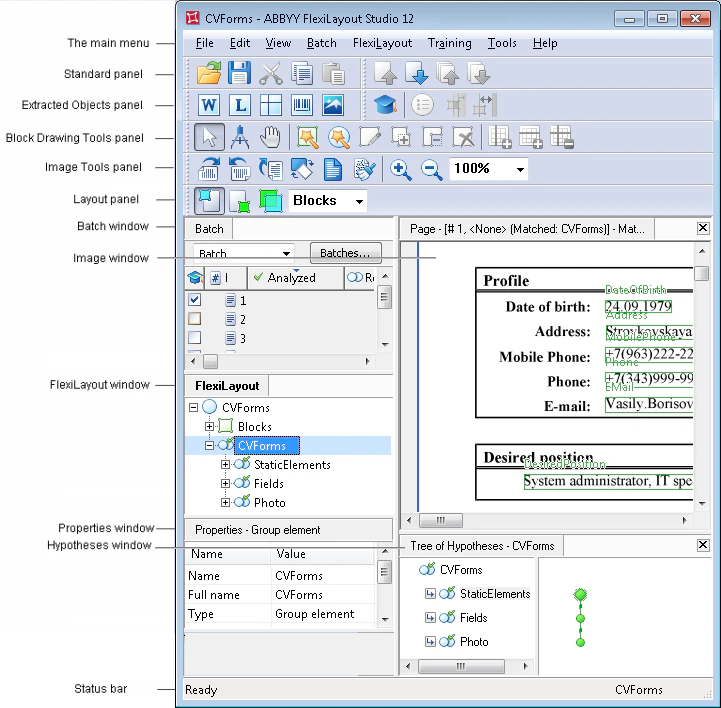
The GUI of ABBYY FlexiLayout Studio allows you to create FlexiLayout elements and blocks, specify and adjust their properties, and view the results of matching your newly created FlexiLayout with document images.
Screenshot of the ABBYY FlexiLayout Studio 12 main window with its parts labeled, including the main menu, toolbars, Batch window, Image window, FlexiLayout window, Properties window, Hypotheses window, and status bar around a sample CVForms document.
Please note that the layout of the main window in the figure above may differ from the layout on your screen. You can customize the view of the main window by clicking the title bar of a window or the border of a toolbar and dragging it to a desired location. Selecting View → Status Bar toggles the status bar at the bottom of the window. Right-clicking inside a window displays the corresponding shortcut menu.