Finding the last instance of a named entity
In this example, an extraction rule is used to find the name of the tenant’s organization in a lease agreement. This name occurs after the names of all the other organizations and cannot be extracted using the settings in the GUI, where you can only select Instances > First. However, you can use an extraction rule to look for the name of the organization that closely precedes the word “Tenant” enclosed in brackets. First, we find the keyword “Tenant” as an auxiliary search element. Next, we look for the name of the organization that occurs before that keyword. In this example, there are two intervening tokens—an opening bracket and a quotation mark—so we limit the distance to three tokens, allowing a margin for safety. If your documents have more intervening tokens separating the keyword from the name of the organization, increase this number accordingly.Rule for extracting the last organization instance
Example

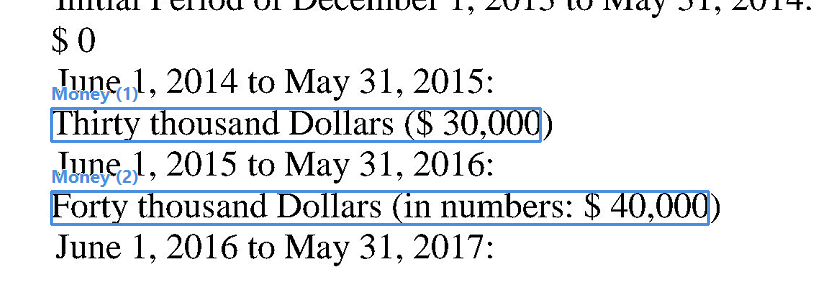
Extract an amount of money stated both in words and as a numeral
In this example, an extraction rule with regular expressions is used to find an amount of money that is written out first in words and then in digits in round brackets, for example: Two Thousand One Hundred Forty-Seven Dollars and Sixty Cents ($2,147.60) Two Thousand One Hundred Forty-Seven Dollars and Sixty Cents (in numbers: $2,147.60)Rule for extracting an amount of money
Example
Finding segments by means of keywords
In this example, extraction rules are used to find segments which cannot be reliably detected by the Segmentation activity. The rules look for keywords that start or end a segment and extract the text in between. We assume that our documents have numbered second-level headings written in all capitals, for example: 1.1 PREMISES, 2.3 LIABILITY AND INDEMNITY, and so on. We also assume that we have already extracted the first-level headings into a search element named “kw_Heading1” (the respective extraction rule is omitted for the sake of brevity). First, we look for keywords that start each paragraph of the document and extract them into a search element named “kw_Heading2.” Next, we put the text between two consecutive keywords into a search element named “Segment.” In the current version of Advanced Designer, the code editor is only available for search elements that are used to find named entities. As a workaround, to extract text like headings or segments by means of code, simply create a search element for any of the supported named entities (for example, Organization) and enter the code of the rule into the code editor of that element.Rule for extracting second-level headings into the kw_Heading2 search element
Rule for extracting the segment into the Segment search element
Example
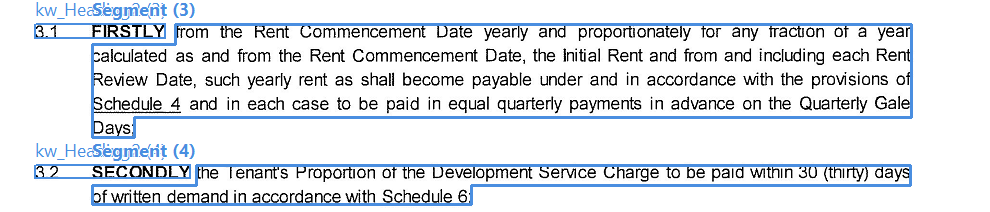
kw_Heading2 search element, and then the text between any two consecutive instances of the kw_Heading2 search element is extracted into an instance of the Segment search element.
Grouping information about each entity
In this example, extraction rules are used to make sure that the details about each party to an agreement are grouped correctly (that is, the name and address of each party belong to one group instance and are not split into several instances or mixed with the details of the other party). The idea is to find some identifying information about a party that always comes first. There are multiple ways to do this, depending on how agreements are drafted. In this example, we assume that the name of each organization always comes first, followed by its address and role in the agreement. Therefore, we will:- Look for organization names, create a new instance of the
Party_Groupgroup search element for each name found, and fill in its child search element named “Organization_Name.” - Look for the address and role that are separated by no more than, say, 20 tokens from each instance of the organization name, access the instance of
Party_Groupthat is the parent of the organization name and fill in the child search elements named “Address” and “Role” in that instance.
Rule for extracting the Organization_Name search element
Rule for extracting the Address search element
Rule for extracting the Role search element
Example
The search elements will be extracted as follows:

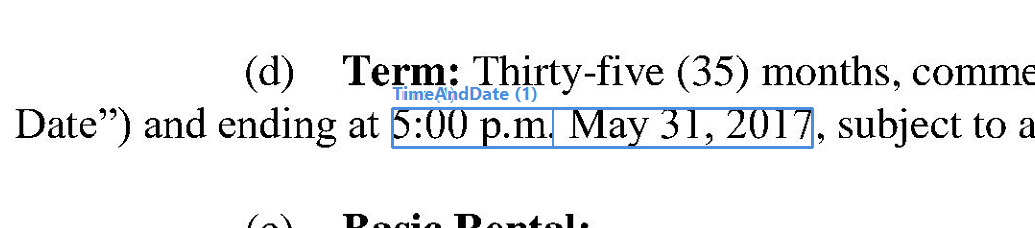
Finding the date and time together
In this example, an extraction rule is used to find a combination of time and date. First, we use a search element named “Time” of type Value from Regular Expression (the regular expression used is[1]?\d:\d{2}\s+(([ap]\.m\.)|([AP]M))?). Next, we look for a Date named entity located close to it. Finally, we concatenate the token sequences found and assign the result to a search element named “TimeAndDate.”
Rule for extracting date and time combined
Example