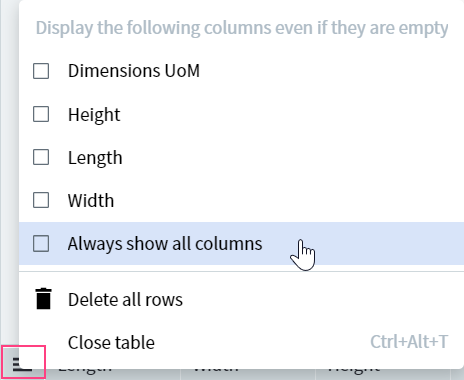
Review extracted data against the document image in the ABBYY Vantage Manual Review Client, customize table columns, and escalate tasks to other operators.
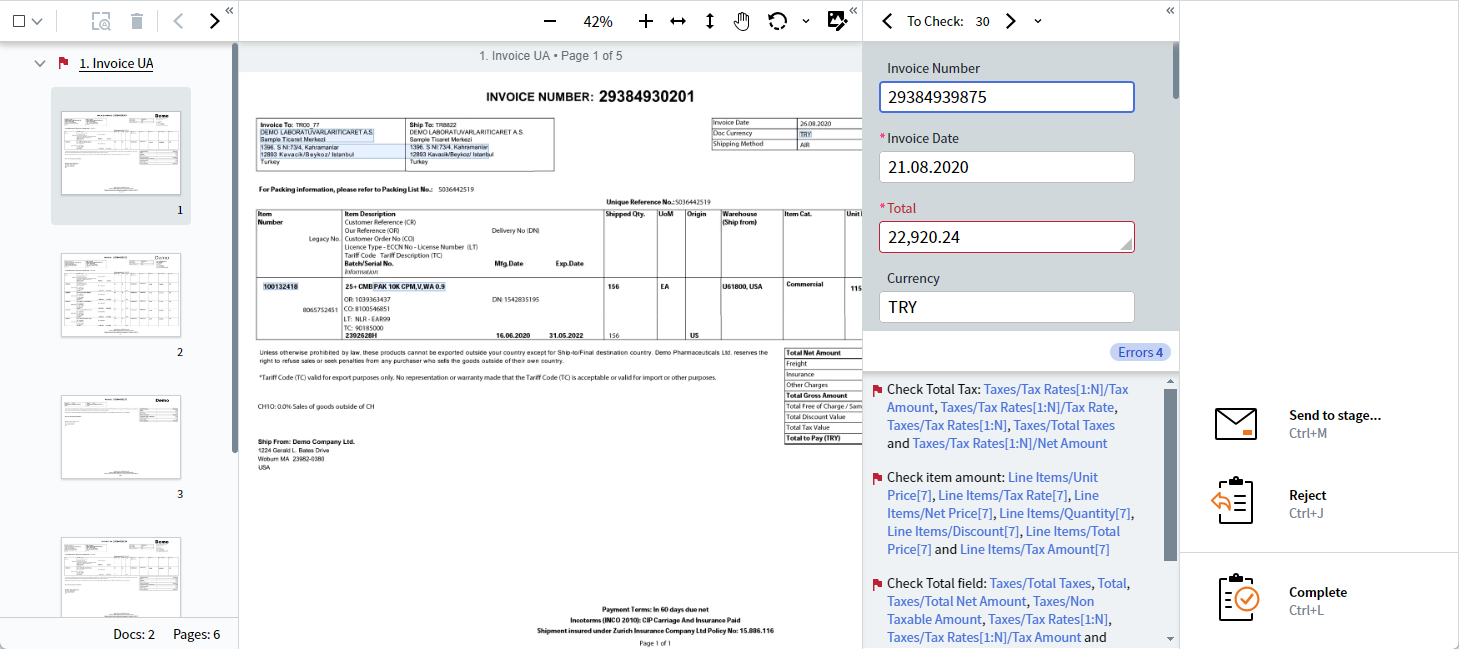
The data form displays the extracted data in the corresponding fields. To review the data, check for errors and low-confidence characters by comparing every field in the data form to the values on the document image, and fix any errors if necessary. After you have reviewed the document, navigate to the next document in the list of documents.
Manual review interface showing the data form, document image, and document list
You can use the document list to switch between all documents pertaining to a specific task, as well as change the document type for one, several, or all documents. To make navigating between your documents more convenient, we recommend that you use the toolbar located above the list.If needed, you can change the orientation of one or all pages in a document or revert all pages in a document back to their original images. For more information, see Work with document images.
The program prompts you to start a new extraction every time you perform any of these actions:
Changing a document type
Rotating a document image
Rotating a document list
Manually cropping a document
If you choose Extract Data in the dialog that pops up, the program starts the extraction again.
If you do not choose Extract Data, you must manually fill in any empty fields that appear on the data form after you modify the document.
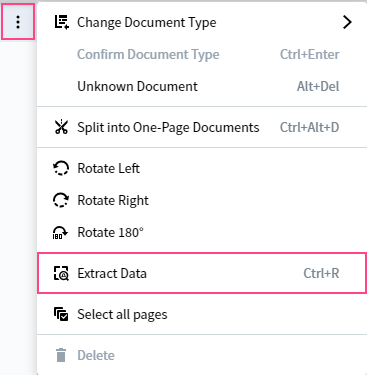
You can also start the extraction manually. To do so, click the extraction icon on the toolbar. Alternatively, click the more options icon either in the toolbar or next to the document and select Extract Data.
Extract Data option in the document toolbar
This button is available in the toolbar only if one or several documents are selected in the batch editor.
Document verification may include several manual review stages, with a different operator responsible for each. For example, a more experienced operator may need to review tasks that were earlier reviewed by a junior operator. An operator can also forward a specific document to another operator who is an expert in that particular type of document.You can send a task to:
Any — any available operator.
The reviewer of these documents — the operator who reviewed the task earlier.
Specific user — a specific operator, who automatically receives this task ahead of all other available tasks.
To send a task to another stage and operator:
1
Open the Send to stage dialog
In the Actions pane, click Send to stage….
2
Select a stage
In the Stage drop-down list, select the necessary stage. By default, the first stage in the list is selected.
3
Assign an operator
In the Assigned Operator drop-down list, select the next operator. By default, Any is selected.
4
Leave a comment (optional)
If needed, leave a comment for the next operator.
5
Send the task
Click Send.
After you click Send, you receive the next task from the queue. If there is no available task in the queue, the standby screen appears.
ABBYY Vantage supports changing the UI language in the Manual Review Client using a URL in the address bar. For example, this might be necessary when the Manual Review Operator uses a language different to that of the Skill Designer.To change a language directly from the Manual Review Client, specify the necessary language in the lang= parameter of the URL.
If the specified language is not in the list of available languages, the page loads in English.