Review detailed transaction information in Skill Monitor — filter graphs, inspect event logs, cancel transactions, and restart failed ones in ABBYY Vantage.
The Transactions section of the Skill Monitor service displays detailed information about system performance, active and completed transactions, and the stages of transactions for a specific skill.Tenant Administrators and Processing Supervisors can analyze this information to manage document processing for each skill — detecting transactions with errors, identifying error causes through detailed event logs, canceling transactions, or getting transactions for manual review.
Information in the Transactions section is presented as graphs and a list of transactions. Use the filters at the top of the page to specify the data to display. You can filter:
By the skill whose transactions you want to see.
By transaction type — all, processing, or processed.
By the time period during which transactions are collected — 1 hour, 3 hours, 3 days, and so on. The transaction list shows data filtered by creation date; the Throughput graph shows data filtered by completion date.
By the stage whose statistics you want to see — All, Manual Review, or Automatic.
By stage name.
By transaction status — All, New, Processing, Processed, Failed, or Canceled.
All active transactions appear even if they do not match the filter.
The data in the graphs depends on the filters you have set:
Throughput — at every point in time, the number of transactions completed up to that point.
Queue — at every point in time, the number of transactions not yet completed up to that point.
Duration — at every point in time, the average time taken to process the transactions created up to that point.
To view information for a specific part of the graph, hover the cursor over it. For example, use the peak of the Queue graph to see when the number of uncompleted transactions was highest. Graph information updates every few minutes, and also when you refresh the page or change the selected filters.
Alongside the graphs, the page displays a list of transactions for the selected skill and period. For each transaction, the list shows file names, identifier, current stage, stage assignee, number of processed documents, creation time, and duration.
You can specify whether columns with additional transaction and document parameters (file name, file path, and source type) appear. Click the more options icon in the table header and select the parameters from the list. Use the same list to manage columns for other transaction parameters.To add custom parameters to the transaction table, click the more options icon and select Add column. In the dialog that opens, choose the parameter type — Transaction or Document — and specify a name.
Use additional parameters for in-depth system performance analysis. For example, if documents from a specific source (such as a mobile device) consistently take longer to process than documents from other sources, the skill processing that source may need improvement.
Transactions are deleted after the period specified in the retention policy, regardless of status. All related documents and all recognized and extracted data are deleted alongside them. The default storage period is 2 weeks.Automatic deletion does not affect documents uploaded when setting up and publishing skills (training and demo document sets), because these are considered user data. You can also delete a transaction manually before its storage period ends using the Vantage API.
Tenant Administrators and Processing Supervisors can perform the following actions on each transaction in the list:
Get a transaction for manual review and process it in the Manual Review client. Open the transaction from the list. If another user has the task open, a warning dialog appears — use it to either reject or get the task. If you reject, the task returns to the queue. If you get a task another user has open, the system passes it to you, and all changes the other user made are saved.
Send a transaction to the Manual Review stage and to another operator. To do this:
Open the transaction from the list. The Manual Review client opens.
You can view a detailed event log for each transaction workflow. If the workflow is held up at a specific step or has an error, the event log can help identify the cause.To view the event log, click the name of the transaction in the list. The Transaction Event Log window opens with a list of all events for the selected transaction. Use the event log search bar to find an event by name, or use the Errors filter to show only events that have errors.
A processing flow has been created to start a transaction.
Workflow Started
Processing started.
Job Created
A task has been created as a part of a transaction.
Job Started
Task started.
Job Completed
Task completed.
Workflow Completed
Processing completed.
Reprocessing started
Processing restarted, as it was not completed within the allotted time.
Log Message
Log or error messages caused by Context.LogMessage or Context.ErrorMessage methods respectively in Custom activity and External System (Output activity) scripts. Messages written using the Context.LogMessage method are denoted by a warning character, and messages written using the Context.ErrorMessage method are denoted as errors.
To make sending detailed transaction event information to technical support or the system administrator easier, export the event log to a CSV file by clicking Export to CSV at the top of the Transaction Event Log window.
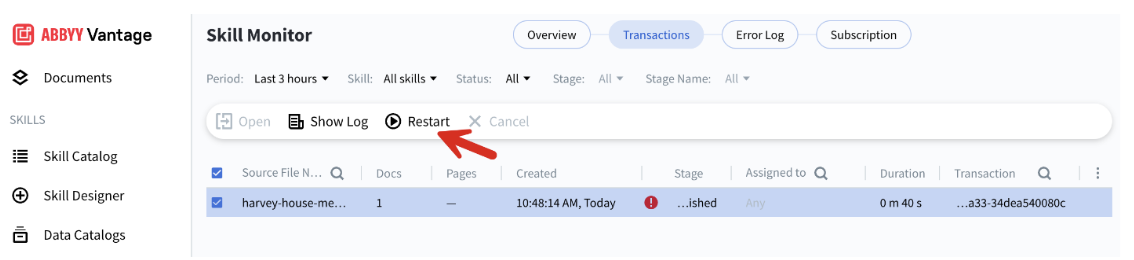
You can reprocess a failed transaction when external issues arise, such as network timeouts, third-party API call failures, or Vantage platform issues. Reprocessing a document does not count against your Page count.Transactions with “Job execution” errors are eligible for reprocessing.
1
Open Skill Monitor
Go to Skill Monitor and find the failed transaction.
2
Restart the transaction
Select the failed transaction, and then click Restart.
Failed transaction with the Restart button
3
Verify the restart (optional)
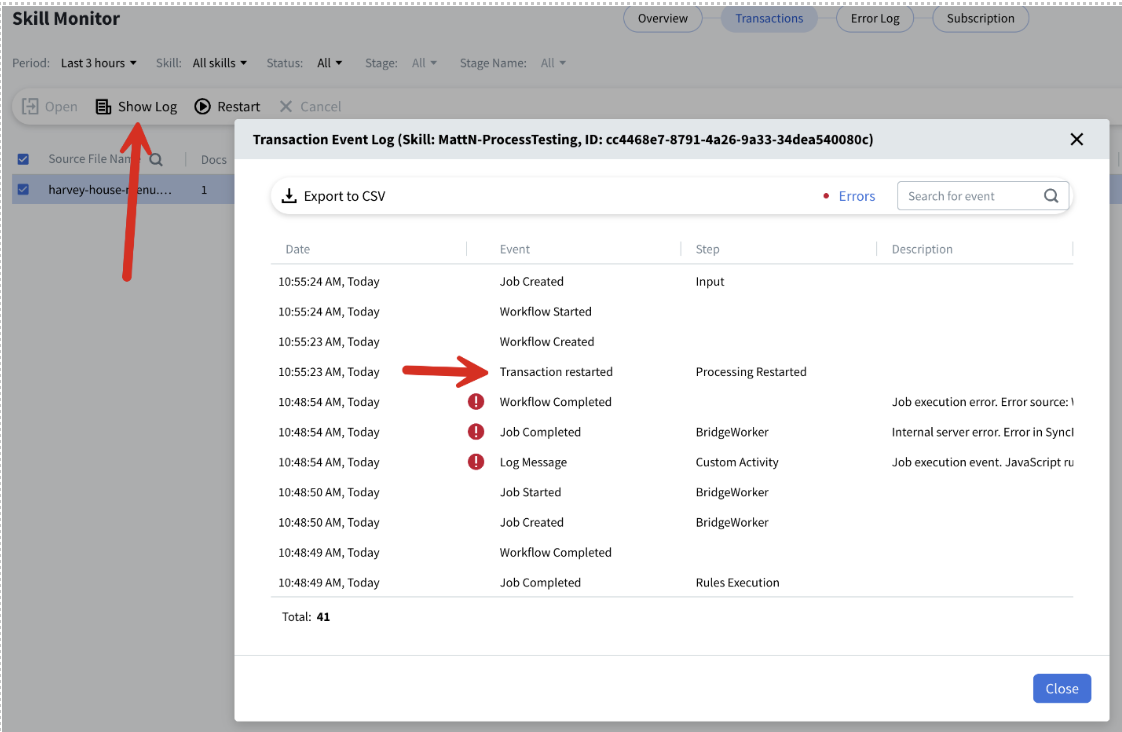
Click Show Log to confirm the transaction has been restarted and to see more log details.
Show Log option revealing detailed transaction logs after a restart
If the reprocessing is successful, the transaction can no longer be restarted.
If you edit a Process skill — fix the issue, make any changes, and republish — a new version is created. However, if you then restart the failed transaction, the old Process skill version is used, not the new one, so the transaction will likely fail again.