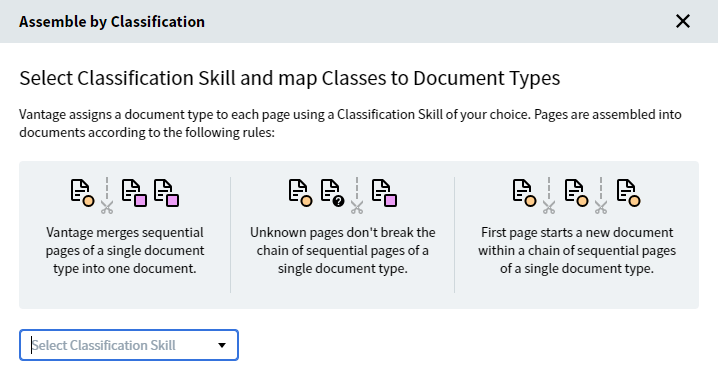
The By classification assembly type uses classes assigned to pages by a Classification skill. Vantage assigns each page a class and merges consecutive pages of the same class into a single document.
1
Open the settings
Click Settings under the assembly type name.
2
Select a Classification skill
Pick an appropriate Classification skill.
Selecting a Classification skill for the Assemble activity
3
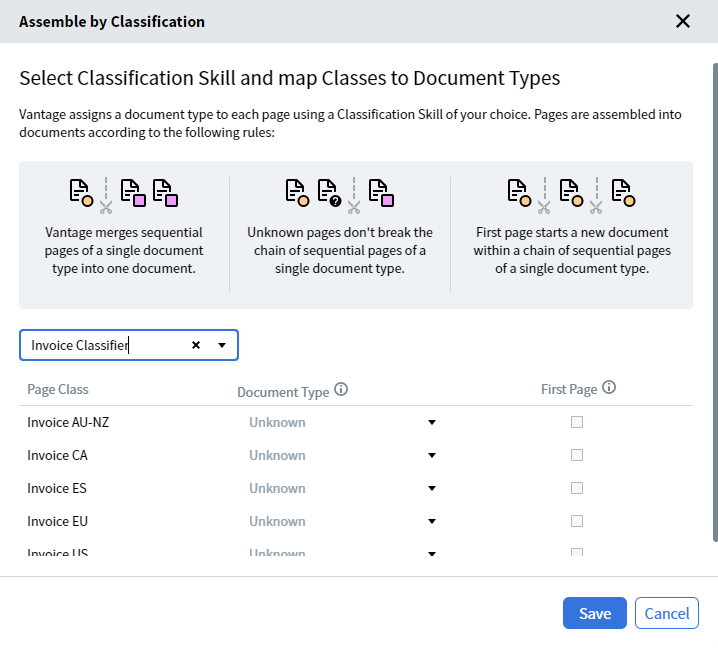
Map classes to document types
Map classes to document types, and mark any classes that should be treated as first pages.
Mapping classes to document types
If some classes aren’t mapped to document types, the Assemble activity groups pages of those classes into a separate document per class.
Document Splitter skills split files containing multiple documents into separate documents, and can assign a type to each one to determine how it’s processed.
Document Splitter skills are created and edited only in Advanced Designer, not Skill Designer. After a skill is published, you can reference it from the Assemble activity’s By Document Splitter Skill option.
1
Select a Document Splitter skill
Click Select Skill under the assembly type name and pick the Document Splitter skill you need. Click a skill to preview it. The preview window shows the skill’s classes.If no Document Splitter skill is configured, you’re prompted to select one from the Skill Catalog. After you select a skill, the Assemble activity is configured and the selected skill appears in the Actions pane.
2
Configure the Extract activity
Configure data extraction in the Extract activity. This lets the skill extract documents of several types in one pass, based on the class assigned to each document.
3
(Optional) Verify in Manual Review
If your workflow includes a Manual Review activity, verify the assembled workflow in the Manual Review client.