
Enable layout editing
Click Edit layout of fields in the toolbar to enable the layout-editing tools.While layout-editing tools are enabled, some features — including creating business rules and training the skill — are unavailable. Click Edit layout of fields in the toolbar to disable the tools.
Rearrange fields
Drag fields in the data form to:- Reorder them.
- Place them side by side in a row.
- Add an existing field to a non-repeating group.
- Move a field from one non-repeating group to another, or to the root of the data form.
- Reorder checkmarks in a Checkmark group.
You cannot add fields to a group or move a field out of a group in these cases:
- The group is repeating.
- The group or field was created in Advanced Designer.
- You’re editing a copy of a built-in skill, and the group or field was inherited from the built-in skill.
All instances of a repeating group share the same field order and layout.
Resize fields
Minimum and maximum width
Text and Barcode fields display at their minimum width in the data form and expand to fit the extracted value. Set a maximum width to prevent a field from expanding too far — if the value doesn’t fit, a horizontal scrollbar appears so users can scan it. You can set minimum and maximum widths for Text, Barcode, and Image fields from the Actions pane. To adjust only the minimum width, drag the right border of the field in the data form.Indentation
Indentation defines the width of the margins around a field. In the screenshot below, indentation is set to Normal for “New Field”, None for “New Field 2”, and Large for “New Field 3”.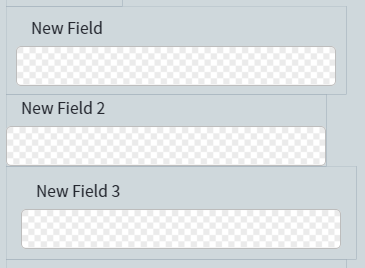
Three fields with Normal, None, and Large indentation applied
1
Select a field
Click the field in the data form.
2
Open the Indentation dropdown
In the Actions pane, open the Indentation dropdown.
3
Choose a value
Select a predefined value, or choose Custom to set each margin manually.