
Add a Group
To add a group, click Add Group in the toolbar, or press Ctrl + G. An empty group appears in the data form. Click the First group item placeholder to add the first field to the group.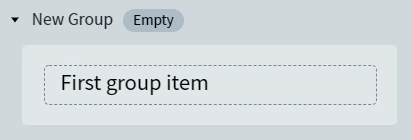
Empty group in the data form
Add fields to a Group
When a group is in focus, any new field you add (via the toolbar or by drawing a region on the document) is placed inside the group. Select a field inside a group to switch focus to it. Fields inside a group use the same properties as standalone fields. See Text field and the other field-type topics.Rename a Group
Double-click the group name in the data form and type the new name.Expand and collapse a Group
Click a group name to expand or collapse it. When a group is collapsed, the value of its first field appears beneath the group name. A group auto-expands when its fields contain low-confidence characters or rule errors, and auto-collapses otherwise.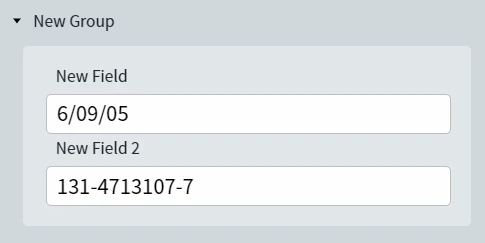
Expanded group

Collapsed group
General properties
The maximum nesting depth is 3. A level-1 repeating group can contain nested repeating or non-repeating elements. A level-2 repeating group cannot contain child repeating groups, repeating fields, or tables.
Enable repeating Groups
1
Open group settings
Click the settings button near the group.
2
Open advanced settings
Click Advanced.
3
Enable Allow multiple items
Select Allow multiple items.
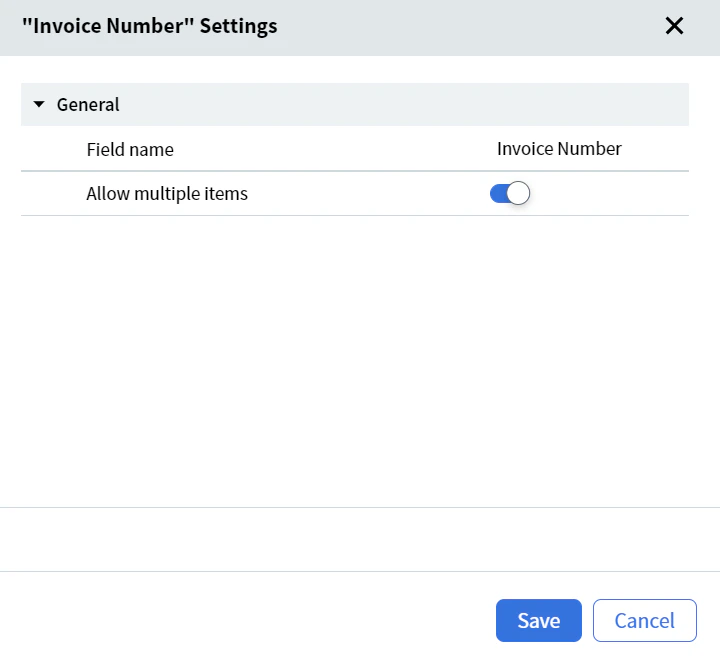
Allow multiple items option in group settings
Add a new item
Click Add [group-name] item, where [group-name] is the name of your group.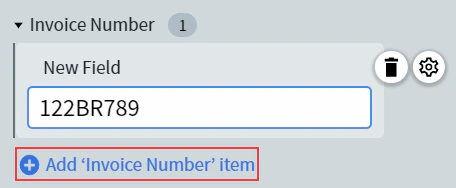
Add a new repeating-group item