
Add a Text field
You can add a Text field in two ways.Mark a region on the document image
Click a value (highlighted green on hover), or drag a rectangle around it. The new field appears in the data form.Add an empty field and mark its region
Click Add Field in the toolbar, and then drag a rectangle around the value on the image. The data inside the region becomes the field value.Add multiple regions to one field
Some values span multiple lines or pages, so a single field may need several regions. To add multiple regions to a new field:1
Add the field
Use either method above.
2
Select additional regions
Hold Shift and click or drag additional regions for the same field.
General properties
Data types
The lowercase “l” (L), uppercase “I” (i), and digit “1” can look identical. In Number or Money fields, an ambiguous character is recognized as “1” because letters aren’t allowed.
Appearance settings
These properties describe the appearance of characters expected in the field.- Text origin — Whether the field contains only printed characters, only handwritten characters, or both. If you add the field by dragging a rectangle, Vantage infers this value from the characters it finds. If you add the field with Add Field, the value defaults to Printed. See supported languages for handwritten text recognition.
- Eliminate field background — Improves recognition when the field has a frame, boxes for individual characters, or placeholder text. If you enable this option, upload the blank form document that serves as the background template and label the corresponding field on the blank form. The blank form appears in the Document Set, marked with an icon.
- Special fonts — Improves recognition accuracy when the field uses a specific font. You can select more than one font.
Supported fonts
| Font | Description | Font sample |
|---|---|---|
| Fax | A font typically used by fax machines. | 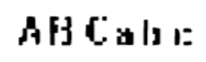 |
| Gothic | Texts printed in Gothic type. | 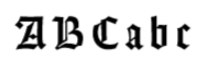 |
| Index | A special set of characters that includes only digits written in ZIP-code style. | 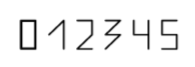 |
| Matrix printer | Texts printed on a dot-matrix printer. | 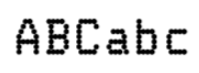 |
| MICR CMC-7 | A special MICR barcode font (CMC-7). |  |
| MICR E-13B | Numeric characters printed with magnetic ink. MICR (Magnetic Ink Character Recognition) characters appear on a variety of documents, including personal checks. | 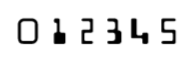 |
| OCR-A | A monospaced font designed for optical character recognition. Widely used by banks, credit card companies, and similar businesses. | 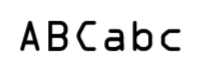 |
| OCR-B | A font designed for optical character recognition. | 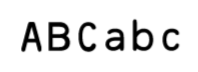 |
| Receipt | For text of low quality, typically in a monospaced or normal font used on receipts. | 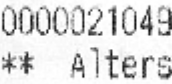 |
| Typewriter | Typewritten texts. | 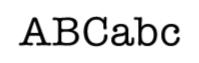 |
Properties by data type
Additional properties depend on the data type.Text
Value settings:- Maximum length — The maximum number of characters allowed. If the extracted value exceeds this length, Vantage displays an error. If the process has a manual review stage, the document goes to manual review.
- Regular expression — A pattern that narrows the valid character set for the field, which can improve extraction accuracy. For example, you can force every character to be recognized as a digit, match a specific phone number format, or validate that a field contains a numeric weight with units.
1-(234)-567-8900 or 2 (987) 654 3211:
50lb, 50lbs, 50Lb, 50Lbs, 50 lb, or 50 lbs:
Regular expressions do not affect text recognition in PDF documents.
Date
Value may include settings:- Time — Allow a time value. If disabled, time is not extracted.
- Day of week — Allow a day of the week in the field. If disabled, a day of the week is not extracted.
- Month by name — Allow the month to be spelled out as a word.
Acceptable order of components
Select one or more date formats: Day-Month-Year, Month-Day-Year, or Year-Month-Day. If the detected format doesn’t match any selected format, the document goes to manual review.Acceptable date
Specify a valid date range as a number of months before and after the day the document was processed. Use integers. A rule checks whether the extracted date falls within the range; out-of-range dates go to manual review.Number
Value settings specify what kind of number the detected value is (integer or decimal) and what number formats are accepted in the field. Values that don’t meet the requirements send the document to manual review.- Integers only — The value must be an integer. Any separators in the detected number are treated as thousands separators.
- Fractional part may contain more than two digits — Enable when the decimal part is expected to have more than two digits. Accepted decimal separators: dot (
.), comma (,), hyphen (-), equals sign (=), space. - May have negative values — Allow negative values, denoted by a minus sign or brackets.
- May include ’%’ symbol — Allow a percentage character before or after the value.
Number must be within interval
Set a minimum and maximum value (integers or decimals, positive or negative). A rule checks whether the value falls within the range; out-of-range values send the document to manual review.Money fields use the same properties as Number, except the percentage character is not allowed.