
BPA Process - FlexiCapture 12 Processor.xml.
Process action
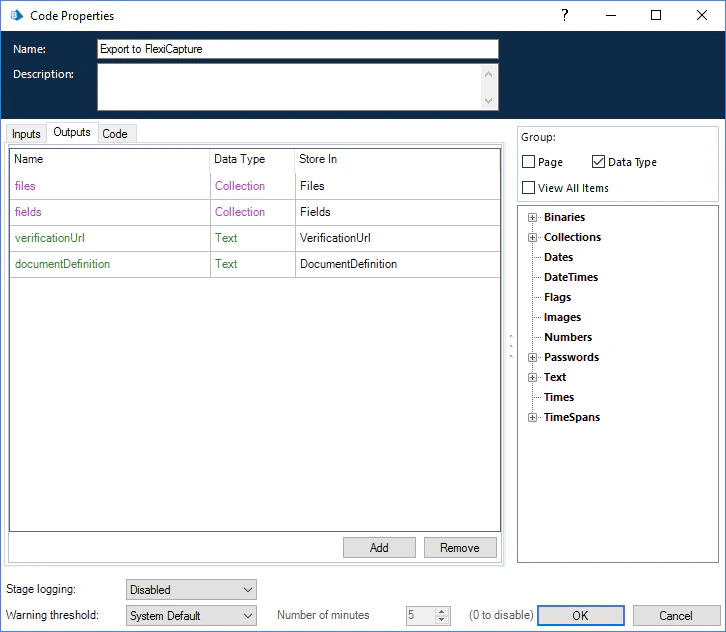
This action processes an input file in ABBYY FlexiCapture 12. The resulting export files are available as a file collection containing their binary content.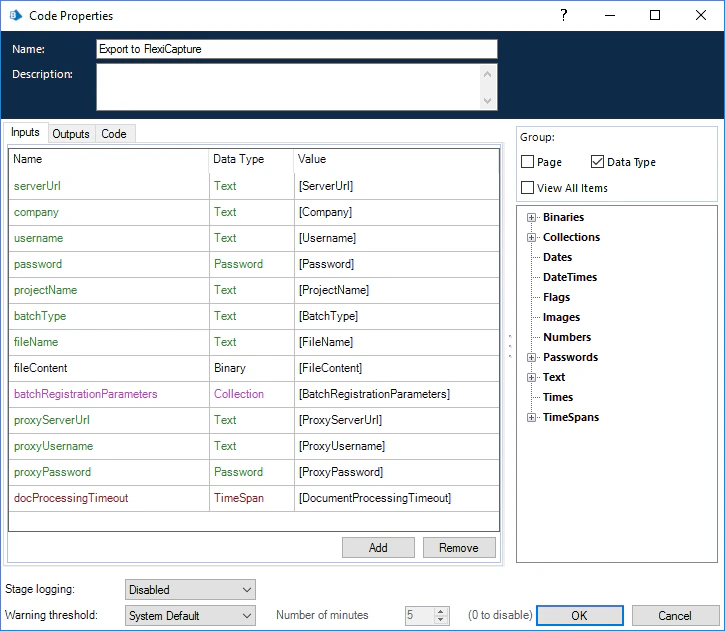
Process and Save action
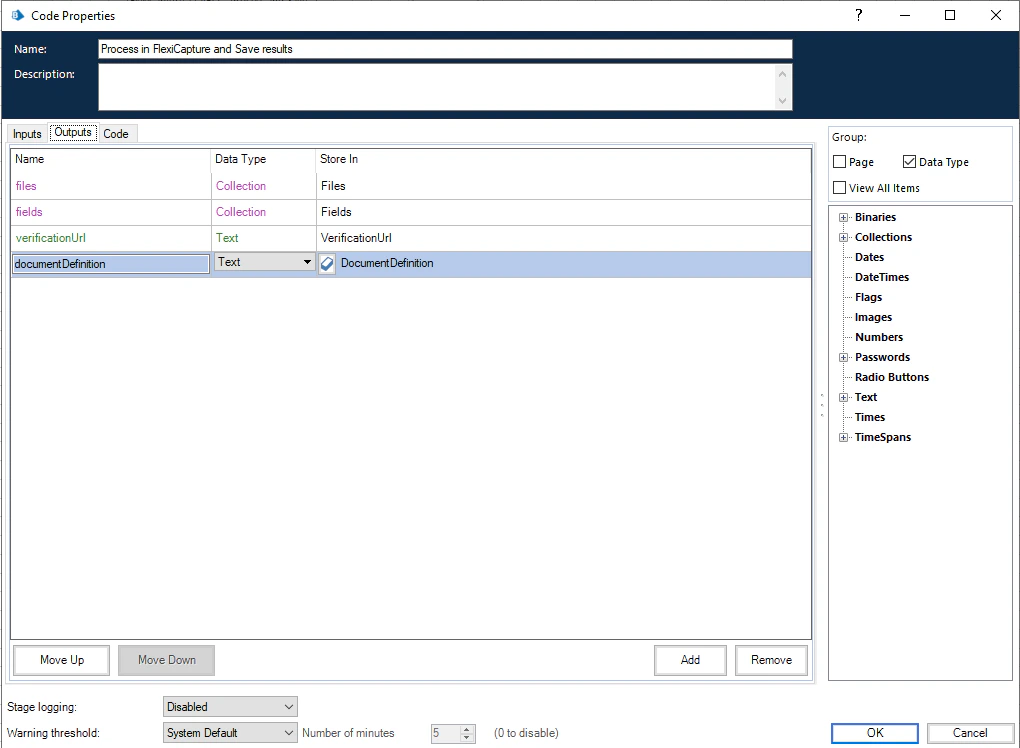
This action processes an input file in ABBYY FlexiCapture 12 and saves the resulting export files to an output directory. Its parameters match the Process action, plus OutputDirectoryPath.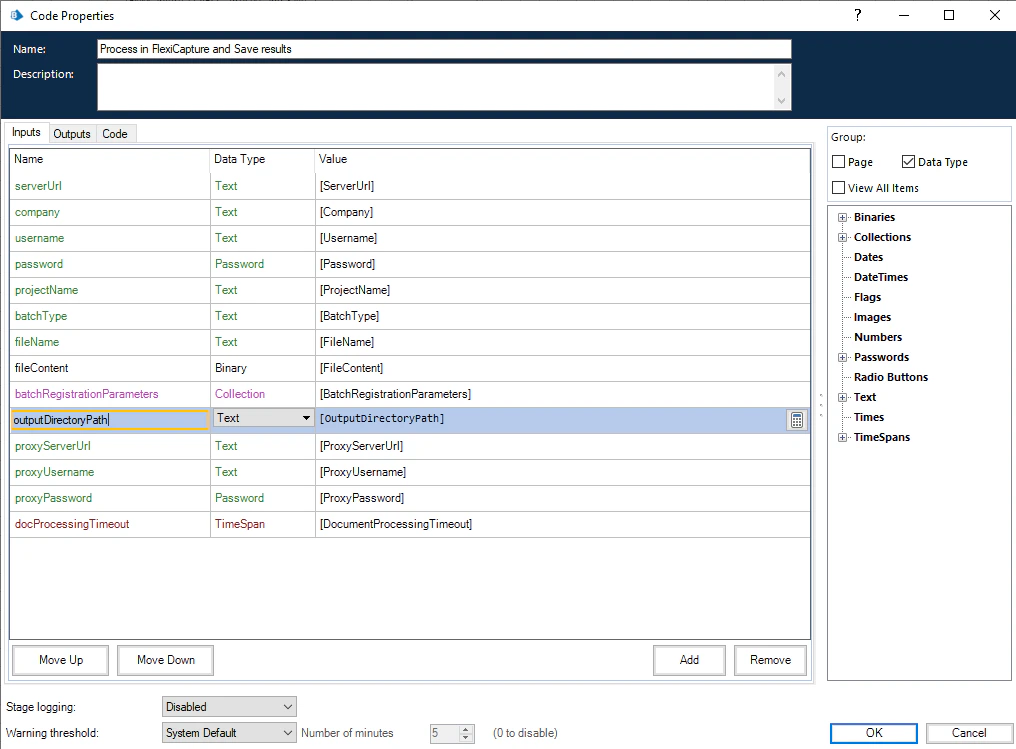
Install the ABBYY FlexiCapture 12 VBO
To make the VBO and its usage example available on the Blue Prism side, import theBPA Object - FlexiCapture 12 VBO.xml and BPA Process - FlexiCapture 12 Processor.xml files into Blue Prism.
1
Start the import
Open Blue Prism and click File → Import.
2
Select the files to import
Following the on-screen instructions, select the following files one by one:
BPA Object - FlexiCapture 12 VBO.xmlBPA Process - FlexiCapture 12 Processor.xml
C:\Program Files\Blue Prism Limited\Blue Prism Automate\VBO:BPA Object - Utility - File Management.xml, a business object for working with files stored on the local hard driveBPA Object - Utility - Environment.xml, a business object for interacting with the environment, such as running third-party processes like a web browser
3
Check the import
After the import completes, all the business objects and the usage example appear in Blue Prism on the Studio tab.
4
Restart Blue Prism
Restart Blue Prism for the changes to take effect.
Configure the ABBYY FlexiCapture 12 VBO
You can use the VBO to create a new Blue Prism process or integrate it into an existing process.1
Create or open a process
Create a new Blue Prism process, by right-clicking Processes on the Studio tab and clicking Create Process, or open an existing process.
2
Add an Action element
In the workspace, create an element of type Action, and then double-click it to open the action properties.
3
Select the business object and action
In the Action Properties window, specify a name for the new action in the Name field. In the Business Object drop-down list, select FlexiCapture 12 VBO. In the Action list, select the action you need.
4
Specify the input parameters
On the Inputs tab, specify the input parameters.You can specify values for text parameters explicitly by enclosing them in double quotation marks. For other data types, create the corresponding data items and specify their names in the Value column.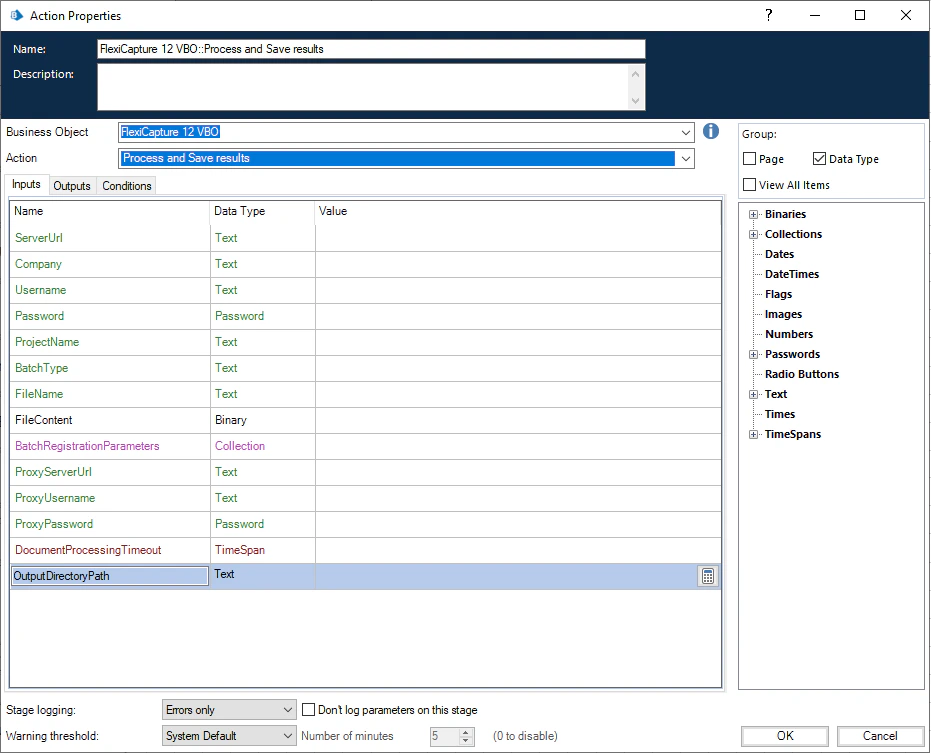
5
Specify the output parameters
On the Outputs tab, specify the output parameters. You can have the data items created automatically by clicking the icon to the left of the value in the Store In column.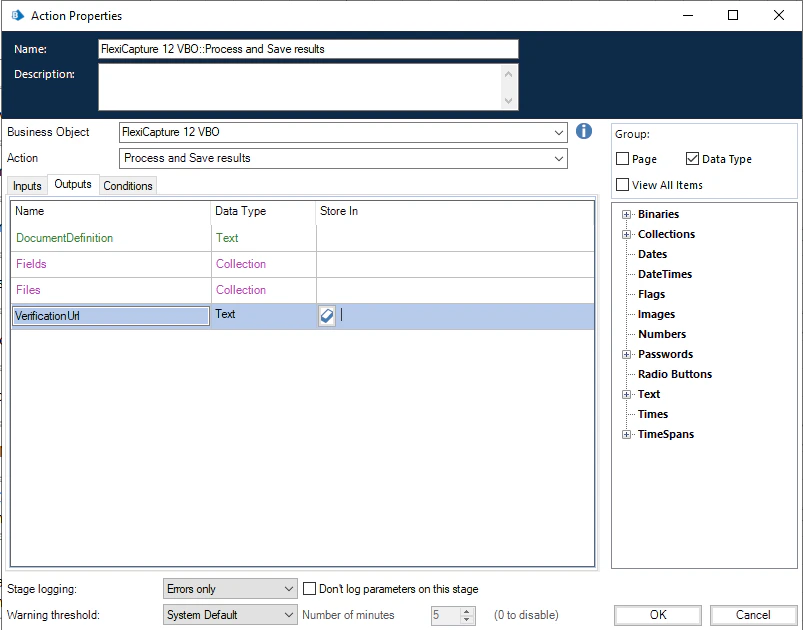
Configure a proxy server
If you use a proxy server to connect to ABBYY FlexiCapture, what you pass depends on the authentication the proxy requires.
For the password, create a data item of type Password and set the required password as its value. Then use that data item to pass the password into the ProxyPassword input parameter.
For ProxyServerUrl and ProxyUsername, you can specify the values explicitly by enclosing them in double quotation marks.
Change the timeout for processed documents
By default, the VBO waits 300 seconds for a processed document from ABBYY FlexiCapture.1
Create a variable
Create a variable of type Timespan.
2
Set the wait time
Specify the wait time as the value of the variable.
3
Pass the variable to the VBO
Specify the name of the variable in the DocumentProcessingTimeout input parameter.