The Abbyy.UiPath.FlexiCapture.MultiTaskActivities.nupkg activities package offers all the functionality you need to work with FC 12. It includes the following activities for working with ABBYY FlexiCapture:

FlexiCapture Project Scope

This activity is used for initializing the other activities in the package through the FC 12 connection settings. These other activities are placed in the child activity area to give them access to the FC connection settings.
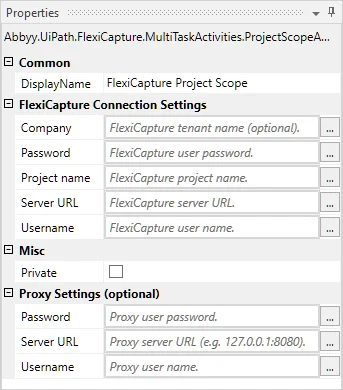
Screenshot of the FlexiCapture Project Scope activity Properties panel in UiPath Studio, showing its FlexiCapture Connection Settings fields for Company, Password, Project name, Server URL, and Username, plus the optional Proxy Settings.
The following is a list of activity parameters that are inherited by child activities:
CategoryDisplay NameTypeDescription
FlexiCapture Connection SettingsServer URLUriServer address (without the tenant)
FlexiCapture Connection SettingsCompanyStringServer tenant name (optional)
FlexiCapture Connection SettingsUsernameStringUser name
FlexiCapture Connection SettingsPasswordSecureStringUser password
FlexiCapture Connection SettingsProject nameStringProject name
Proxy Settings (optional)Server URLUriProxy server address
Proxy Settings (optional)UsernameStringUser name
Proxy Settings (optional)PasswordSecureStringUser password
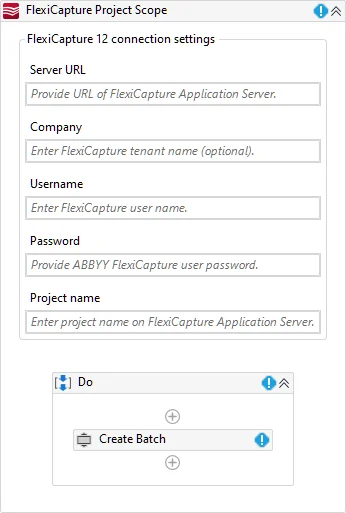
The FlexiCapture Project Scope designer allows you to manage connection settings and child activities:
Screenshot of the FlexiCapture Project Scope activity designer in UiPath Studio, showing the FlexiCapture 12 connection settings fields and the Do container holding a child Create Batch activity.
If you are using a proxy:
  1. Create the following variables:
    • A variable of type Uri named ProxyAddress with the following value:
New UriBuilder (“http://proxyserver:8080”).Uri. In place of http://proxyserver:8080, specify the address and port of the proxy server.
  • A variable of type NetworkCredential named ProxyCredential with the following value:
New System.Net.NetworkCredential(“proxyuser”, “proxypass”). In place of “proxyuser” and “proxypass”, specify the proxy credentials separated by a comma. Create this variable if your proxy uses Basic authentication.
Screenshot of the Variables tab in UiPath Studio, showing the Uri-type ProxyAddress variable and the NetworkCredential-type ProxyCredential variable defined with their proxy server address and credentials.
  1. Use the variables created in step 1 to pass the proxy connection settings to the FlexiCapture Project Scope activity (click FlexiCapture Project Scope → Proxy Settings (optional)). Depending on the authentication type required by the proxy, do the following:
    • If a transparent proxy is used, in the Server URL field, pass the proxy server address and port as the value of the ProxyAddress variable and leave the Username and Password fields empty.
    • If the proxy uses NTLM authentication, in the Server URL field, pass the proxy server address and port as the value of the ProxyAddress variable and leave the Username and Password fields empty. The credentials under which the UiPath process is running will be used.
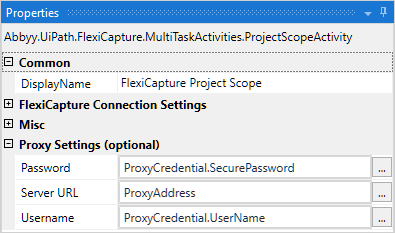
    • If the proxy uses Basic authentication, in the Server URL field, pass the proxy server address and port as the value of the ProxyAddress variable. In the Username and Password fields, pass the proxy credentials as the values of the corresponding properties of the ProxyCredential variable.
      Screenshot of the FlexiCapture Project Scope activity Properties panel in UiPath Studio with the Proxy Settings (optional) section expanded, showing the Server URL, Username, and Password fields populated from the ProxyAddress and ProxyCredential variables.
These proxy server settings will be inherited by all the child activities of this Project Scope.

Create Batch

This activity is used to send files to FC 12 for processing. ABBYY FlexiCapture creates a batch with a unique identifier for all documents sent by this activity. This identifier is then returned as the Batch ID output argument.
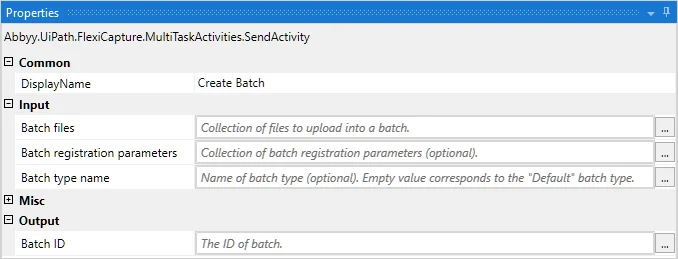
Screenshot of the Create Batch activity Properties panel in UiPath Studio, showing its Input parameters for Batch files, Batch registration parameters, and Batch type name, and the Batch ID output parameter.
Activity parameters:
CategoryDisplay NameTypeDescription
InputBatch type nameStringName of the batch type for the batch that is being created (optional)
InputBatch registration parametersIEnumerable<KeyValuePair< String,String >>A collection of registration parameters for the batch that is being created, specified in the following format: Registration parameter name — Registration parameter value (optional)
InputBatch filesIEnumerable<KeyValuePair<String,Byte[]>>A collection of input files for the batch that is being created, specified in the following format: File name — Byte content
OutputBatch IDInt32ID of the created batch

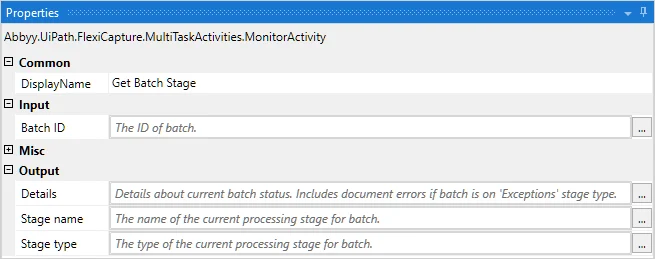
Get Batch Stage

This activity is used to get information about the current batch stage. Values describing the batch state can be used, for example, to group batches for processing by their current stage.
Screenshot of the Get Batch Stage activity Properties panel in UiPath Studio, showing the Batch ID input and the Details, Stage name, and Stage type outputs.
Activity parameters:
CategoryDisplay NameTypeDescription
InputBatch IDInt32Batch ID
OutputStage typeEnumProcessing stage type
OutputStage nameStringProcessing stage name
OutputDetailsStringAdditional information about the state of the batch

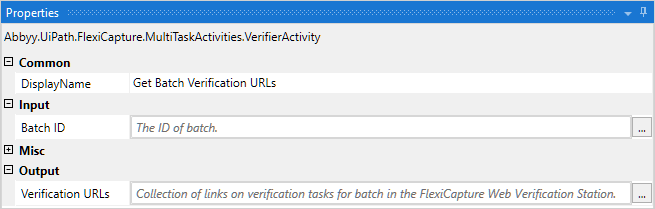
Get Batch Verification URLs

This activity is used to get a set of links to the FC Web Verification Station for batch verification (uses the batch ID).
Screenshot of the Get Batch Verification URLs activity Properties panel in UiPath Studio, showing the Batch ID input and the Verification URLs output that returns links to verification tasks in the FlexiCapture Web Verification Station.
Activity parameters:
CategoryDisplay NameTypeDescription
InputBatch IDInt32Batch ID
OutputVerification URLsIEnumberable<Uri>A set of batch verification URLs

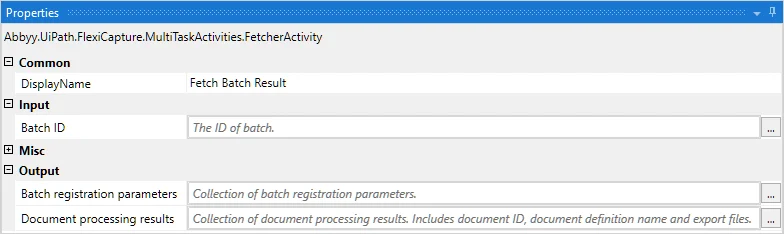
Fetch Batch Result

This activity is used to get the batch processing results.
Screenshot of the Fetch Batch Result activity Properties panel in UiPath Studio, showing the Batch ID input and the Batch registration parameters and Document processing results outputs.
Activity parameters:
CategoryNameDisplay NameTypeDescription
InputBatchIdBatch IDInt32Batch ID
OutputBatchRegistrationParametersBatch registration parametersIEnumerable<KeyValuePair<String,String>>Batch registration parameter set
OutputDocumentProcessingResultsDocument processing resultsIEnumerable<DocumentProcessingResult>Batch document processing result set
DocumentProcessingResult class properties:
NameTypeDescription
DocumentIdInt32Document ID
DocumentDefinitionStringName of the matched document definition
FilesIEnumerable<KeyValuePair<String,Byte[]>>Export files