
Create the activity
1
Start a new activity
In Dev Studio, click Records → Technical → Activity → Create.
2
Name the activity
Fill in the Label and Identifier fields, and make sure that the activity is being created in the context of the case. Then click Create and open.For more information about the case context, see Create a case with a workflow.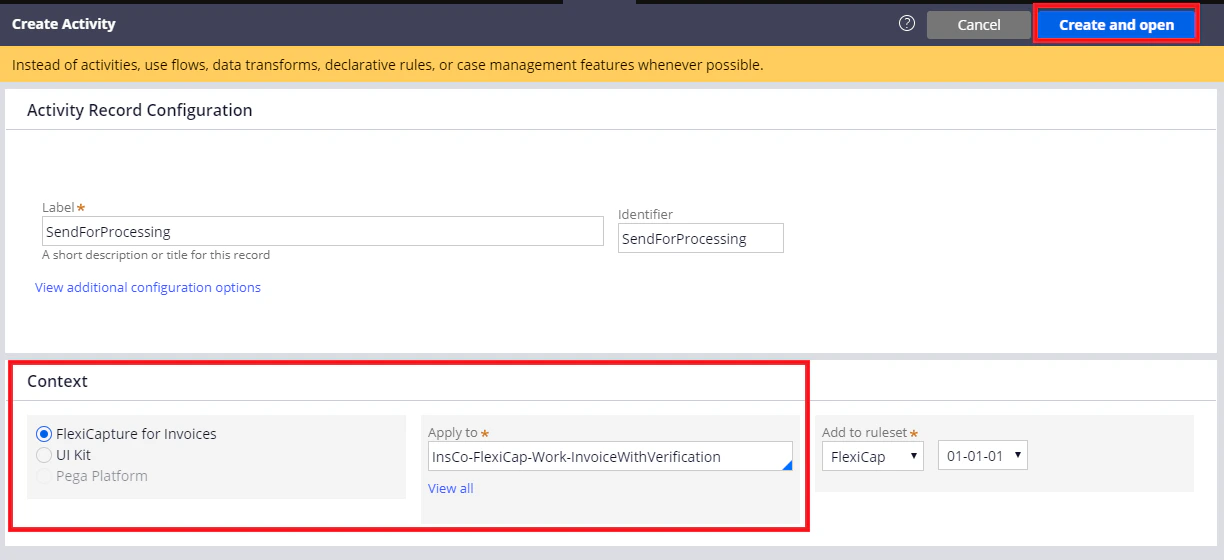
3
Add the steps
On the Steps tab, add the required activity steps.
4
Declare the variables and pages
On the Parameters tab, specify the required variables. On the Pages & Classes tab, specify a page to be used for the activity steps.
Loops and substeps
To create a loop, click Loop for a step, select a repetition type, select a list of values, and then click Submit. The examples in this section use For each element in value list.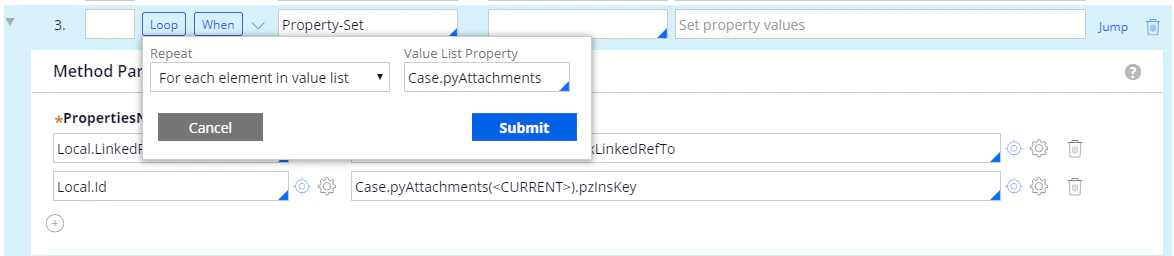
Step conditions
Each step can carry the following conditions and labels:- When – Checked before the step runs. Depending on the result, the step either runs or is skipped.
- Jump – Checked after the step. Depending on the result, the activity either advances to the next step or finishes.
- Label – Names a step so that another step can jump to it.