
Open the process for a stage
Open your workflow and click Configure process → Open process. Alternatively, click Records → Process → Flow in Dev Studio.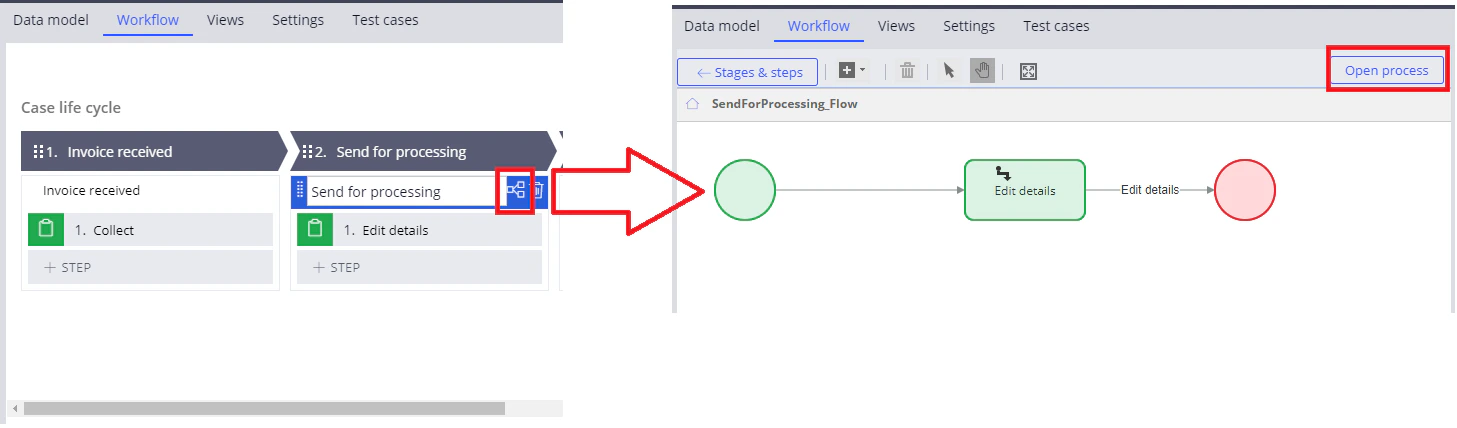
The Utility step
The Utility step calls the activity for the stage.1
Add the step
Add a new Utility step to the process, specify a name for it, and connect it to the Start and End steps.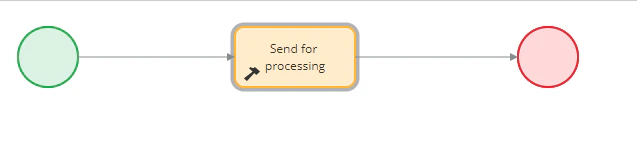
2
Select the rule type
Open the activity window and choose an Activity rule type.
3
Specify the activity
In the Rule field, specify the name of the activity to be called.If the activity does not exist in the context of the case, create it by clicking the configuration button on the left. If the activity already exists, that button opens it.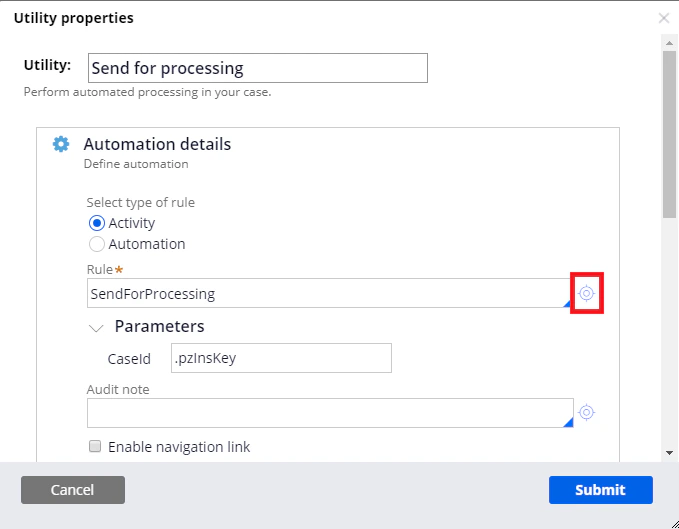
The Decision step
The Decision step branches the process on a condition.1
Add the step
Add a Decision step to the process and specify a name for it.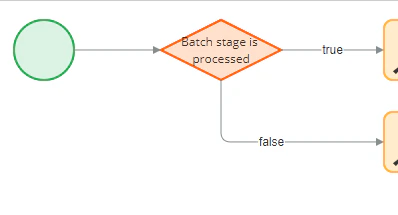
2
Select the expression type
Double-click the step and select Boolean Expression in the Type field.
3
Build the expression
Click the configuration button to the left of the Expression field, and then specify the required expression in the Expression builder window.To see a full list of available functions and properties, click Browse. Click Test to test your expression.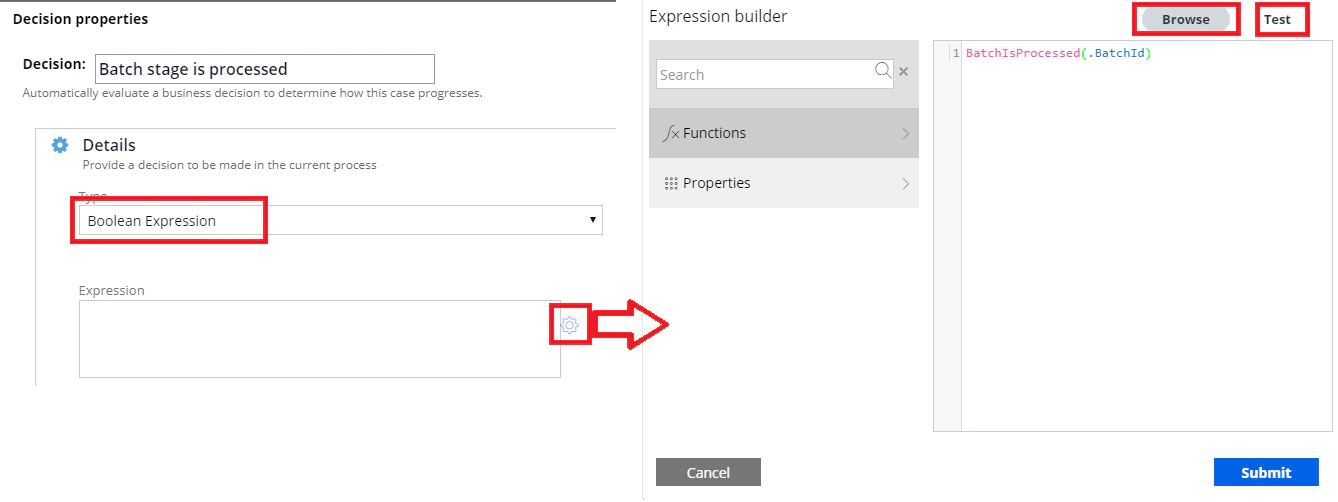
4
Apply the changes
Click Submit. The Decision step then has two branches,
true and false.