
The activity runs as a utility step in your case life cycle. It calls the connector function and applies the results to the case.

Add the utility step to the workflow

1

Open the case type

In Dev Studio, open the case type that you created earlier.
2

Add a life cycle

On the Workflow tab, click Add life cycle.
3

Create the Collect Information stage

Create a first stage with a Collect Information step. This step opens the dialog box where files can be added.
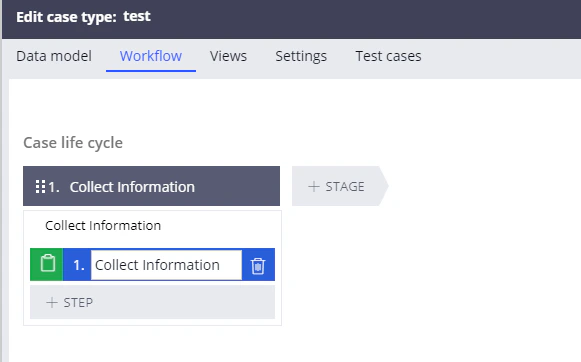
Screenshot of the Workflow tab in Pega Dev Studio showing the case life cycle with a single Collect Information stage that contains a Collect Information step.
4

Create the Process stage

Create a Process stage, add any step to this stage such as Change stage, and then click Save.
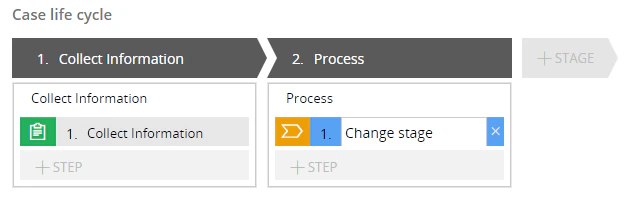
Screenshot of the Workflow tab in Pega Dev Studio showing the case life cycle with a Collect Information stage and a Process stage that contains a Change stage step.
5

Open the process flow

Click Records → Process → Flow to open the list of flows, and then double-click the Process_Flow flow for the case type you created earlier.
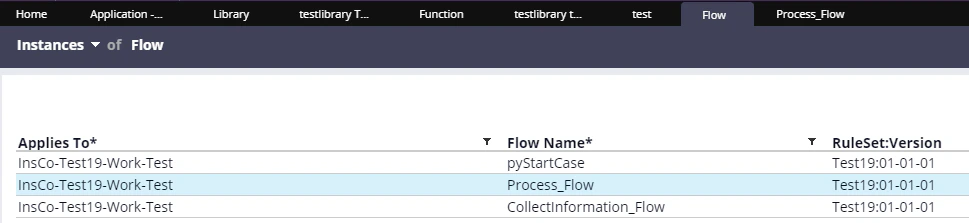
Screenshot of the Flow instances list in Pega Dev Studio showing the pyStartCase, Process_Flow, and CollectInformation_Flow flows for the case type.
6

Replace the step with a Utility step

Replace the Change stage step with a Utility step.
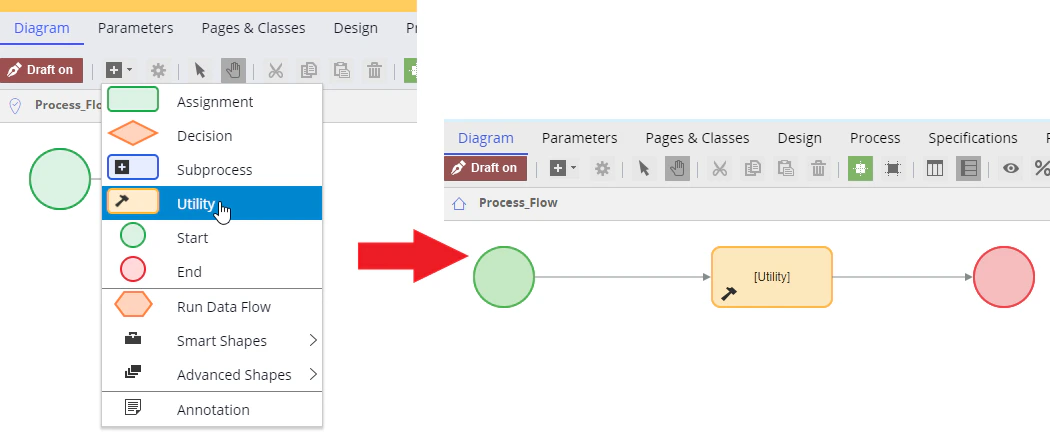
Screenshot of the Process_Flow diagram in Pega Dev Studio showing the shape menu with Utility selected and the resulting flow with a Utility shape between the Start and End nodes.
7

Create the activity from the Utility step

  1. Double-click the Utility item to open its properties.
  2. Change the name of the item to Capture Data.
  3. In the Rule field, type CaptureData to create a new activity with this name.
  4. Click the icon next to the Rule field.
  5. In the window that opens, click Create and open.
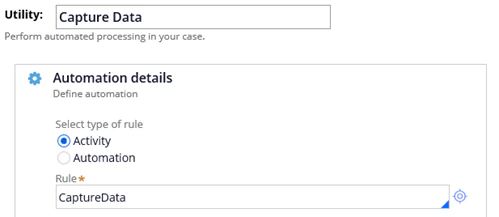
Screenshot of the Utility step properties in Pega Dev Studio showing the name set to Capture Data, the rule type Activity selected, and CaptureData entered in the Rule field.

Declare the pages and classes

On the Pages & Classes tab, create the following three objects:
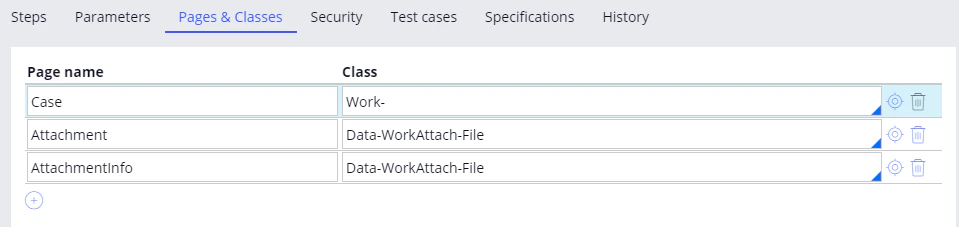
Screenshot of the Pages and Classes tab of the CaptureData activity in Pega Dev Studio showing the Case, Attachment, and AttachmentInfo pages mapped to the Work- and Data-WorkAttach-File classes.

Create the parameters

On the Parameters tab, create the following three parameters:
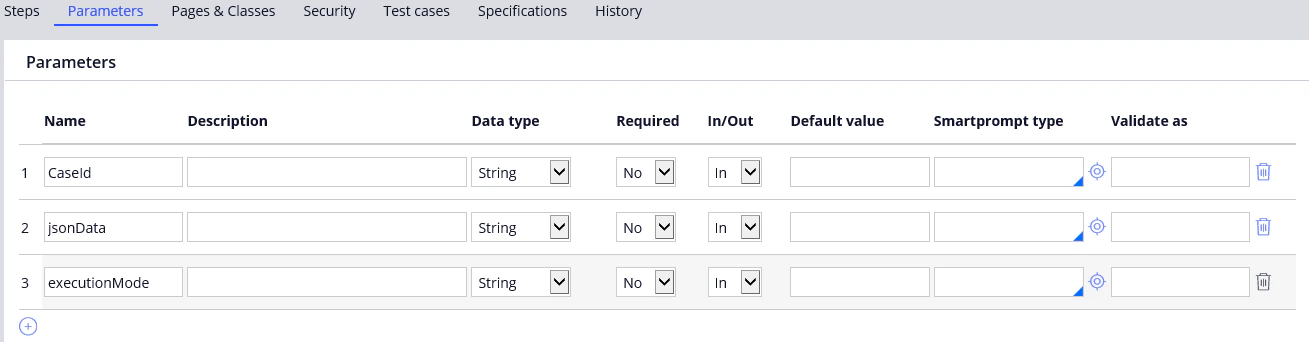
Screenshot of the Parameters tab of the CaptureData activity in Pega Dev Studio showing the CaseId, jsonData, and executionMode String parameters.

Create the local variables

Create the following three local variables:
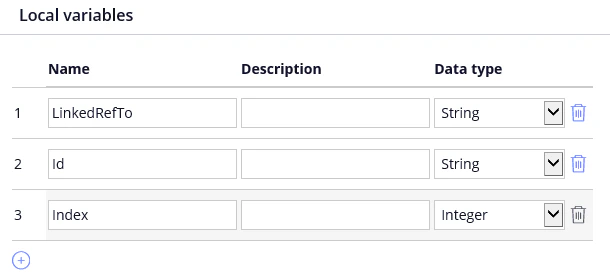
Screenshot of the local variables section of the CaptureData activity in Pega Dev Studio showing the LinkedRefTo, Id, and Index variables with their String and Integer data types.