
Create the main steps
1
Open the case
Create a new step and set the following fields: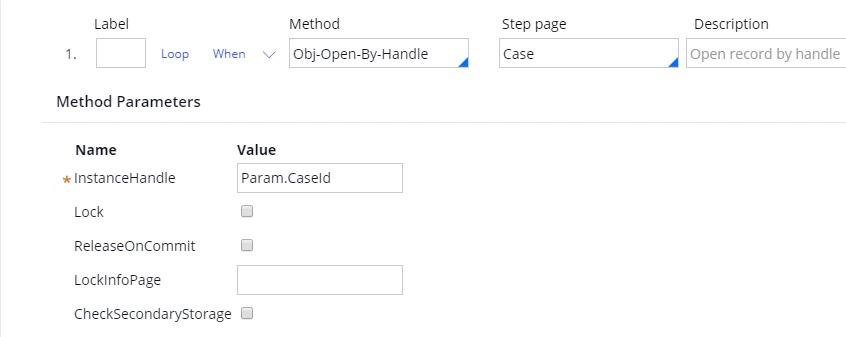
2
Remove the default empty list entry
Create a second step and set the following fields: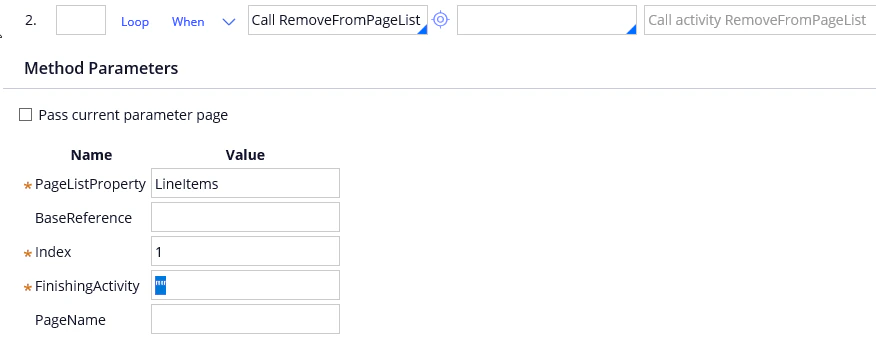
3
Initialize the index
Create a third step and set the following fields: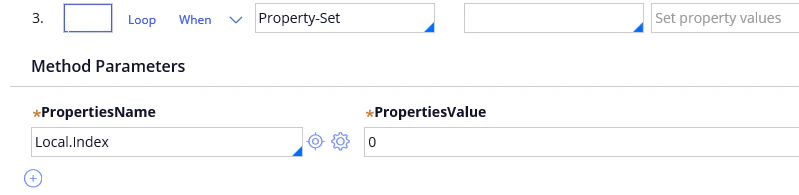
4
Get the file identifiers and file information
Create a fourth step, select 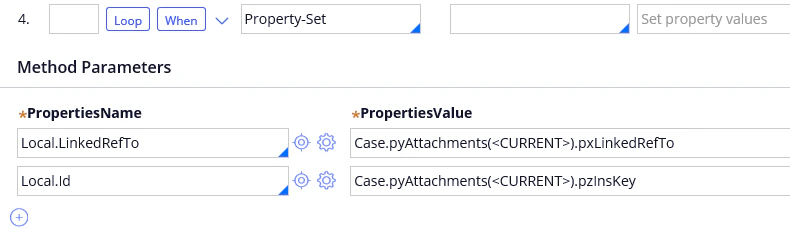
Property-Set in the Method field, and create the Local.LinkedRefTo and Local.Id parameters:Add a loop and a condition to the fourth step
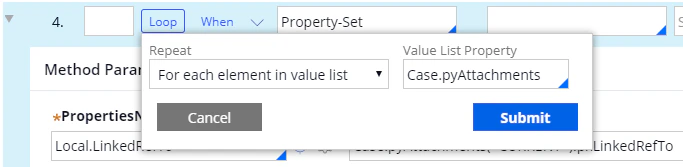
Add a loop to the fourth step. Set Repeat to For each element in value list and the Value List Property toCase.pyAttachments.

Create the six substeps
Create six substeps related to the fourth step. To create a substep, create a new step and drag it into the fourth step.1
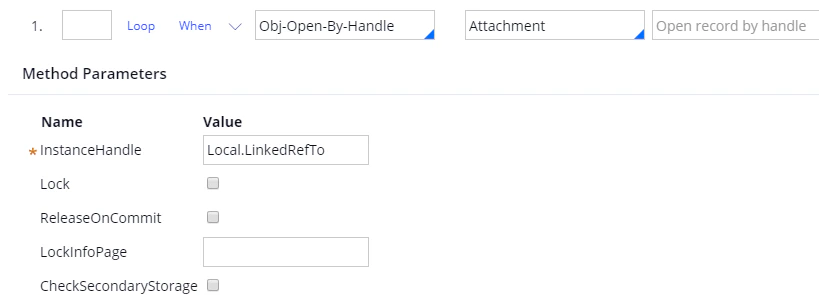
Open the attachment
2
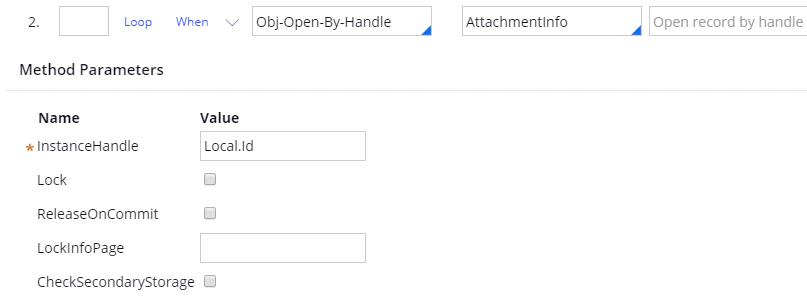
Open the attachment information
3
Call the connector function
Select 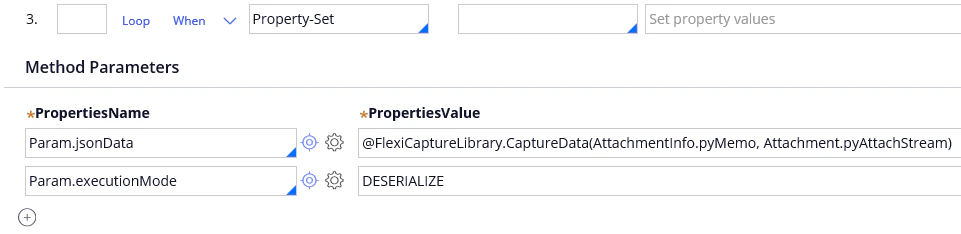
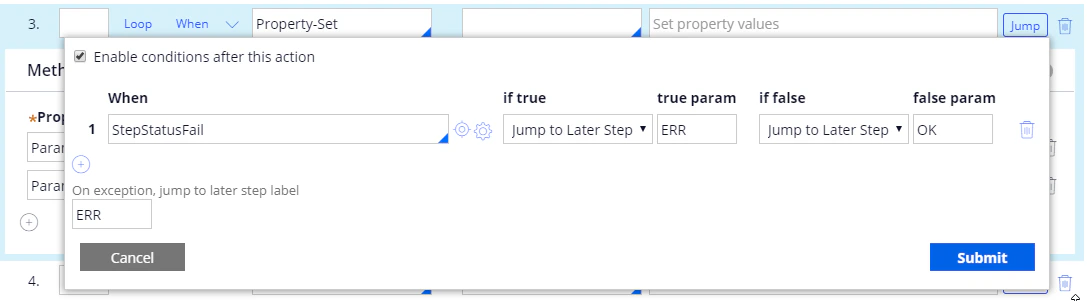
Property-Set in the Method field and create the following parameters:After the
@ character, specify the name of the library, and after the dot, specify the name of the function. For both, see Create a Java function in Pega.StepStatusFail parameter for error handling:Click Submit.
4
Handle the error messages
Select 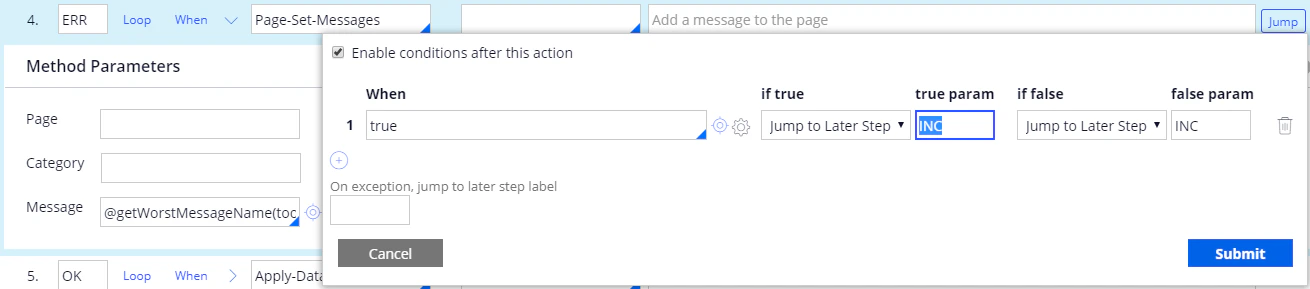
Page-Set-Messages in the Method field, set the Message parameter to @getWorstMessageName(tools), and mark this substep as ERR.To stop the activity performing any subsequent steps when an error occurs, click Jump and add the following parameters:5
Apply the Data Transform
Select 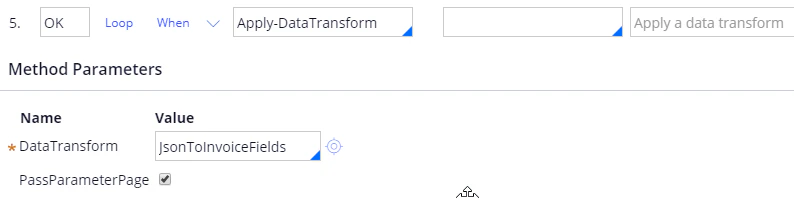
Apply-DataTransform in the Method field and set the DataTransform parameter to JsonToInvoiceFields.Mark this substep as OK and select the PassParameterPage option.6
Increment the index
Select 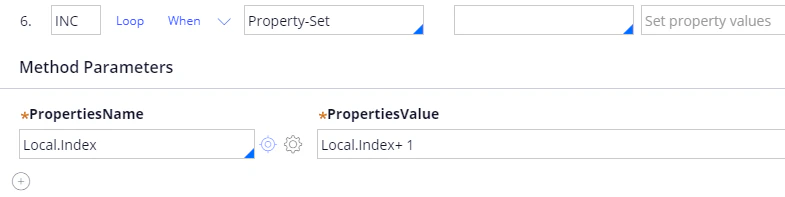
Property-Set in the Method field, create a Local.Index parameter, and set it to Local.Index + 1.Mark this substep as INC.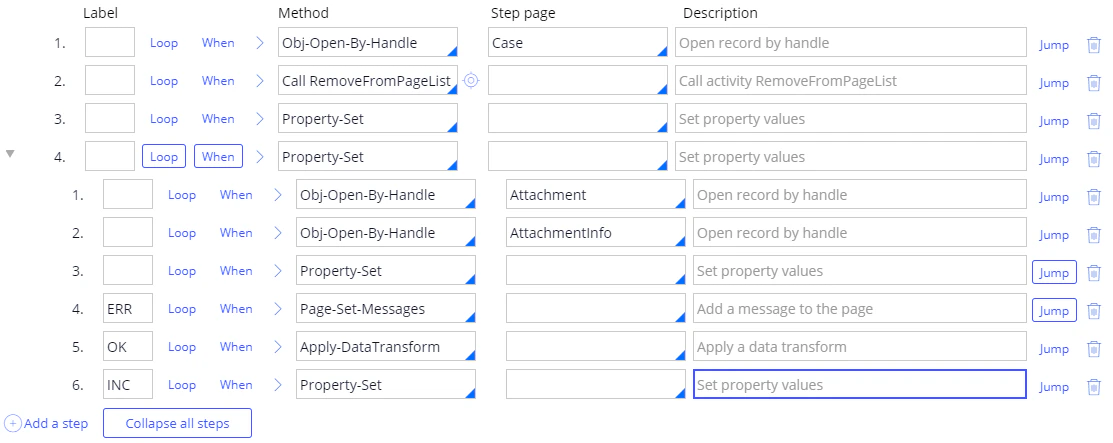
Finish the activity
1
Save the activity
Click Save.
2
Point the Utility item at the activity
Open the properties of the Utility item, select 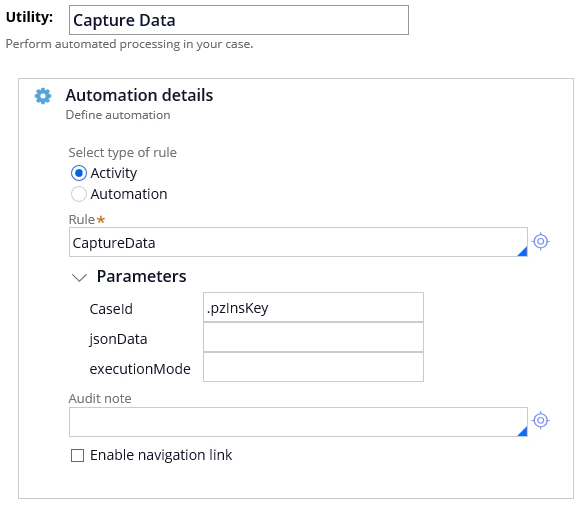
CaptureData in the Rule field, and set the CaseId parameter to .pzInsKey.3
Save your changes
Save your changes.