
Create the Data Transform record
1
Create a case type
Open Dev Studio and create a new case type.
2
Add the case fields
On the Data model tab, add the fields to be handled by your case, and then click Save.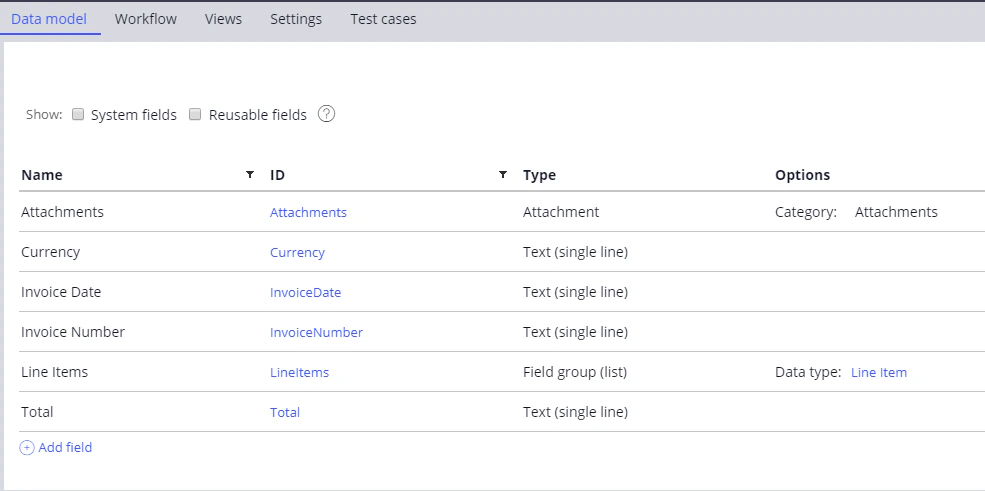
3
Open the Create Data Transform window
Click Records → Data Model → Data Transform, and then click Create.
4
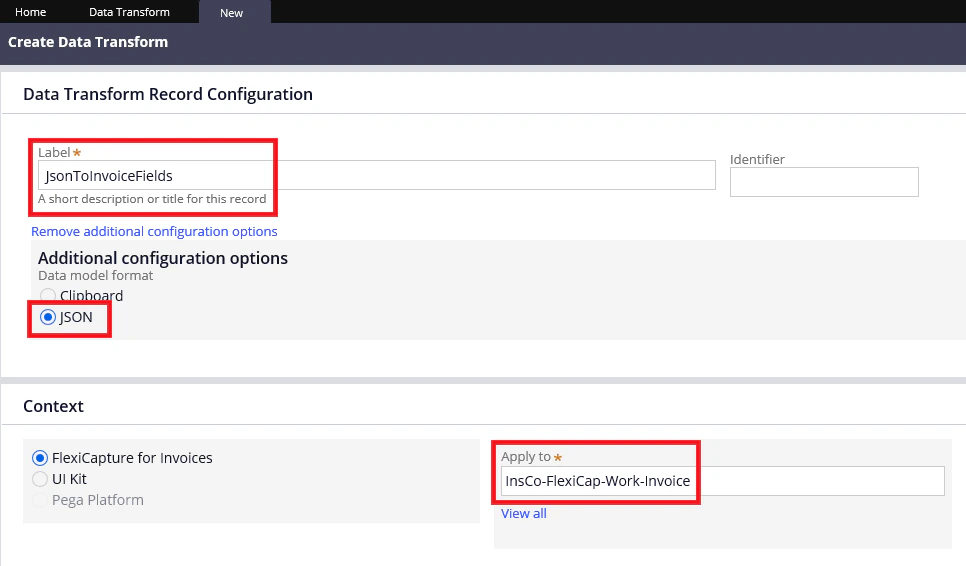
Configure the record
- In the Label field, specify a name for your new record.
- In the Additional configuration options section, select JSON.
- In the Apply to field, specify the full name of the case type you created earlier.
5
Map the JSON properties to the case fields
Click Create and open. In the window that opens, map the JSON properties in the JSON column to the case fields in the Clipboard column.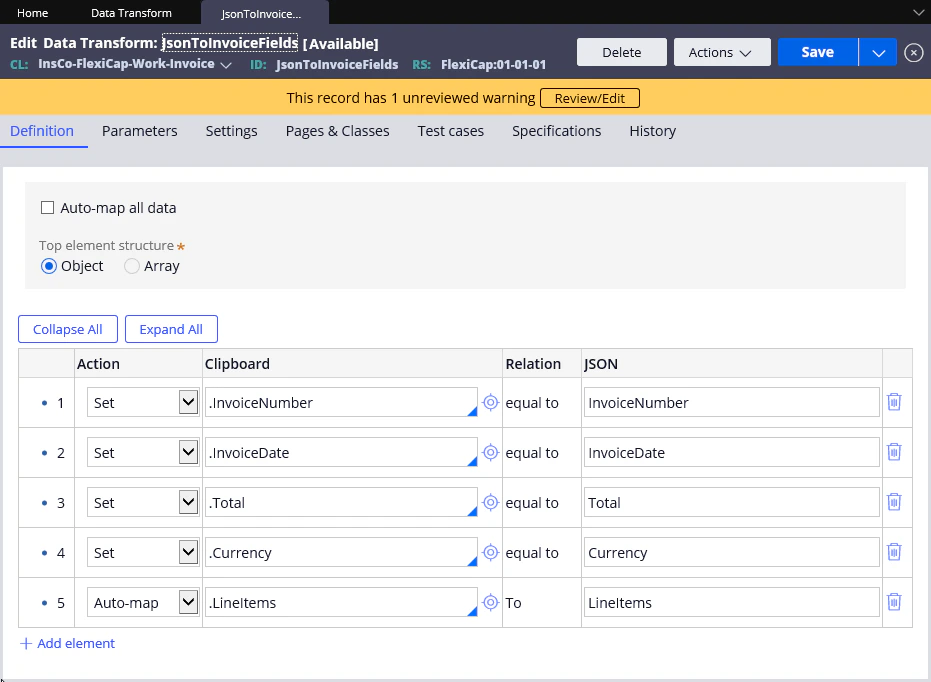
6
Save the record
Click Save.