The SendForProcessing activity creates a batch in ABBYY FlexiCapture, adds every case attachment to it, starts processing, and stores the batch identifier on the case. For the general procedure, see Create a Pega activity.

Pages and classes

Parameters

Local variables

Activity steps

1

Open the case
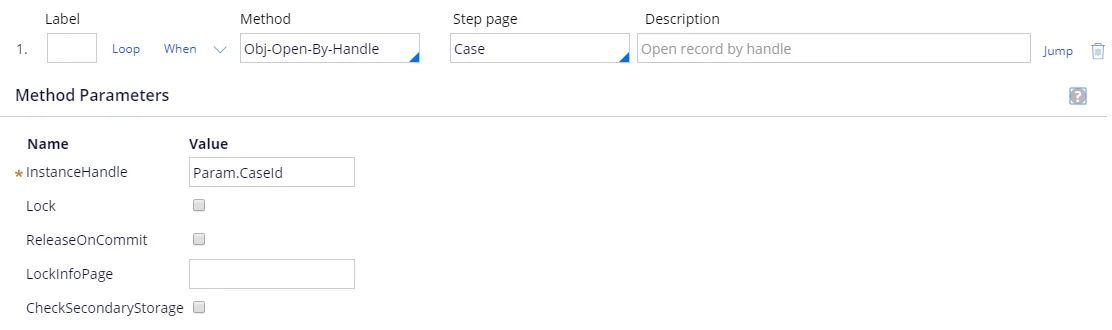
Screenshot of step 1 in Pega configured with the Obj-Open-By-Handle method, the Case step page, and an InstanceHandle of Param.CaseId.
2

Check that the case has attachments
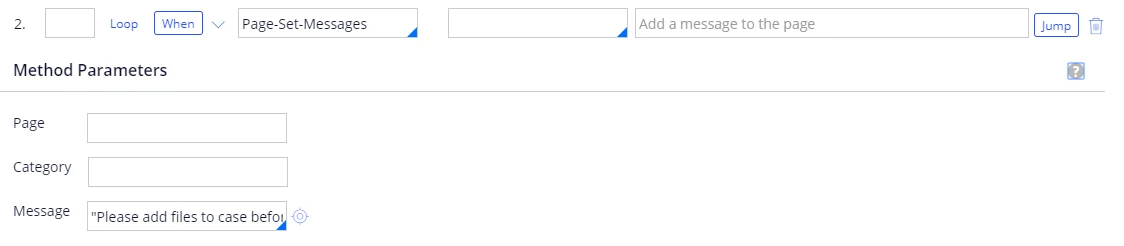
Screenshot of step 2 in Pega using the Page-Set-Messages method, with the Message set to the text prompting the user to add files to the case before proceeding.
Add the following When condition:To build the AttachmentsIsNull condition:
  1. In the When field, specify AttachmentsIsNull and click the configuration button. If the condition does not exist yet, a window opens in which you can create it.
  2. Make sure that the full name of the case is specified in the Apply to field, and then click Create and open.
  3. On the Conditions tab, click Configure advanced conditions here and select the length of [a pagelist property] Is [comparison operator] [value] condition type.
  4. Create the condition length of .pyAttachments is Equal To 0.
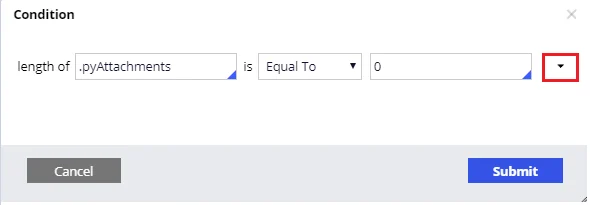
Screenshot of the Condition dialog in Pega defining the AttachmentsIsNull condition as length of .pyAttachments Is Equal To 0.
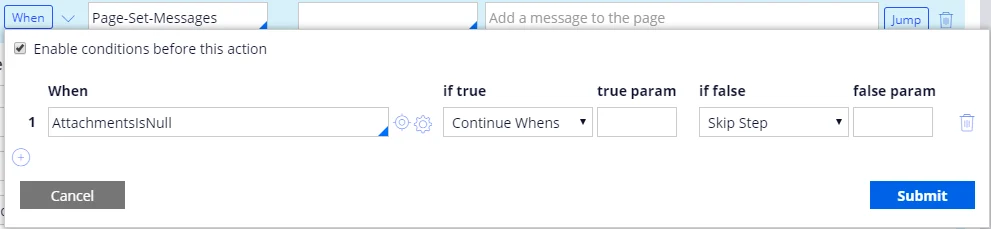
Screenshot of the When conditions dialog in Pega for step 2, with the AttachmentsIsNull condition set to Continue Whens if true and Skip Step if false.
Add the following Jump condition:
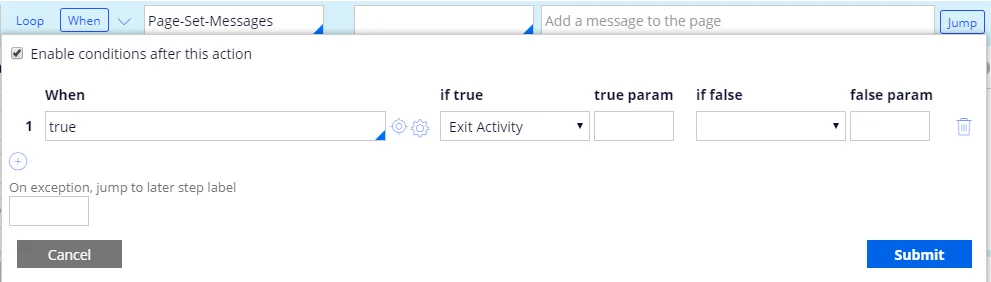
Screenshot of the Jump conditions for step 2 in Pega, with a When value of true that exits the activity.
3

Create the batch

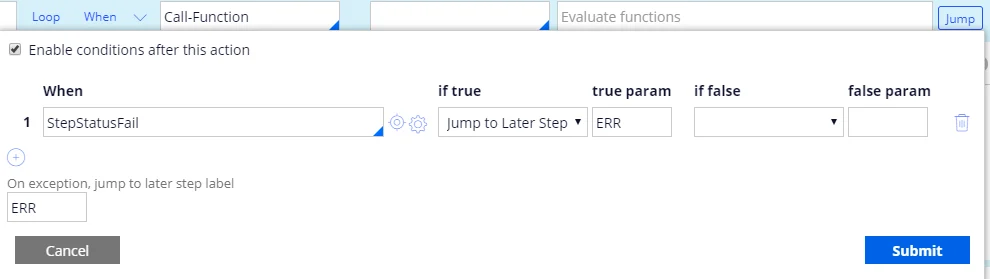
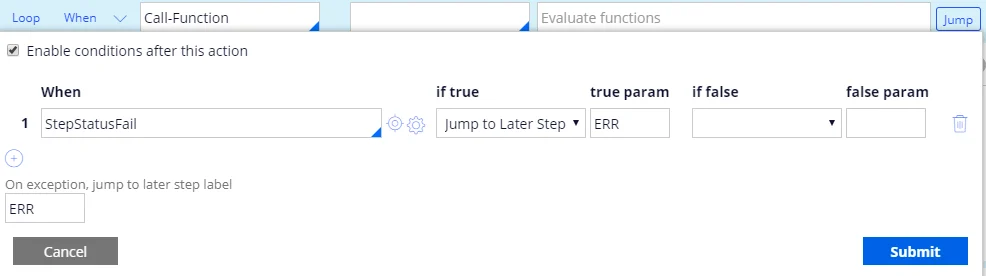
Set Method to Call-Function and the function as follows:For more information, see CreateNewBatch.Add the following Jump condition, and set On exception, jump to later step label to ERR:
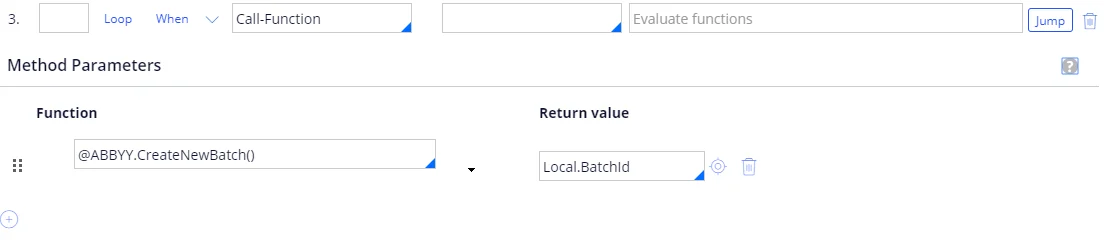
Screenshot of step 3 in Pega using the Call-Function method, with the function @ABBYY.CreateNewBatch() and a return value of Local.BatchId.
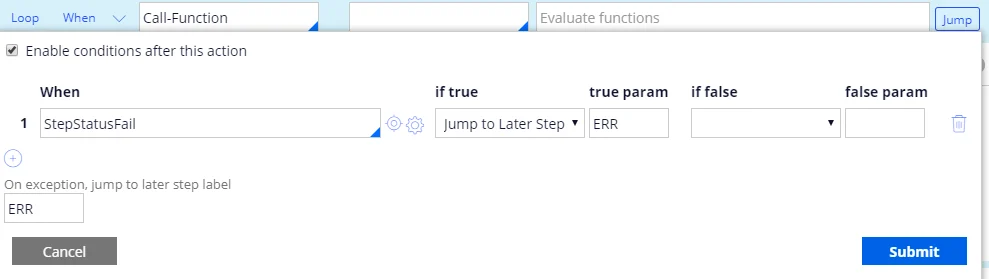
Screenshot of the Jump conditions for step 3 in Pega, with a StepStatusFail condition that jumps to later step ERR if true and an on-exception label of ERR.
4

Loop over the case attachments

Set Method to Property-Set and the properties as follows:
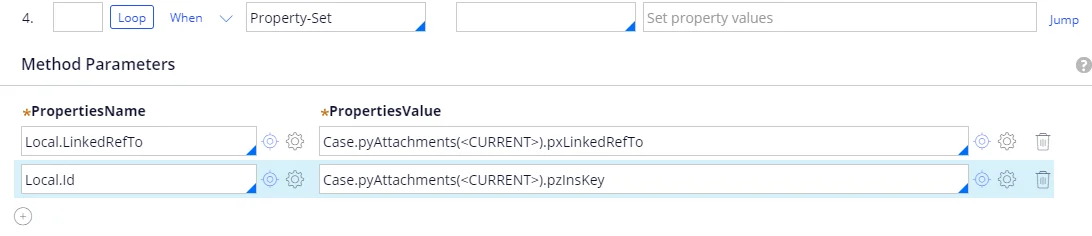
Screenshot of step 4 in Pega using the Property-Set method, with Local.LinkedRefTo set to the pxLinkedRefTo of the current Case.pyAttachments element and Local.Id set to its pzInsKey.
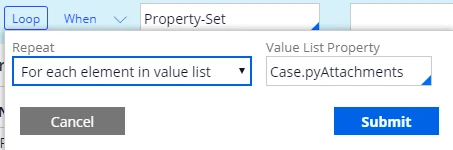
Set the Loop properties as follows:
Screenshot of the Loop dialog in Pega for step 4, with Repeat set to For each element in value list and the Value List Property set to Case.pyAttachments.
Add the following substeps to this step, so that the loop repeats them for each attachment:
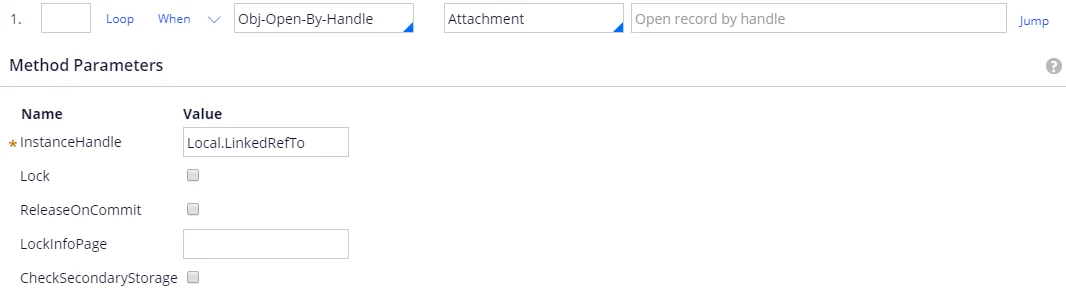
  1. Open the attachment
    Screenshot of substep 1 in Pega configured with the Obj-Open-By-Handle method, the Attachment step page, and an InstanceHandle of Local.LinkedRefTo.
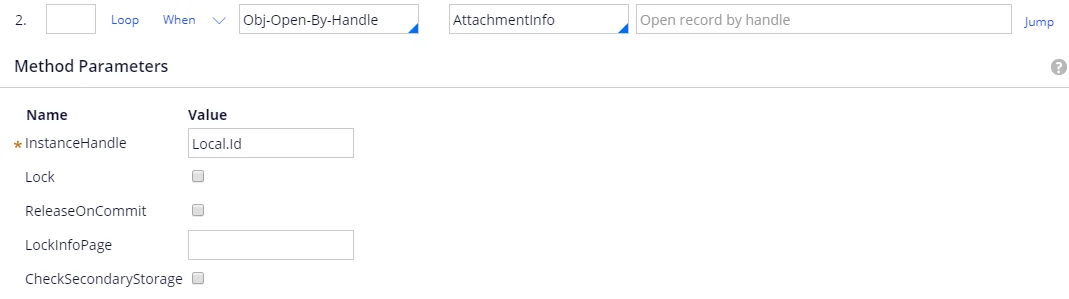
  2. Open the attachment information
    Screenshot of substep 2 in Pega configured with the Obj-Open-By-Handle method, the AttachmentInfo step page, and an InstanceHandle of Local.Id.
  3. Add the document to the batch Set Method to Call-Function and the function as follows: For more information, see AddDocumentToBatch. Add the following Jump condition, and set On exception, jump to later step label to ERR:
    Screenshot of substep 3 in Pega using the Call-Function method, with the function @ABBYY.AddDocumentToBatch(Local.BatchId, AttachmentInfo.pyMemo, Attachment.pyAttachStream) and no return value.
    Screenshot of the Jump conditions for substep 3 in Pega, with a StepStatusFail condition that jumps to later step ERR if true and an on-exception label of ERR.
5

Start batch processing

Set Method to Call-Function and the function as follows:For more information, see RunBatchProcessing.Add the following Jump condition, and set On exception, jump to later step label to ERR:

Screenshot of step 5 in Pega using the Call-Function method, with the function @ABBYY.RunBatchProcessing(Local.BatchId) and no return value.
Screenshot of the Jump conditions for step 5 in Pega, with a StepStatusFail condition that jumps to later step ERR if true and an on-exception label of ERR.
6

Wait for the verification URL

Set Method to Call-Function and the function as follows:For more information, see WaitFirstVerificationOrProcessedForMultiFileInvoice.Add the following Jump condition, and set On exception, jump to later step label to ERR:

Screenshot of step 6 in Pega using the Call-Function method, with the function @ABBYY.WaitFirstVerificationOrProcessedForMultiFileInvoice(Local.BatchId) and a return value of .VerificationUrl.
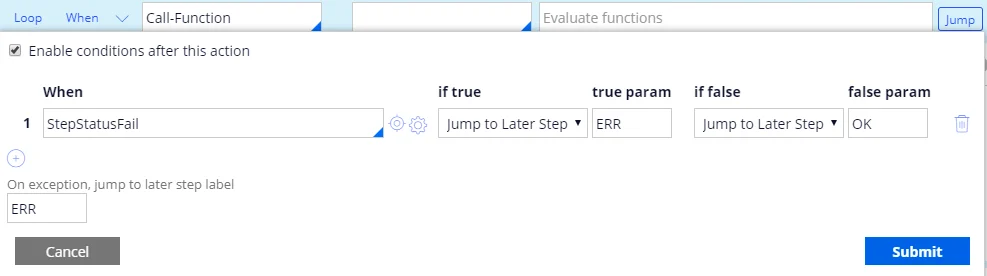
Screenshot of the Jump conditions for step 6 in Pega, with a StepStatusFail condition that jumps to later step ERR if true and OK if false, and an on-exception label of ERR.
7

Post the error message

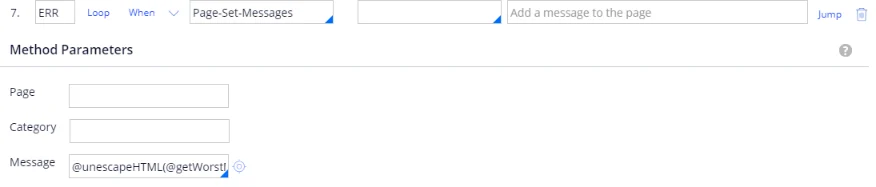
For more information, see unescapeHTML.
Screenshot of step 7 in Pega labeled ERR, using the Page-Set-Messages method with the Message set to @unescapeHTML(@getWorstMessageName(tools)).
8

Store the batch identifier

Set Label to OK, set Method to Property-Set, and set the property as follows:

Screenshot of step 8 in Pega labeled OK, using the Property-Set method with a PropertiesName of .BatchId set to a PropertiesValue of Local.BatchId.