1
Create the Character String element
Create a Character String element and name it RecipeName. It corresponds to the recipe name.
2
Open the Character String tab
Click the Character String tab.
3
Set the alphabet
Set the required alphabet. In the test images, it includes all the letters of the English alphabet, digits, and the characters
#, -, &, and .. The order and number of characters are not known in advance.4
Set the percentage of alphabet characters
Set Percentage of alphabet characters to 1.
5
Disable embedded hypotheses
Clear the Allow embedded hypotheses check box.
6
Set the percentage of non-alphabet characters
Set Percentage of non-alphabet characters to 0.2 (that is, 20%).
7
Set the character count
In the Character count field, specify the fuzzy range that estimates the total length of all the character strings. Keep the default range of
{-1, -1, INF, INF}, which means there are no constraints on the length of the character string.8
Set the vertical search constraint
Click the Relations tab.Tell FlexiLayout Studio that the recipe name is at least 100 dots lower than the bottom boundary of the form’s heading. In other words, there must be a gap at least 100 dots wide between the heading and the recipe name.Every line below the heading meets this criterion, so the search area must be narrowed further.
9
Narrow the search to the closest line
Click the Advanced tab.In the Advanced pre-search relations field, specify an additional search constraint: look for the line closest to the top boundary of the document. In the FlexiLayout language, write it as follows:Together with the search constraint on the Relations tab, this narrows the search area to the one line closest to the document heading.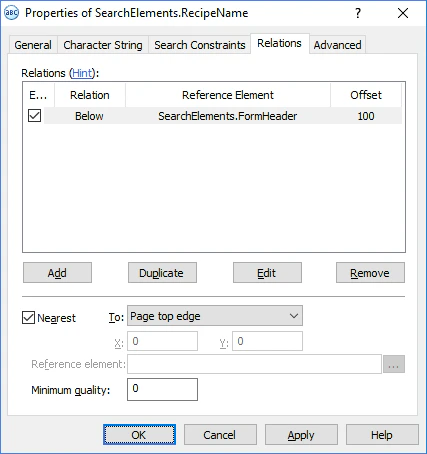
10
Open the Search Constraints tab
Click the Search Constraints tab.
11
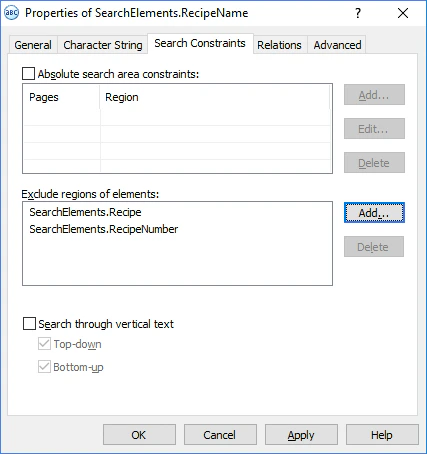
Exclude the Recipe and RecipeNumber regions
As stated in Step 8, exclude the regions of the Recipe and RecipeNumber elements from the search area for RecipeName.Click the Add… button next to the Exclude regions of elements field, and then in the Select Element to Exclude dialog box select the Recipe and RecipeNumber elements.