Set the FlexiLayout properties
By default, FlexiLayout Studio names the new FlexiLayout FlexiLayout1. For convenience, rename it and give it a meaningful name.1
Open the FlexiLayout properties
Double-click the name of the FlexiLayout (that is, FlexiLayout1), or right-click the FlexiLayout and select Properties… on the shortcut menu.
2
Rename the FlexiLayout
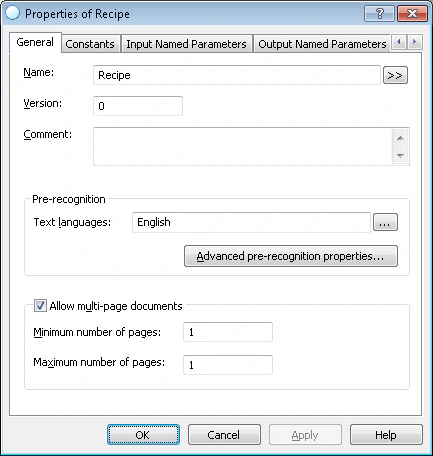
In the Name field, type a new name for the FlexiLayout, for example, Recipe.
3
Specify the pre-recognition parameters
- From the Text languages list, select English as the pre-recognition language. The documents contain text in English.
- Select Typographic in the Text type group. This is the default setting.
- Select the Fast pre-recognition mode.
4
Set the multi-page parameters
The document consists of one page. Set Minimum number of pages and Maximum number of pages to 1.
5
Review the configured properties
Confirm that the Recipe FlexiLayout properties match the following.