1
Activate the FlexiLayout window
In the FlexiLayout Studio main window, activate the FlexiLayout window.
2
Select the Blocks object
In the FlexiLayout tree, select the Blocks object.
3
Add a text block
Select Add Block → Text, either from the FlexiLayout menu or the shortcut menu.
4
Name the block
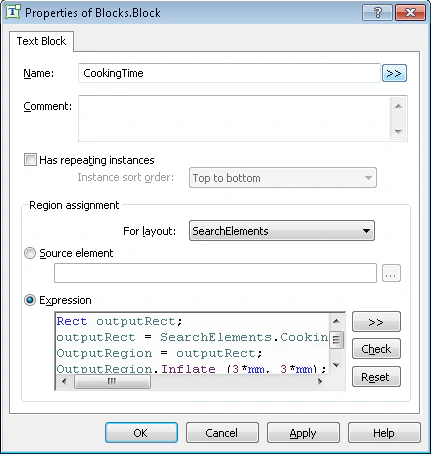
In the Properties dialog box, type a block name in the Name field, for example, CookingTime.
5
Set the location method
To describe the block location, select Expression.
6
Enter the block expression
Describe the block as a rectangle created by merging the rectangles around the CookingTimeHeader and CookingTime elements. To give FlexiLayout Studio some flexibility, enlarge the height and width of the resulting rectangle by 3 mm.In the FlexiLayout language, write it as follows: