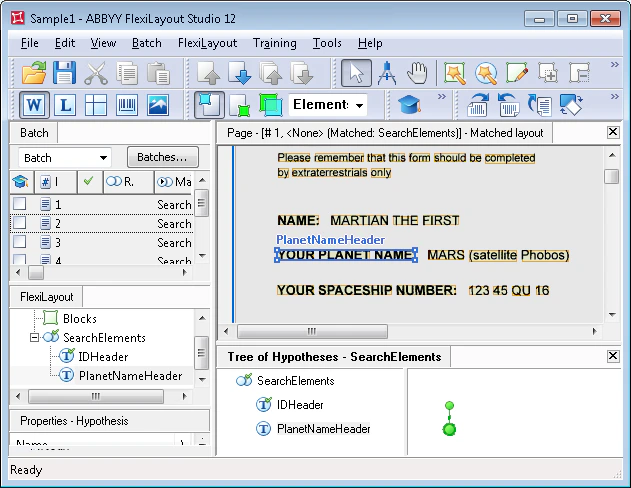
Create the PlanetNameHeader element
1
Create the Static Text element
Create an element of type Static Text and name it PlanetNameHeader.Do not select Required element (it is cleared by default). The document heading is a document identifier, so it is required. All other elements are optional. This lets FlexiLayout Studio formulate null hypotheses even for elements whose objects it cannot find on the images.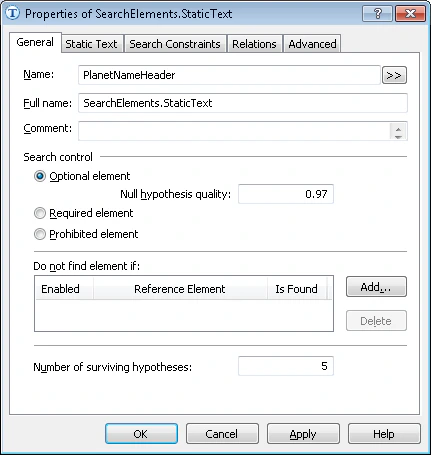
2
Open the Static Text tab
Click the Static Text tab.
3
Enter the search text
In the Search text field, type the text to search for. Because the field name appears on a single line in all the test images, you can type it without spaces: YOURPLANETNAME.
4
Set the maximum error percentage
Set Max error percentage to 20, because the field name has more than one word and is fairly long.
Match the FlexiLayout against the test images
Match the FlexiLayout with the test images and confirm that FlexiLayout Studio finds the YOUR PLANET NAME field on all of them.