
1
Open the Static Text tab
Open the element’s Properties dialog box, and then click the Static Text tab.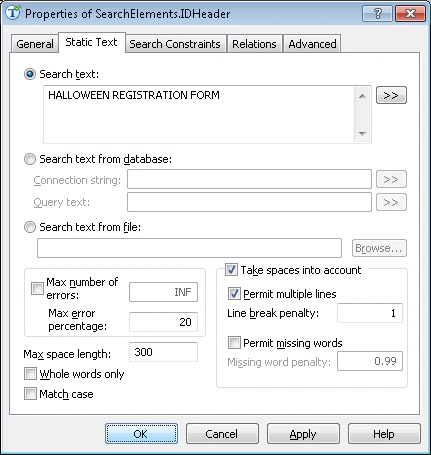
2
Enter the search text with spaces
In the Search text field, type the text to find and keep the spaces: HALLOWEEN REGISTRATION FORM. FlexiLayout Studio then looks for a phrase that may span more than one line.
3
Permit multiple lines
Select Take spaces into account and Permit multiple lines so the search phrase can appear on more than one line.
4
Set the line break penalty
Set the Line break penalty to 1. This preserves the hypothesis quality when the phrase wraps to the next line. A smaller value penalizes the hypothesis.