
A batch is a set of test images, or pages, that you use to debug a FlexiLayout. After you create the project, add the test images to the batch.
1

Open the Batch tab

In the main FlexiLayout Studio window, click the Batch tab.
2

Add the test images

In the File menu or the shortcut menu, select Open & Add Images….
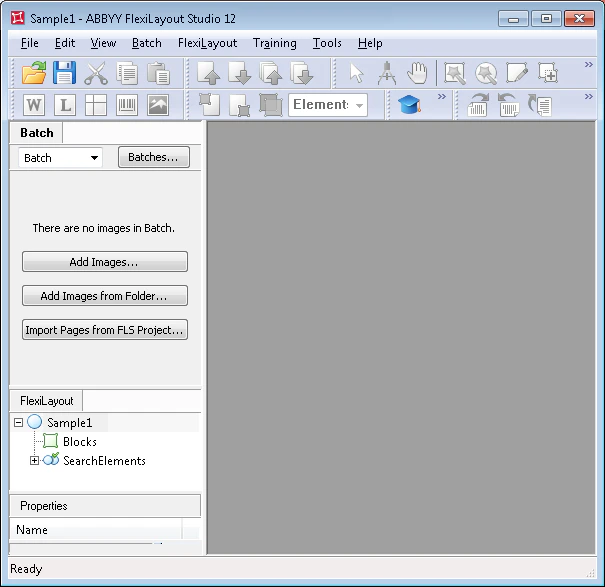
Screenshot of the Batch tab in ABBYY FlexiLayout Studio showing the File menu open with the Open & Add Images command selected to add test images to the batch.
3

Set the reference assembly option

In the Open Images dialog box, click Image Preprocessing Settings…, and then select One document per file in the dialog box that opens.
4

Specify the test image files

The Sample 1 images are located in %public%\ABBYY\FlexiCapture\12.0\Samples\FLS\English\Halloween Form\Halloween FormBatch\Halloween FormBatch\<page number>\Image\bwPage.frdat.
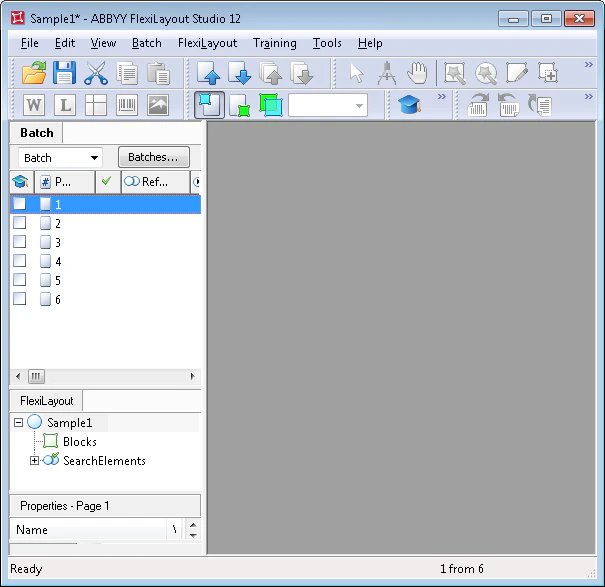
The test images you add to the batch appear in the Batch window.
Screenshot of the Batch window in ABBYY FlexiLayout Studio listing the test images that were added to the batch.
When you add images, you can set how reference assembly is performed. Selecting One document per file tells FlexiLayout Studio that each image is a separate document. For more information, see Reference document assembly.